Difference between revisions of "Images"
From Phoenix Cart User Guide
PeterRobert (talk | contribs) |
PeterRobert (talk | contribs) |
||
| Line 7: | Line 7: | ||
</div> | </div> | ||
| − | These settings control the display of images in admin. | + | These settings control the display of images in admin - the display of images in the shop is responsive i.e. automatically respond to the device being used to view the shop. |
| + | ---- | ||
| + | |||
| + | To change any setting: | ||
| + | *Click the item in the '''Title''' column list to select it. | ||
| + | *Click it again to edit. | ||
| + | *Change the settings in the edit panel. | ||
| + | *Click <span class="btn-blue">Save</span> | ||
| − | |||
<hr> | <hr> | ||
{{Page_In_Progress}} | {{Page_In_Progress}} | ||
{{Contribute}} | {{Contribute}} | ||
Revision as of 07:06, 22 October 2019
<historylink type="back">🠈 Back</historylink> 🠉 ADMINISTRATION
From admin go to Configuration → Images to see this:
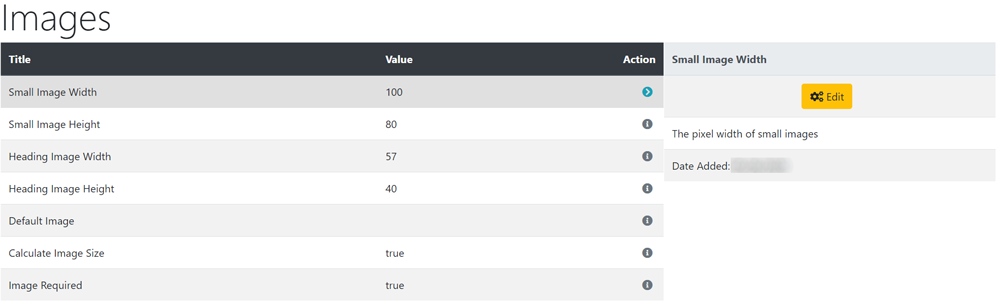
These settings control the display of images in admin - the display of images in the shop is responsive i.e. automatically respond to the device being used to view the shop.
To change any setting:
- Click the item in the Title column list to select it.
- Click it again to edit.
- Change the settings in the edit panel.
- Click Save

Please visit again soon for additions and changes
Phoenix Cart User Guide, like CE Phoenix Cart, is free to use but is maintained by unpaid volunteers.
All other content is the reserved Intellectual Property and Copyright of phoenixcart.org
