Difference between revisions of "Content"
From Phoenix Cart User Guide
PeterRobert (talk | contribs) |
PeterRobert (talk | contribs) |
||
| Line 20: | Line 20: | ||
**Change the setting for '''Enable... Module''' to '''False'''. | **Change the setting for '''Enable... Module''' to '''False'''. | ||
**Click <span class="btn-blue">Save</span> | **Click <span class="btn-blue">Save</span> | ||
| + | **The '''Active''' column button will change from green to red to show it has been disabled. | ||
---- | ---- | ||
*The display width of most content modules can be changed. | *The display width of most content modules can be changed. | ||
Revision as of 06:43, 23 October 2019
<historylink type="back">🠈 Back</historylink> 🠉 ADMINISTRATION
From admin go to Modules → Content - you will see this:
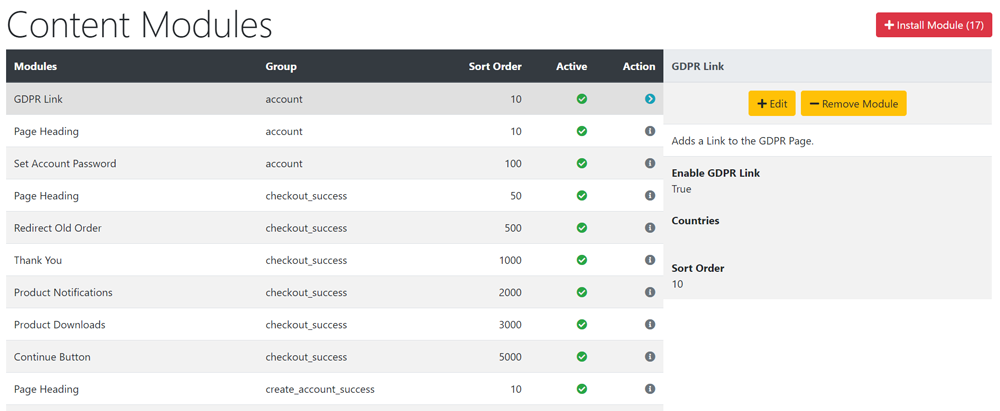
- This list shows all the content modules installed in the shop by default.
- They are sorted into Groups according to upon which page they display.
- Most groups are self explanatory.
- index refers to the front home page.
- index_nested refers to a page that lists categories or sub-categories.
- index_products refers to a page that lists products.
- product_info refers to apage that shows a single product.
- If you do not want a module to show in the shop it is better to disable it than to remove it.
- Click the item in the Modules column list to select it.
- Click Edit to open the edit panel.
- Change the setting for Enable... Module to False.
- Click Save
- The Active column button will change from green to red to show it has been disabled.
- The display width of most content modules can be changed.
- Click the item in the Modules column list to select it.
- Click Edit to open the edit panel.
- Change the Content Width setting according to the instructions shown.
- Click Save
- To install any content module:
- Click Install Module shown top right of screen - the number shown next to it indicates the number of modules available.
- Click a module to use from the list.
- Click Install Module
- Click Edit
- Choose a Content Width setting according to the instructions shown.
- Enter a Sort Order value to order the display of the module in relation to the other modules in the same group.
- Do not leave 0 as the Sort Order on modules as it can cause problems.
- You can give it any number but note and follow the convention used as default which is helpful.
- Click Save

Please visit again soon for additions and changes
Phoenix Cart User Guide, like CE Phoenix Cart, is free to use but is maintained by unpaid volunteers.
All other content is the reserved Intellectual Property and Copyright of phoenixcart.org
