Difference between revisions of "Minimum Values"
PeterRobert (talk | contribs) |
PeterRobert (talk | contribs) |
||
| (4 intermediate revisions by the same user not shown) | |||
| Line 1: | Line 1: | ||
| − | < | + | <div class="btn btn-grey btn-back">{{#fas:arrow-left}} Back</div> <div class="btn btn-grey btn-admin">{{#fas:cog}} Administration</div> |
| − | < | ||
<hr> | <hr> | ||
| + | |||
| + | |||
From admin go to '''Configuration → Minimum Values''' - you will see this: | From admin go to '''Configuration → Minimum Values''' - you will see this: | ||
<div class="mainpage_box"> | <div class="mainpage_box"> | ||
| − | [[File:minimumvalues.png|1500px]] | + | [[File:minimumvalues.png|link=|1500px]] |
</div> | </div> | ||
All the preset values can be left as they are - they do not need to be changed unless you have specific requirements. | All the preset values can be left as they are - they do not need to be changed unless you have specific requirements. | ||
| Line 14: | Line 15: | ||
*Change the settings in the edit panel. | *Change the settings in the edit panel. | ||
*Click <span class="btn-blue">Save</span> | *Click <span class="btn-blue">Save</span> | ||
| + | |||
| + | |||
---- | ---- | ||
| + | |||
| + | |||
These set the minimum number of characters required to be entered by the customer on the Create Account page for each named input field otherwise an error message is displayed. | These set the minimum number of characters required to be entered by the customer on the Create Account page for each named input field otherwise an error message is displayed. | ||
| Line 28: | Line 33: | ||
*'''Telephone Number''' | *'''Telephone Number''' | ||
*'''Password''' | *'''Password''' | ||
| + | |||
---- | ---- | ||
| + | |||
These set the minimum number of characters required to be entered by the customer on some Payment Modules for each named input field otherwise an error message is displayed. | These set the minimum number of characters required to be entered by the customer on some Payment Modules for each named input field otherwise an error message is displayed. | ||
| − | |||
*'''Credit Card Number''' | *'''Credit Card Number''' | ||
| + | |||
---- | ---- | ||
| − | + | ||
| − | + | ||
| − | |||
This sets the minimum number of products to show on the Best Sellers Module if that is enabled. | This sets the minimum number of products to show on the Best Sellers Module if that is enabled. | ||
*'''Best Sellers''' | *'''Best Sellers''' | ||
Latest revision as of 06:09, 25 March 2021
From admin go to Configuration → Minimum Values - you will see this:
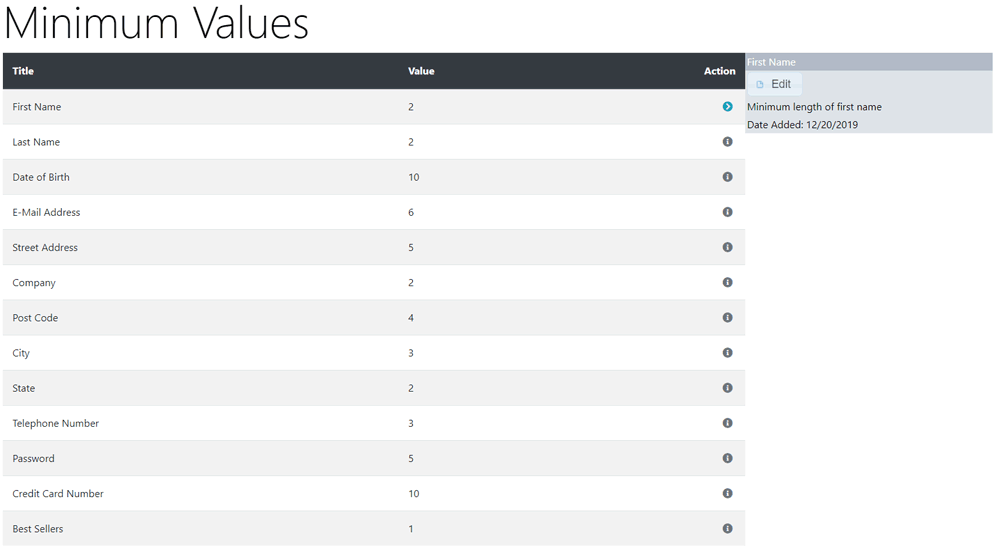
All the preset values can be left as they are - they do not need to be changed unless you have specific requirements.
To change any setting:
- Click the item in the Title column list to select it.
- Click it again to edit.
- Change the settings in the edit panel.
- Click Save
These set the minimum number of characters required to be entered by the customer on the Create Account page for each named input field otherwise an error message is displayed.
- First Name
- Last Name
- Date of Birth
- E-Mail Address
- Street Address
- Company
- Post Code
- City
- State
- Telephone Number
- Password
These set the minimum number of characters required to be entered by the customer on some Payment Modules for each named input field otherwise an error message is displayed.
- Credit Card Number
This sets the minimum number of products to show on the Best Sellers Module if that is enabled.
- Best Sellers

Please visit again soon for additions and changes
Phoenix Cart User Guide, like CE Phoenix Cart, is free to use but is maintained by unpaid volunteers.
All other content is the reserved Intellectual Property and Copyright of phoenixcart.org
