Difference between revisions of "Queued Emails"
PeterRobert (talk | contribs) |
PeterRobert (talk | contribs) |
||
| Line 80: | Line 80: | ||
Click on a Template in the table to select it. | Click on a Template in the table to select it. | ||
| − | + | ||
| + | To preview the e-mail, click <span class="btn-info">View This E-mail</span> | ||
| + | |||
| + | This will display the preview in a pop-up, for order_thanks as an example, you will see this: | ||
| + | |||
| + | <div class="mainpage_box"> | ||
| + | [[File:queued-emails-template-preview.jpg|link=]] | ||
| + | </div> | ||
Revision as of 07:04, 24 August 2024
Coming soon to a Phoenix Cart near you!!
Phoenix Cart’s Queued E-mails is a powerful feature, unique to Phoenix Cart, that automates customer engagement effortlessly.
This system automatically adds preconfigured e-mails to a queue and schedules a send date based on customer actions — or inactions — requiring no ongoing input from the store owner.
Once set up, it’s virtually 'Set & Forget,' giving you seamless automation and saving valuable time while keeping full control in your hands.
From admin go to  Queued E-mails
See the dropdown menu showing Queue and Templates.
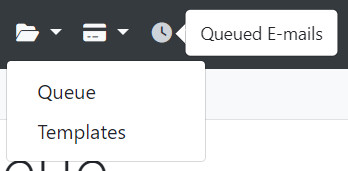
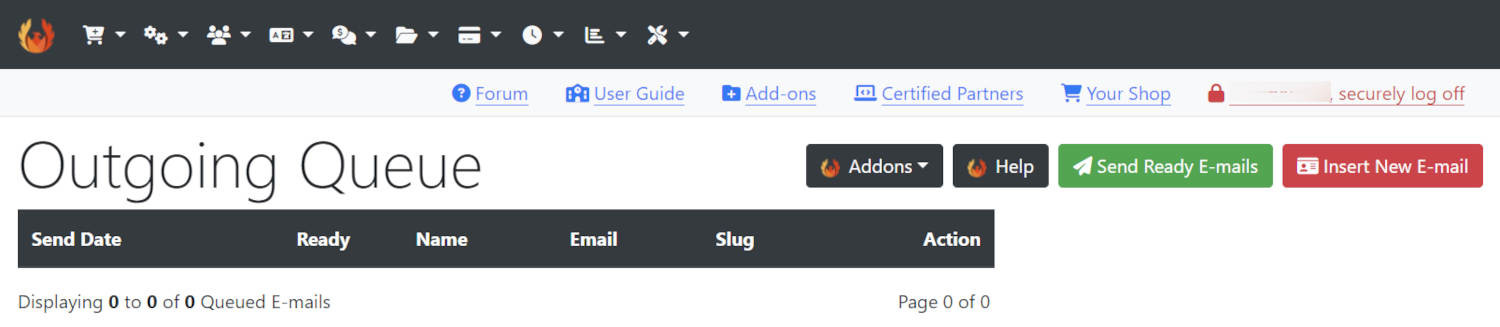
Click Queue to go to Outgoing Queue page.
On a new installation with no Customers or Orders yet, see this:
Click Templates to go to Outgoing E-mail Templates page to see this:

There are 3 Scheduler Modules and their associated E-mail Templates built into Phoenix Cart and ready to use.
no_checkout
If a customer registers but does not checkout, this e-mail will be automatically added to the Outgoing Queue.
The e-mail will be automatically scheduled to send 10 days after registration if the customer does not check out during that time.
It will be automatically be removed from the Outgoing Queue when it is automatically sent or if the customer checks out during that time.
order_thanks
When a customer checks out, this e-mail will be automatically added to the Outgoing Queue.
The e-mail will be automatically scheduled to send 4 hours after checkout.
It will be automatically be removed from the Outgoing Queue when it is automatically sent.
winback
When a customer checks out, this e-mail will be automatically added to the Outgoing Queue.
The e-mail will be automatically scheduled to send 90 days after checkout if the customer has not signed in during that time.
It will be automatically be removed from the Outgoing Queue when it is automatically sent or if the customer signs in during that time when a new e-mail will be automatically added to the Outgoing Queue and scheduled.
More Scheduler Modules are available in the Phoenix Cart Addons Library - click the Addons button at the top of the page.
Preview and Edit E-mail Templates.
Click on a Template in the table to select it.
To preview the e-mail, click View This E-mail
This will display the preview in a pop-up, for order_thanks as an example, you will see this:
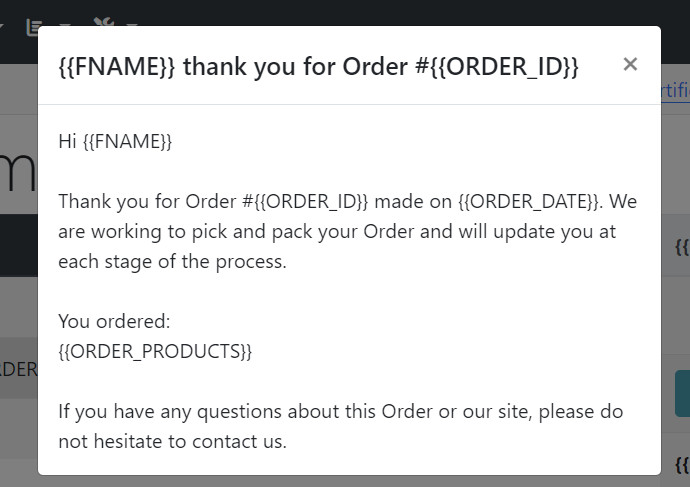
These can be edited as required.
For example, to

Please visit again soon for additions and changes
Phoenix Cart User Guide, like CE Phoenix Cart, is free to use but is maintained by unpaid volunteers.
All other content is the reserved Intellectual Property and Copyright of phoenixcart.org
