Difference between revisions of "Navbar Modules"
PeterRobert (talk | contribs) |
PeterRobert (talk | contribs) |
||
| (One intermediate revision by the same user not shown) | |||
| Line 14: | Line 14: | ||
</div> | </div> | ||
| + | |||
| + | ---- | ||
==='''Hamburger'''=== | ==='''Hamburger'''=== | ||
By default, '''Hamburger''' only shows if the shop is viewed on a small screen/viewport like this: | By default, '''Hamburger''' only shows if the shop is viewed on a small screen/viewport like this: | ||
| Line 33: | Line 35: | ||
| + | ---- | ||
==='''Brand'''=== | ==='''Brand'''=== | ||
'''Brand''' displays your '''Mini Logo''' as defined in '''Configuration → Store Logo''' | '''Brand''' displays your '''Mini Logo''' as defined in '''Configuration → Store Logo''' | ||
| + | |||
| + | ---- | ||
==='''Edit/Install Modules'''=== | ==='''Edit/Install Modules'''=== | ||
| Line 47: | Line 52: | ||
**Enter a value for '''Sort Order''' to change its position within the Content Placement Group. | **Enter a value for '''Sort Order''' to change its position within the Content Placement Group. | ||
**Click <span class="btn-green">Save</span> | **Click <span class="btn-green">Save</span> | ||
| + | |||
---- | ---- | ||
Latest revision as of 09:30, 24 November 2024
From admin go to  Modules → Navbar to see this
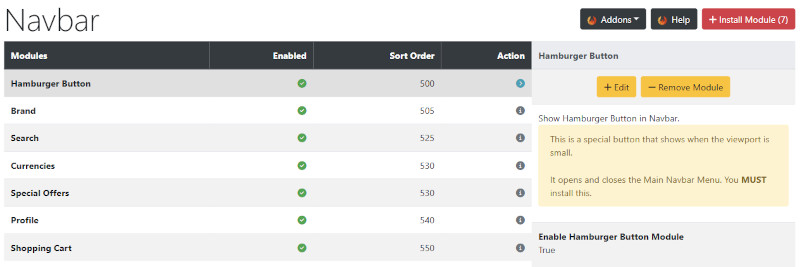
The modules installed by default show on the store like this:

Hamburger
By default, Hamburger only shows if the shop is viewed on a small screen/viewport like this:

The other modules (except Brand and Shopping Cart) will not appear if the store is viewed on a small screen. The Hamburger is a menu that will display those other modules when clicked to see this:
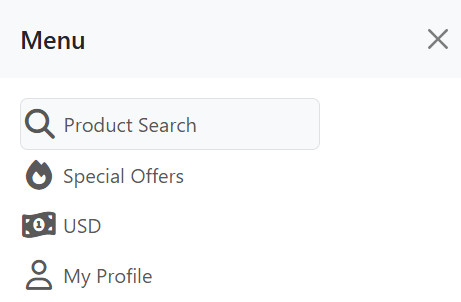
The default behaviour for when the Hamburger shows can be changed by editing the settings for the Navigation Bar.
Go to Modules → Content, select Navigation Bar in the list and edit the Collapse setting.
Brand
Brand displays your Mini Logo as defined in Configuration → Store Logo
Edit/Install Modules
- To install other modules:
- Click Install Module
- Click a module in the list to select it.
- Click Install Module
- Click Edit
- Choose a Content Placement Group option to display on the Home, Left, Center or Right of the Navigation Bar.
- Enter a value for Sort Order to change its position within the Content Placement Group.
- Click Save
Tip: If you don't want to show a module, you can either disable (hide) it or remove (uninstall) it.
When playing with the design, it's a good option to disable it, as it saves the settings it has been given, meaning it will be exactly the same as it was if you choose to enable it again later.
However, this also means that it is loaded completely with every page, which in extreme circumstances might slow down your website
If you are sure you don't want to use a module, it is better to remove it than to hide it.
Many Addons and Extensions available in the CE Phoenix Cart Addons Library
If help is needed, support is available in the CE Phoenix Cart Support Forum
Phoenix Cart User Guide, like CE Phoenix Cart, is free to use but is maintained by unpaid volunteers.
All other content is the reserved Intellectual Property and Copyright of phoenixcart.org
