Difference between revisions of "Countries"
PeterRobert (talk | contribs) |
PeterRobert (talk | contribs) |
||
| (8 intermediate revisions by the same user not shown) | |||
| Line 1: | Line 1: | ||
<div class="btn btn-grey btn-back">{{#fas:arrow-left}} Back</div> <div class="btn btn-grey btn-admin">{{#fas:cog}} Administration</div> | <div class="btn btn-grey btn-back">{{#fas:arrow-left}} Back</div> <div class="btn btn-grey btn-admin">{{#fas:cog}} Administration</div> | ||
<hr> | <hr> | ||
| + | __TOC__ | ||
| + | __FORCETOC__ | ||
From admin dashboard go to [[File:adminnavbartax.png|link=]] '''Locations & Taxes → Countries''' to see this: | From admin dashboard go to [[File:adminnavbartax.png|link=]] '''Locations & Taxes → Countries''' to see this: | ||
<div class="mainpage_box"> | <div class="mainpage_box"> | ||
| − | [[File:countries.png|link=]] | + | [[File:countries.png|link=|1500px]] |
</div> | </div> | ||
| − | + | CE Phoenix Cart has every country installed by default. | |
| − | + | The green tick in the '''Status''' column shows the country as enabled. | |
| + | |||
| + | |||
| + | ---- | ||
| + | ==='''Disable Country'''=== | ||
| + | Click the x to disable and it will then show a red x to show the country as disabled. | ||
| + | |||
| + | <div class="mainpage_box"> | ||
| + | [[File:countries-disable.png|link=|1500px]] | ||
| + | </div> | ||
| + | |||
| + | You might want to remove countries to which you will not be selling. | ||
*Click a country in the list to select it. | *Click a country in the list to select it. | ||
*Click <span class="btn-red">Delete</span> | *Click <span class="btn-red">Delete</span> | ||
| Line 13: | Line 26: | ||
<hr> | <hr> | ||
| − | + | ==='''Address Format'''=== | |
| − | The Address Format can be changed for each country by choosing a number from the drop down list. | + | The Address Format can be changed for each country by choosing a number (1-5) from the drop down list. |
| − | The formats are automatically created when Phoenix | + | The formats are automatically created when Phoenix Cart is installed and are in the '''address_format''' database table. |
If none of the formats suit your individual use case then edit one of the existing formats or insert an additional format in the database table. | If none of the formats suit your individual use case then edit one of the existing formats or insert an additional format in the database table. | ||
| + | Note that this changes the address format for new orders, not existing orders. | ||
1<br/> | 1<br/> | ||
| Line 48: | Line 62: | ||
country | country | ||
| + | |||
| + | There are helpful Addons available in the Addons Library: | ||
| + | *'''[https://phoenixcart.org/forum/app.php/addons/free_addon/address_format_manager/ Address Format Manager]''' | ||
| + | |||
| + | ---- | ||
<hr> | <hr> | ||
| + | {{Pro}} | ||
| + | {{Forum}} | ||
{{Contribute}} | {{Contribute}} | ||
Latest revision as of 13:55, 8 July 2026
From admin dashboard go to  Locations & Taxes → Countries to see this:
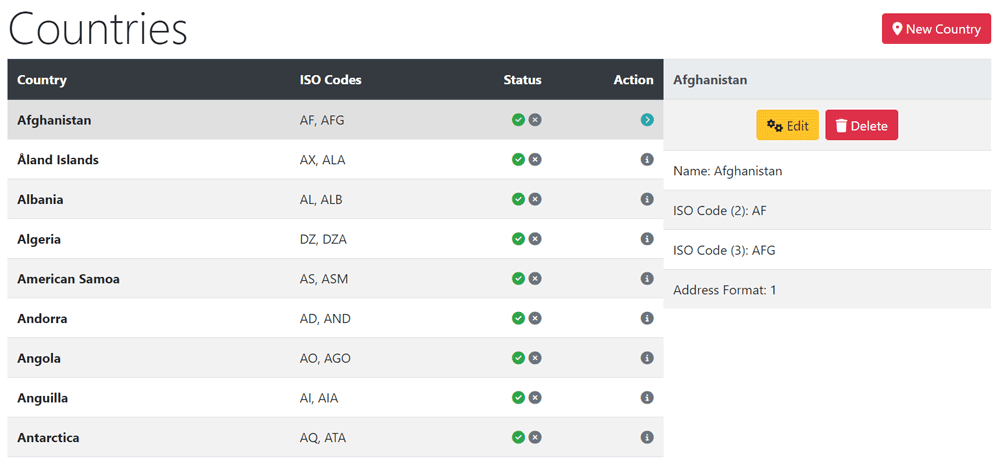
CE Phoenix Cart has every country installed by default.
The green tick in the Status column shows the country as enabled.
Disable Country
Click the x to disable and it will then show a red x to show the country as disabled.

You might want to remove countries to which you will not be selling.
- Click a country in the list to select it.
- Click Delete
- Click Delete again to confirm deletion.
Address Format
The Address Format can be changed for each country by choosing a number (1-5) from the drop down list. The formats are automatically created when Phoenix Cart is installed and are in the address_format database table. If none of the formats suit your individual use case then edit one of the existing formats or insert an additional format in the database table. Note that this changes the address format for new orders, not existing orders.
1
name
streets
city, postcode
state, country
2
name
streets
city, state postcode
country
3
name
streets
city
postcode - state, country
4
name
streets
city (postcode)
country
5
name
streets
postcode city
country
There are helpful Addons available in the Addons Library:
Many Addons and Extensions available in the CE Phoenix Cart Addons Library
If help is needed, support is available in the CE Phoenix Cart Support Forum
Phoenix Cart User Guide, like CE Phoenix Cart, is free to use but is maintained by unpaid volunteers.
All other content is the reserved Intellectual Property and Copyright of phoenixcart.org
