Difference between revisions of "Set up Customer Details"
PeterRobert (talk | contribs) |
PeterRobert (talk | contribs) |
||
| (15 intermediate revisions by the same user not shown) | |||
| Line 1: | Line 1: | ||
| − | <div class="btn btn-grey btn-back">{{#fas:arrow-left}} Back</div> <div class="btn btn-grey btn-setup-shop">{{#fas:play-square}} | + | <div class="btn btn-grey btn-back">{{#fas:arrow-left}} Back</div> <div class="btn btn-grey btn-setup-shop">{{#fas:play-square}} [[Set_Up_Store|Set Up Store]]</div> |
<hr> | <hr> | ||
| − | + | __TOC__ | |
| − | + | __FORCETOC__ | |
From admin go to [[File:adminnavbarmod.png|link=]] '''Modules → Customer data''' - you will see this: | From admin go to [[File:adminnavbarmod.png|link=]] '''Modules → Customer data''' - you will see this: | ||
<div class="mainpage_box"> | <div class="mainpage_box"> | ||
| − | [[File:customerdata. | + | [[File:customerdata.jpg|link=|1500px]] |
</div> | </div> | ||
| + | ==='''Customer Data Modules'''=== | ||
| + | The Customer Data modules are displayed on the '''Create a Profile''' (create_account.php) page and other pages for data input requested from customers. | ||
| + | |||
| + | Modules displayed are shown with a Sort Order not equal to '''0'''. | ||
| + | |||
| + | For example, '''City''', '''Country''', '''Email Address''', '''First Name''', '''Last Name''', '''Newsletter''', '''Password''', '''Password Confirmation''', '''Post Code''', '''Street Address''', '''Telephone'''. | ||
| + | |||
| + | Modules with a Sort Order of '''0''' are used by the system but not displayed on store pages. Do not edit or remove them unless instructed to do so. | ||
| − | + | Some modules that are displayed are required by systems. For example, '''Country''' would be required for Tax, Payment and Shipping systems. Do not disable or remove them unless instructed by a developer. | |
| − | |||
| − | Click on the module to select it and click<span class="btn-yellow">Edit</span> to: | + | ---- |
| + | ==='''Edit Module'''=== | ||
| + | Click on the module to select it and click <span class="btn-yellow">Edit</span> to: | ||
| − | *Enable/ Disable | + | *Enable/Disable |
*Change the Customer Data Group in which they are displayed. | *Change the Customer Data Group in which they are displayed. | ||
*Make them a Required field if enabled. | *Make them a Required field if enabled. | ||
| Line 30: | Line 39: | ||
<hr> | <hr> | ||
| − | + | ==='''Install Module'''=== | |
*To install additional content modules: | *To install additional content modules: | ||
**Click <span class="btn-red">Install Module</span> shown top right of screen - the number shown next to it indicates the number of modules available. | **Click <span class="btn-red">Install Module</span> shown top right of screen - the number shown next to it indicates the number of modules available. | ||
| Line 37: | Line 46: | ||
**Click <span class="btn-yellow">Edit</span> | **Click <span class="btn-yellow">Edit</span> | ||
**Click <span class="btn-green">Save</span> | **Click <span class="btn-green">Save</span> | ||
| − | |||
| − | |||
| − | |||
| − | |||
| − | |||
| − | |||
---- | ---- | ||
| + | ==='''MATC'''=== | ||
| + | For CE Phoenix Cart versions <1.0.9.7. | ||
| + | Install the '''MATC''' ('''M'''ust '''A'''gree '''T'''erms '''C'''onditions) module to enforce acknowledgement and agreement to store's '''Terms & Conditions''' and '''Privacy''' policies. | ||
| + | The module will also be shown on '''Checkout Confirmation''' page by default. | ||
| − | < | + | <big>'''Important:'''</big> Email Address and Telephone modules are specific to Customers pages and will show on '''create_account.php''' and '''account_edit.php''' on the store side by default |
| + | Do not change this to add these to show on Address pages, that is, '''address_book.php''' and '''checkout_new_address.php''' which will result in breaking those pages. | ||
---- | ---- | ||
<hr> | <hr> | ||
| − | <span class="btn-grey btn-prev">{{#fas:arrow-left}} [[ | + | <span class="btn-grey btn-prev">{{#fas:arrow-left}} [[Set_up_Store_Details|Previous Step]]</span> |
| − | <span class="btn-grey btn-next">[[ | + | <span class="btn-grey btn-next">[[Set_up_Tax_Zones|Next Step]] {{#fas:arrow-right}}</span> |
<hr> | <hr> | ||
| + | {{Pro}} | ||
| + | {{Forum}} | ||
{{Contribute}} | {{Contribute}} | ||
Latest revision as of 13:57, 8 July 2026
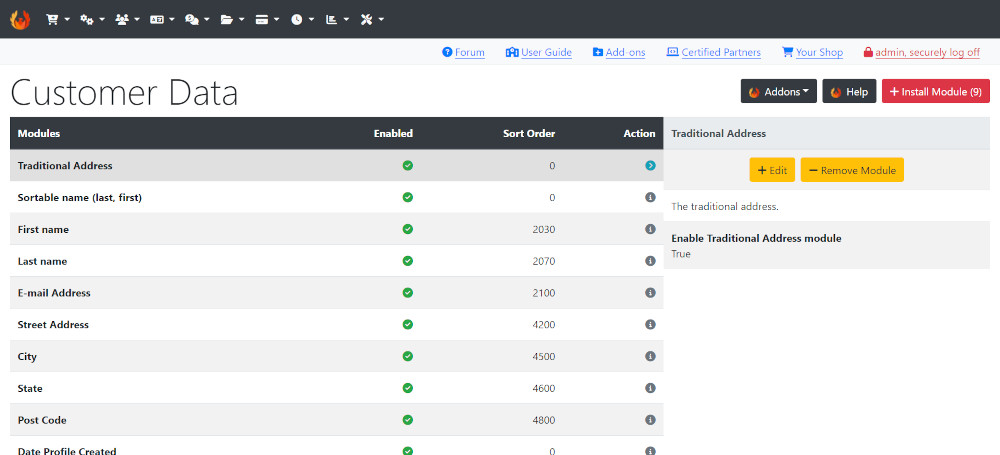
From admin go to  Modules → Customer data - you will see this:
Customer Data Modules
The Customer Data modules are displayed on the Create a Profile (create_account.php) page and other pages for data input requested from customers.
Modules displayed are shown with a Sort Order not equal to 0.
For example, City, Country, Email Address, First Name, Last Name, Newsletter, Password, Password Confirmation, Post Code, Street Address, Telephone.
Modules with a Sort Order of 0 are used by the system but not displayed on store pages. Do not edit or remove them unless instructed to do so.
Some modules that are displayed are required by systems. For example, Country would be required for Tax, Payment and Shipping systems. Do not disable or remove them unless instructed by a developer.
Edit Module
Click on the module to select it and click Edit to:
- Enable/Disable
- Change the Customer Data Group in which they are displayed.
- Make them a Required field if enabled.
- Change the minimum length required for input.
- Change on which pages they should display.
- Change the sort order of display.
Those with a Sort Order of 0 are used by the system but not displayed on the create account page.
Change the settings to False as required but do not change those with a Sort Order of 0.
Customer Data Groups can be edited here: Localization → Customer Data Groups
Install Module
- To install additional content modules:
- Click Install Module shown top right of screen - the number shown next to it indicates the number of modules available.
- Click a module to install from the list.
- Click Install Module
- Click Edit
- Click Save
MATC
For CE Phoenix Cart versions <1.0.9.7.
Install the MATC (Must Agree Terms Conditions) module to enforce acknowledgement and agreement to store's Terms & Conditions and Privacy policies. The module will also be shown on Checkout Confirmation page by default.
Important: Email Address and Telephone modules are specific to Customers pages and will show on create_account.php and account_edit.php on the store side by default
Do not change this to add these to show on Address pages, that is, address_book.php and checkout_new_address.php which will result in breaking those pages.
Many Addons and Extensions available in the CE Phoenix Cart Addons Library
If help is needed, support is available in the CE Phoenix Cart Support Forum
Phoenix Cart User Guide, like CE Phoenix Cart, is free to use but is maintained by unpaid volunteers.
All other content is the reserved Intellectual Property and Copyright of phoenixcart.org
