Difference between revisions of "How to Make a New Content Module"
PeterRobert (talk | contribs) |
PeterRobert (talk | contribs) |
||
| (5 intermediate revisions by the same user not shown) | |||
| Line 1: | Line 1: | ||
| − | < | + | <div class="btn btn-grey btn-back">{{#fas:arrow-left}} Back</div> <div class="btn btn-grey btn-faq">{{#fas:question-circle}} FAQ Tips & Tricks</div> |
| − | |||
<hr> | <hr> | ||
| Line 22: | Line 21: | ||
*On your local computer, find and open the downloaded and unzipped (extracted) CE Phoenix folder or download and unzip a new one. | *On your local computer, find and open the downloaded and unzipped (extracted) CE Phoenix folder or download and unzip a new one. | ||
*Go to '''includes → modules → content → footer''' | *Go to '''includes → modules → content → footer''' | ||
| − | *Find the '''cm_footer_information_links''' file. | + | *Find the '''cm_footer_information_links.php''' file. |
| + | *Copy it, paste it and rename it '''cm_footer_example_links.php''' | ||
*Open the file in a file editor - in this example Visual Studio Code is used. | *Open the file in a file editor - in this example Visual Studio Code is used. | ||
*In the file editor menu, go to '''Edit → Find''' to open the input box. | *In the file editor menu, go to '''Edit → Find''' to open the input box. | ||
| Line 32: | Line 32: | ||
*There are 8 references shown. | *There are 8 references shown. | ||
*Change every instance of '''information''' to the new file name '''example''' (used here as an example) ensuring the same text case is used e.g. replace '''information''' with '''example''' and '''INFORMATION''' with '''EXAMPLE'''. | *Change every instance of '''information''' to the new file name '''example''' (used here as an example) ensuring the same text case is used e.g. replace '''information''' with '''example''' and '''INFORMATION''' with '''EXAMPLE'''. | ||
| − | *In the file editor menu, | + | *In the file editor menu, click '''Save''' |
| − | |||
---- | ---- | ||
| Line 40: | Line 39: | ||
*Now back in the downloaded and unzipped (extracted) CE Phoenix folder. | *Now back in the downloaded and unzipped (extracted) CE Phoenix folder. | ||
*Go to '''includes → modules → content → footer → templates''' | *Go to '''includes → modules → content → footer → templates''' | ||
| − | *Find the '''tpl_cm_footer_information_links''' file. | + | *Find the '''tpl_cm_footer_information_links.php''' file. |
| + | *Copy it, paste it and rename it '''tpl_cm_footer_example_links.php''' | ||
*Open the file in a file editor. | *Open the file in a file editor. | ||
*In the file editor menu, go to '''Edit → Find''' to open the input box. | *In the file editor menu, go to '''Edit → Find''' to open the input box. | ||
| Line 49: | Line 49: | ||
*There are 3 references shown. | *There are 3 references shown. | ||
*Change every instance of '''information''' to the new file name '''example''' (used here as an example) ensuring the same text case is used e.g. replace '''information''' with '''example''' and '''INFORMATION''' with '''EXAMPLE'''. | *Change every instance of '''information''' to the new file name '''example''' (used here as an example) ensuring the same text case is used e.g. replace '''information''' with '''example''' and '''INFORMATION''' with '''EXAMPLE'''. | ||
| − | *In the file editor menu, | + | *In the file editor menu, click '''Save''' |
| − | |||
---- | ---- | ||
| Line 57: | Line 56: | ||
*Now back in the downloaded and unzipped (extracted) CE Phoenix folder. | *Now back in the downloaded and unzipped (extracted) CE Phoenix folder. | ||
*Go to '''includes → languages → english → modules → content → footer''' | *Go to '''includes → languages → english → modules → content → footer''' | ||
| − | *Find the '''cm_footer_information_links''' file. | + | **'''english''' is the only core language directory but you might have other language directories. |
| + | *Find the '''cm_footer_information_links.php''' file. | ||
| + | *Copy it, paste it and rename it '''cm_footer_example_links.php''' | ||
| + | **Repeat this for other language directories if you have them. | ||
*Open the file in a file editor. | *Open the file in a file editor. | ||
*In the file editor menu, go to '''Edit → Find''' to open the input box. | *In the file editor menu, go to '''Edit → Find''' to open the input box. | ||
| Line 81: | Line 83: | ||
to | to | ||
'info.php?pages_id=4' => 'Example Page' | 'info.php?pages_id=4' => 'Example Page' | ||
| − | *In the file editor menu, | + | *In the file editor menu, click '''Save''' |
| − | + | ||
| + | ---- | ||
| − | Alternatively, the link to the new page could be appended to | + | Alternatively, the link to the new page could simply be appended to the existing '''cm_footer_information_links''' content module. |
*Change the line (line 26 in the example) | *Change the line (line 26 in the example) | ||
Latest revision as of 06:05, 25 March 2021
It is a common requirement for shop owners to want additional content modules specific to their shop e.g. an additional navbar or footer content module to link to new pages.
This is achieved by making a clone of an existing module that already performs a similar function.
The same process can be applied similarly to most modules if required, not only navbar and footer modules.
In this example a new footer content module is made to show a link to a new Example page that was made in Tools → Info Pages
Read Info Pages to see how that was done.
This new module is made by cloning the existing cm_footer_information_links module which performs a similar function to make a cm_footer_example_links module
The module has a main file, a template file and a language file so a clone is made of each.
Main File
- On your local computer, find and open the downloaded and unzipped (extracted) CE Phoenix folder or download and unzip a new one.
- Go to includes → modules → content → footer
- Find the cm_footer_information_links.php file.
- Copy it, paste it and rename it cm_footer_example_links.php
- Open the file in a file editor - in this example Visual Studio Code is used.
- In the file editor menu, go to Edit → Find to open the input box.
- All references to the old file name information must be changed so enter information in the input box to see this:

- There are 8 references shown.
- Change every instance of information to the new file name example (used here as an example) ensuring the same text case is used e.g. replace information with example and INFORMATION with EXAMPLE.
- In the file editor menu, click Save
Template File
- Now back in the downloaded and unzipped (extracted) CE Phoenix folder.
- Go to includes → modules → content → footer → templates
- Find the tpl_cm_footer_information_links.php file.
- Copy it, paste it and rename it tpl_cm_footer_example_links.php
- Open the file in a file editor.
- In the file editor menu, go to Edit → Find to open the input box.
- All references to the old file name information must be changed so enter information in the input box to see this:
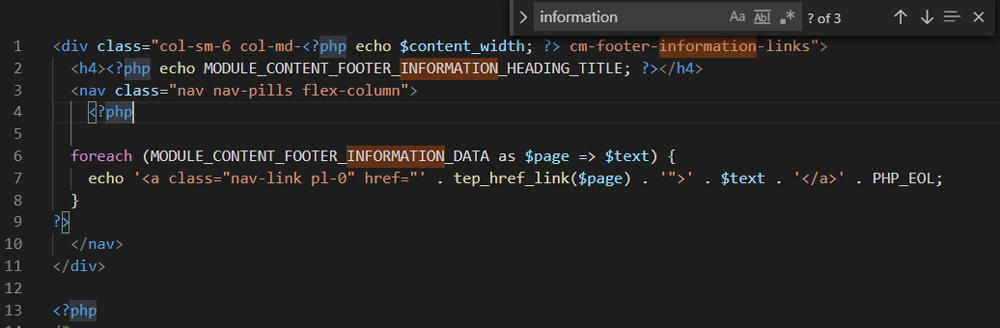
- There are 3 references shown.
- Change every instance of information to the new file name example (used here as an example) ensuring the same text case is used e.g. replace information with example and INFORMATION with EXAMPLE.
- In the file editor menu, click Save
Language File
- Now back in the downloaded and unzipped (extracted) CE Phoenix folder.
- Go to includes → languages → english → modules → content → footer
- english is the only core language directory but you might have other language directories.
- Find the cm_footer_information_links.php file.
- Copy it, paste it and rename it cm_footer_example_links.php
- Repeat this for other language directories if you have them.
- Open the file in a file editor.
- In the file editor menu, go to Edit → Find to open the input box.
- All references to the old file name information must be changed so enter information in the input box to see this:
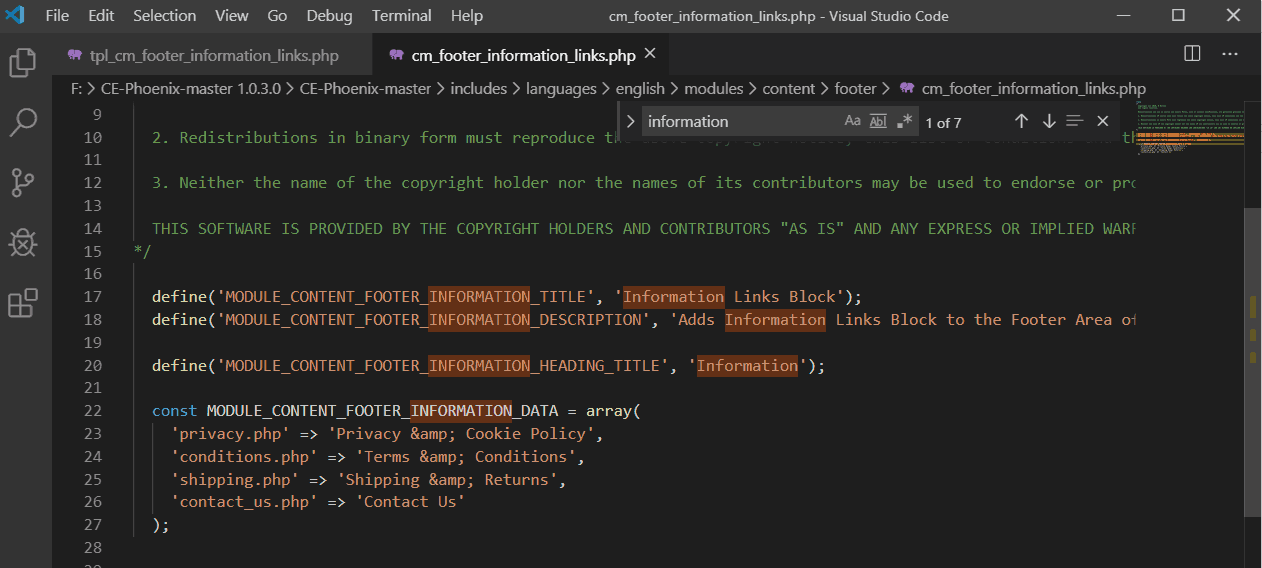
- There are 7 references shown.
- Change every instance of information to the new file name example (used here as an example) ensuring the same text case is used e.g. replace information with example and INFORMATION with EXAMPLE.
- Delete the following lines (lines 23, 24, and 25 in the example)
'privacy.php' => 'Privacy & Cookie Policy',
'conditions.php' => 'Terms & Conditions',
'shipping.php' => 'Shipping & Returns',
In this example we want link to a page created in Tools → Info Pages.
Links to these pages would take the form of info.php?pages_id=x where x is the ID number shown after the page is created.
The Example Page shows an ID of 4 so:
- Change the line (line 26 in the example)
'contact_us.php' => 'Contact Us'
to
'info.php?pages_id=4' => 'Example Page'
- In the file editor menu, click Save
Alternatively, the link to the new page could simply be appended to the existing cm_footer_information_links content module.
- Change the line (line 26 in the example)
'contact_us.php' => 'Contact Us'
to
'contact_us.php' => 'Contact Us',
'info.php?pages_id=4' => 'Example Page'
- Save the file and upload to your host server.
- Using FTP software, upload the new files to the host server - ensure they are uploaded to the correct locations.
then install the new module.
- From admin go to Modules → Content
- Click Install Module
- Find and click Example Links Block
- Click Install Module
- Click Edit
- Set the Content Width and Sort Order as required.
- Click Save
You should now see the new module displayed in your shop footer showing a link to the new page.

Please visit again soon for additions and changes
Phoenix Cart User Guide, like CE Phoenix Cart, is free to use but is maintained by unpaid volunteers.
All other content is the reserved Intellectual Property and Copyright of phoenixcart.org
