Difference between revisions of "Start"
From Phoenix Cart User Guide
PeterRobert (talk | contribs) |
PeterRobert (talk | contribs) |
||
| Line 3: | Line 3: | ||
<hr> | <hr> | ||
<div class="mainpage_box"> | <div class="mainpage_box"> | ||
| − | + | '''First''' open a business account with PayPal. | |
</div> | </div> | ||
Revision as of 07:31, 23 October 2019
<historylink type="back">🠈 Back</historylink> 🠉 ADMINISTRATION
First open a business account with PayPal.
- From admin go to Configuration → PayPal → Start to see this:
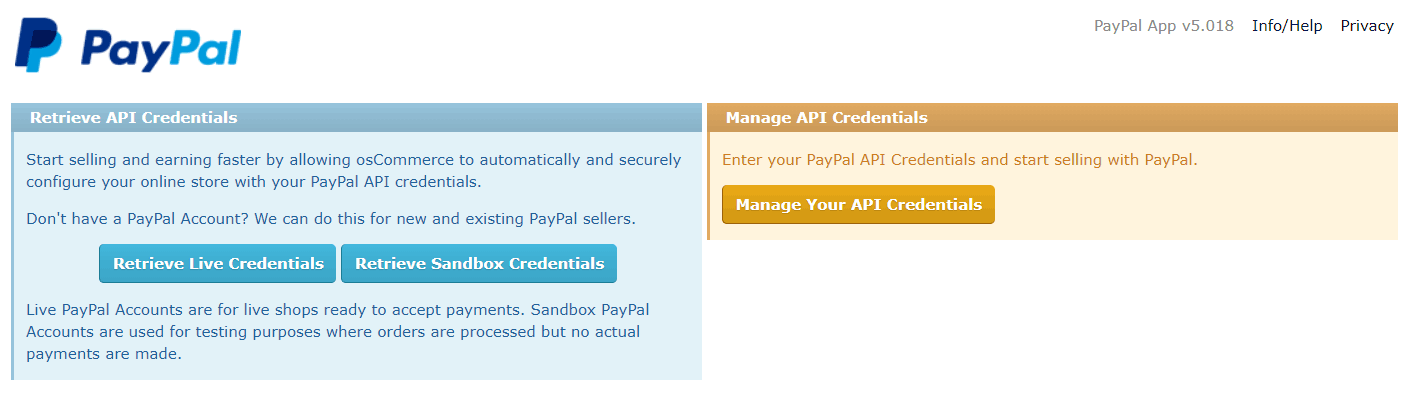
- Click the blue Retrieve Live Credentials button.
- This will automatically redirect to the PayPal page.
- Log in at PayPal and follow the prompts to complete the process to automatically be redirected back.
- PayPal credentials will be shown and saved.
- From admin go to Configuration → PayPal
- Menu items have now been added for information only - no changes are required:
- Balance
- Configure
- Credentials
- Log
- To enable PayPal payments in the shop.
- Install the PayPal payment module - see [[]]

Please visit again soon for additions and changes
Phoenix Cart User Guide, like CE Phoenix Cart, is free to use but is maintained by unpaid volunteers.
All other content is the reserved Intellectual Property and Copyright of phoenixcart.org
