Difference between revisions of "Dashboard"
From Phoenix Cart User Guide
PeterRobert (talk | contribs) |
PeterRobert (talk | contribs) |
||
| Line 1: | Line 1: | ||
| − | < | + | <div class="btn btn-grey btn-back">{{#fas:arrow-left}} Back</div> <div class="btn btn-grey btn-admin">{{#fas:cog}} Administration</div> |
| − | < | ||
<hr> | <hr> | ||
From admin go to [[File:adminnavbarmod.png|link=]] '''Modules → Dashboard''' - you will see this: | From admin go to [[File:adminnavbarmod.png|link=]] '''Modules → Dashboard''' - you will see this: | ||
Revision as of 05:59, 25 March 2021
Back
Administration
From admin go to  Modules → Dashboard - you will see this:
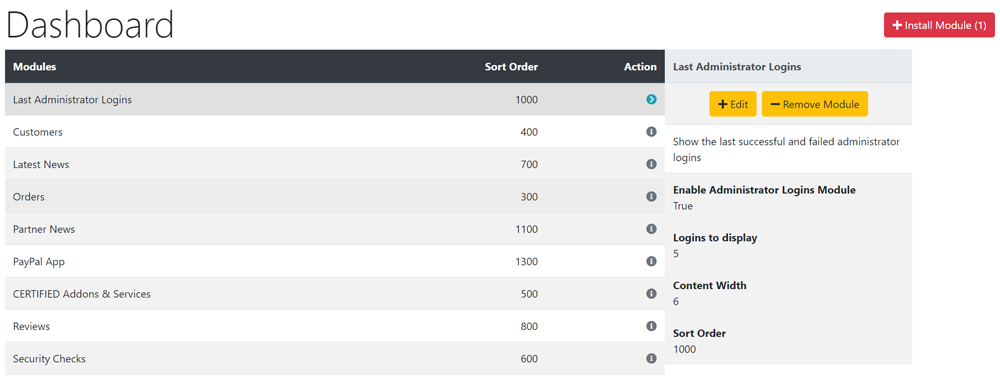
- This shows the modules which display content on the admin dashboard.
- There is no requirement to change anything here but there is an additional PayPal module which can be installed if required.
- Click Install Module shown top right of screen - the number shown next to it indicates the number of modules available.
- Click a module to use from the list.
- Click Install Module
- Click Edit
- Enter a Sort Order value to order the display of the module in relation to the other modules.
- Do not leave 0 as the Sort Order on modules as it can cause problems.
- Click Save

Please visit again soon for additions and changes
Phoenix Cart User Guide, like CE Phoenix Cart, is free to use but is maintained by unpaid volunteers.
All other content is the reserved Intellectual Property and Copyright of phoenixcart.org
