Difference between revisions of "Countries"
From Phoenix Cart User Guide
PeterRobert (talk | contribs) |
PeterRobert (talk | contribs) |
||
| Line 11: | Line 11: | ||
*Click <span class="btn-red">Delete</span> | *Click <span class="btn-red">Delete</span> | ||
*Click <span class="btn-red">Delete</span> again to confirm deletion. | *Click <span class="btn-red">Delete</span> again to confirm deletion. | ||
| + | |||
<hr> | <hr> | ||
| − | + | ||
| − | + | The Address Format can be changed for each country by choosing a number from the drop down list. | |
| + | The formats are automatically created when Phoenix cart is installed and are in the '''address_format''' database table. | ||
| + | If none of the formats suit your individual use case then an additional Address | ||
| + | |||
| + | 1 | ||
| + | name | ||
| + | streets | ||
| + | city, postcode | ||
| + | state, country | ||
| + | |||
| + | 2 | ||
| + | name | ||
| + | streets | ||
| + | city, state postcode | ||
| + | country | ||
| + | |||
| + | 3 | ||
| + | name | ||
| + | streets | ||
| + | city | ||
| + | postcode - state, country | ||
| + | |||
| + | 4 | ||
| + | name | ||
| + | streets | ||
| + | city (postcode) | ||
| + | country | ||
| + | |||
| + | 5 | ||
| + | name | ||
| + | streets | ||
| + | postcode city | ||
| + | country | ||
Revision as of 07:31, 14 July 2022
Back
Administration
From admin dashboard go to  Locations & Taxes → Countries to see this:
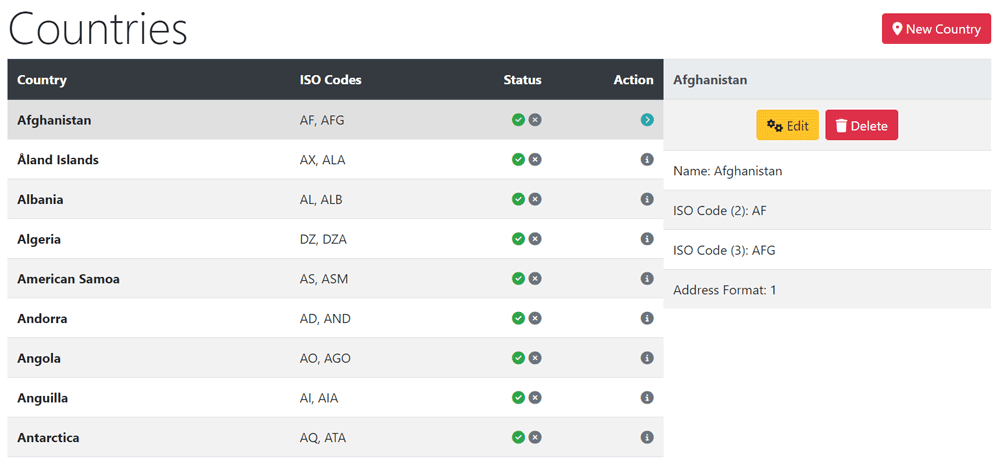
- Phoenix has every? country installed by default.
- You might want to remove countries to which you will not be selling.
- Click a country in the list to select it.
- Click Delete
- Click Delete again to confirm deletion.
The Address Format can be changed for each country by choosing a number from the drop down list. The formats are automatically created when Phoenix cart is installed and are in the address_format database table. If none of the formats suit your individual use case then an additional Address
1 name streets city, postcode state, country
2 name streets city, state postcode country
3 name streets city postcode - state, country
4 name streets city (postcode) country
5 name streets postcode city country
