Difference between revisions of "Advert Manager"
From Phoenix Cart User Guide
PeterRobert (talk | contribs) |
PeterRobert (talk | contribs) |
||
| Line 26: | Line 26: | ||
Examples: | Examples: | ||
*Enter just the URL to link the advert to a Page, for example, '''specials.php''' | *Enter just the URL to link the advert to a Page, for example, '''specials.php''' | ||
| − | *Enter a URL and Fragment to link the advert to a Category (for example URL '''index.php''' Fragment '''cPath=1_3'''), a Product (for example URL '''product_info.php''' Fragment '''products_id=3'''), or an Info Page (for example URL ''' | + | *Enter a URL and Fragment to link the advert to a Category (for example URL '''index.php''' Fragment '''cPath=1_3'''), a Product (for example URL '''product_info.php''' Fragment '''products_id=3'''), or an Info Page (for example URL '''info.php''' Fragment '''pages_id=1'''), or even a search result (for example URL '''advanced_search_result.php''' Fragment '''keywords=apples''') |
| + | |||
| + | |||
<hr> | <hr> | ||
{{Page_In_Progress}} | {{Page_In_Progress}} | ||
{{Contribute}} | {{Contribute}} | ||
Revision as of 14:07, 9 November 2021
Back
Home
From admin go to  Tools → Advert Manager and click New Advert to see this:
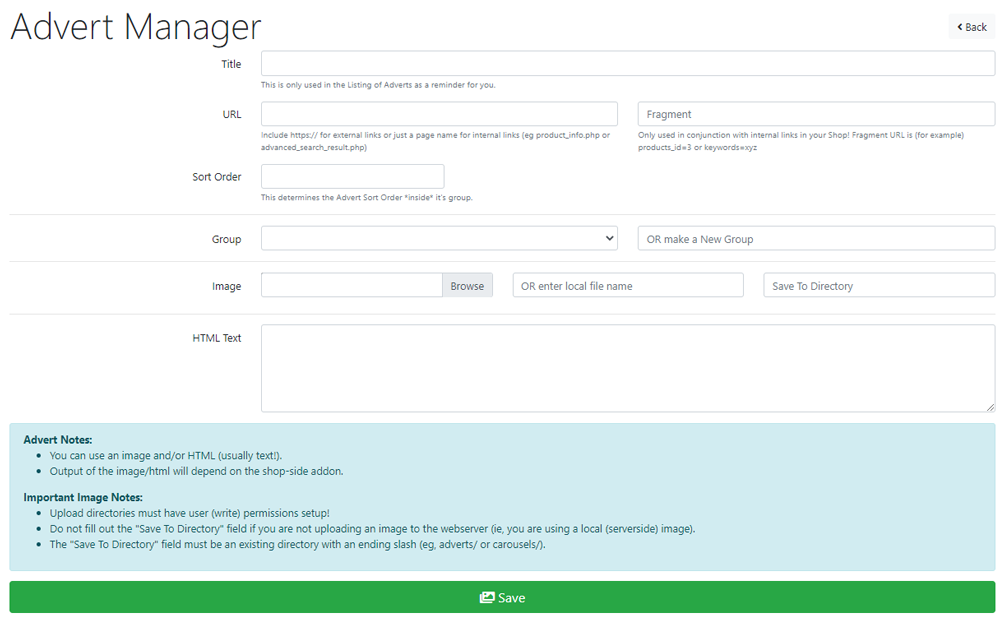
Adverts are created here and assigned to a Group.
Modules or add-ons are used to display all Adverts within a Group.
There are no modules to display adverts included in CE Phoenix Cart but they are available - check the Add-Ons Library on the Phoenix Cart Forum.
- Enter a Title in the Title input box - this is a short title that could be used in modules or add-ons that will display the advert (so ignore the help text!).
- Enter a URL in the URL input box if a link in the advert is required,
- Enter a Fragment in the Fragment input box if that is required.
- Enter a sort order in the Sort Order input box, 10 for example.
- Choose a previously created group from the Group drop-down input box or create a new one.
- Click Browse to upload an image OR enter local file name.
- Enter the text you want in the HTML Text input box.
- Click Save
This is a very versatile tool.
Examples:
- Enter just the URL to link the advert to a Page, for example, specials.php
- Enter a URL and Fragment to link the advert to a Category (for example URL index.php Fragment cPath=1_3), a Product (for example URL product_info.php Fragment products_id=3), or an Info Page (for example URL info.php Fragment pages_id=1), or even a search result (for example URL advanced_search_result.php Fragment keywords=apples)

Please visit again soon for additions and changes
Phoenix Cart User Guide, like CE Phoenix Cart, is free to use but is maintained by unpaid volunteers.
All other content is the reserved Intellectual Property and Copyright of phoenixcart.org
