Difference between revisions of "Payment"
PeterRobert (talk | contribs) |
PeterRobert (talk | contribs) |
||
| Line 34: | Line 34: | ||
Paypal Standard is a basic payment integration that transfers the customer away from your site to Paypal on checkout confirmation, and returns them when the paypal payment is completed. Paypal also lets your site know about the payment (and any subsequent changes) by Instant Payment Notifications. If the customer does not return after a successful payment (e.g. their connection drops) the IPN will still confirm the order. More sophisticated Paypal integration is available in Phoenix Cart Addons area. | Paypal Standard is a basic payment integration that transfers the customer away from your site to Paypal on checkout confirmation, and returns them when the paypal payment is completed. Paypal also lets your site know about the payment (and any subsequent changes) by Instant Payment Notifications. If the customer does not return after a successful payment (e.g. their connection drops) the IPN will still confirm the order. More sophisticated Paypal integration is available in Phoenix Cart Addons area. | ||
| − | + | '''Seller Email''' | |
| − | Seller Email | + | |
This is the email you are using to collect payments. | This is the email you are using to collect payments. | ||
| − | Primary Paypal email | + | '''Primary Paypal email''' |
| + | |||
This is left blank for many sites, it is only needed if you are sending payments to an additional email on your paypal account. | This is left blank for many sites, it is only needed if you are sending payments to an additional email on your paypal account. | ||
| − | PDT Identity Token | + | '''PDT Identity Token''' |
| + | |||
This is used to verify returned info from paypal to prevent your payments being hijacked. To find it: | This is used to verify returned info from paypal to prevent your payments being hijacked. To find it: | ||
| − | Log into your paypal account | + | Log into your paypal account. |
| − | On the dropdown on your name in the top right, choose account settings | + | |
| − | Under Products and Services on the left, choose Website payments | + | On the dropdown on your name in the top right, choose account settings. |
| − | Find Website Preferences in the list and choose Update | + | |
| + | Under Products and Services on the left, choose Website payments. | ||
| + | |||
| + | Find Website Preferences in the list and choose Update. | ||
| + | |||
Now on this page: | Now on this page: | ||
| + | |||
-- set Auto return to On and set the return url to that displayed in the module admin and click Save | -- set Auto return to On and set the return url to that displayed in the module admin and click Save | ||
| + | |||
-- in the next section, set Payment data transfer to On | -- in the next section, set Payment data transfer to On | ||
| + | |||
-- an identity token should have appeared magically, if it didn't appear toggle pdt off and back on again; copy the token to your module settings | -- an identity token should have appeared magically, if it didn't appear toggle pdt off and back on again; copy the token to your module settings | ||
| + | |||
Click Back to Profile at the top and scroll down to Instant Payment Notifications and choose Update | Click Back to Profile at the top and scroll down to Instant Payment Notifications and choose Update | ||
| + | |||
-- copy the notification url from your module | -- copy the notification url from your module | ||
| − | Transaction Method | + | |
| + | '''Transaction Method''' | ||
| + | |||
For payments to be taken straight away on checkout, choose Sale. If set to Authorize, you need to capture the payment later in your Paypal account, e.g. when the stock has been sourced. | For payments to be taken straight away on checkout, choose Sale. If set to Authorize, you need to capture the payment later in your Paypal account, e.g. when the stock has been sourced. | ||
| − | Invoice Prefix | + | '''Invoice Prefix''' |
| + | |||
If you have multiple online stores connecting to the same Paypal account, set an invoice prefix to avoid problems with duplicate invoice numbers. | If you have multiple online stores connecting to the same Paypal account, set an invoice prefix to avoid problems with duplicate invoice numbers. | ||
Revision as of 07:46, 25 March 2025
From admin go to  Modules → Payment - you will see this:

Cash On Delivery
This is installed by default as an example.
It allows checkout without payment.
It is commonly used by store owners to perform a test checkout.
Disable or remove/uninstall if it is not required.
Check/Money Order
This is installed by default as an example.
It allows checkout without payment for subsequent payment by Check/Money Order.
Edit the module to set Make Payable to:
This will add the following section to the Checkout Confirmation (checkout_confirmation.php) page:
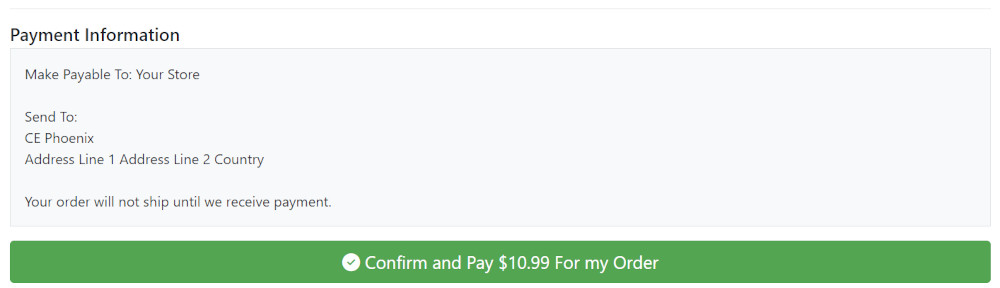
Disable or remove/uninstall if it is not required.
Paypal Standard
Paypal Standard is a basic payment integration that transfers the customer away from your site to Paypal on checkout confirmation, and returns them when the paypal payment is completed. Paypal also lets your site know about the payment (and any subsequent changes) by Instant Payment Notifications. If the customer does not return after a successful payment (e.g. their connection drops) the IPN will still confirm the order. More sophisticated Paypal integration is available in Phoenix Cart Addons area.
Seller Email
This is the email you are using to collect payments.
Primary Paypal email
This is left blank for many sites, it is only needed if you are sending payments to an additional email on your paypal account.
PDT Identity Token
This is used to verify returned info from paypal to prevent your payments being hijacked. To find it:
Log into your paypal account.
On the dropdown on your name in the top right, choose account settings.
Under Products and Services on the left, choose Website payments.
Find Website Preferences in the list and choose Update.
Now on this page:
-- set Auto return to On and set the return url to that displayed in the module admin and click Save
-- in the next section, set Payment data transfer to On
-- an identity token should have appeared magically, if it didn't appear toggle pdt off and back on again; copy the token to your module settings
Click Back to Profile at the top and scroll down to Instant Payment Notifications and choose Update
-- copy the notification url from your module
Transaction Method
For payments to be taken straight away on checkout, choose Sale. If set to Authorize, you need to capture the payment later in your Paypal account, e.g. when the stock has been sourced.
Invoice Prefix
If you have multiple online stores connecting to the same Paypal account, set an invoice prefix to avoid problems with duplicate invoice numbers.
Edit Modules
- To edit a module, click on the module in the list to select it.
- Click Edit
- Enable/Disable module by setting to True or False as required or click on the item in the list and click Remove Module to remove/uninstall it if required.
- Apply this payment module to a defined Tax Zone by choosing it in the drop down menu below Payment Zone or leave as --none-- to apply the payment module to all Tax Zones.
- Leave Set Order Status as default unless otherwise required.
- Enter a Sort Order of display value. Do not leave 0 as the Sort Order on modules as it can cause problems. You can give it any number, in this case enter 10 so if you decide to install another module it leaves the option of entering a lesser value for the next if required.
- Click Save
3rd Party Addons
There are more Payment Addons available in the Addons Library here;
https://phoenixcart.org/forum/app.php/addons/free/payment-21
https://phoenixcart.org/forum/app.php/addons/commercial/payment-35
The most popular payment provider modules, Paypal and Stripe, are published and provided for FREE by Phoenix Cart Certified Developers.
You can express your thanks and give back by using their Buy Me a Beverage link to donate to them.
Many Addons and Extensions available in the CE Phoenix Cart Addons Library
If help is needed, support is available in the CE Phoenix Cart Support Forum
Phoenix Cart User Guide, like CE Phoenix Cart, is free to use but is maintained by unpaid volunteers.
All other content is the reserved Intellectual Property and Copyright of phoenixcart.org
