Difference between revisions of "Navbar Modules"
From Phoenix Cart User Guide
PeterRobert (talk | contribs) |
PeterRobert (talk | contribs) |
||
| Line 33: | Line 33: | ||
**Click <span class="btn-blue">Save</span> | **Click <span class="btn-blue">Save</span> | ||
| + | |||
| + | ---- | ||
*The appearance, colour and behaviour of the Navigation Bar can also be changed. | *The appearance, colour and behaviour of the Navigation Bar can also be changed. | ||
**From admin go to '''Modules → Content''' | **From admin go to '''Modules → Content''' | ||
| Line 42: | Line 44: | ||
**Choose an option for '''Placement''', '''Placement Offset''' and '''Collapse''' | **Choose an option for '''Placement''', '''Placement Offset''' and '''Collapse''' | ||
**It is best to have a play with these options and have a look on the shop to see the results you require. | **It is best to have a play with these options and have a look on the shop to see the results you require. | ||
| + | |||
| + | |||
<hr> | <hr> | ||
{{Page_In_Progress}} | {{Page_In_Progress}} | ||
{{Contribute}} | {{Contribute}} | ||
Revision as of 18:40, 22 October 2019
<historylink type="back">🠈 Back</historylink> 🠉 ADMINISTRATION
From admin go to Modules → Navbar Modules to see this
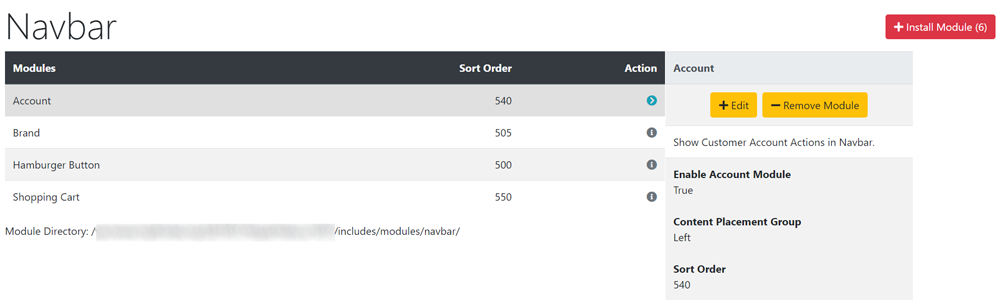
- There are 3 modules installed by default which display on the shop like this:

- Brand displays your Store Name as defined in Configuration → My Store
- The setting for Content Placement Group is Home to display it on the far left - this placement can not be changed.
- Shopping Cart displays the customer's cart contents in a drop down menu.
- The setting for Content Placement Group is Right to display it on the right - this can be changed if required.
- Hamburger only displays if the shop is viewed on a mobile phone.
- The other modules (except Brand) will not appear if the shop is viewed on a mobile phone.
- The Hamburger is a menu that will display those other modules when clicked to see this:
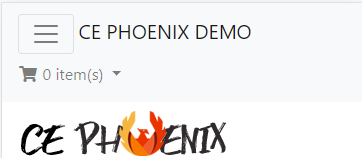
- Other modules can be installed.
- Click Install Module
- Click a module in the list to select it.
- Click Install Module
- Click Edit
- Choose a Content Placement Group option to display on the left or right of the Navigation Bar.
- Enter a value for Sort Order to change its position on the Navigation Bar
- Click Save
- The appearance, colour and behaviour of the Navigation Bar can also be changed.
- From admin go to Modules → Content
- Click Navigation Bar in the list to select it.
- Click Edit
- Make a note of the default settings so they can be changed back to default if necessary.
- Choose a colour option in Background Colour Scheme.
- Choose an option for Link Colour Scheme
- Choose an option for Placement, Placement Offset and Collapse
- It is best to have a play with these options and have a look on the shop to see the results you require.

Please visit again soon for additions and changes
Phoenix Cart User Guide, like CE Phoenix Cart, is free to use but is maintained by unpaid volunteers.
All other content is the reserved Intellectual Property and Copyright of phoenixcart.org
