Difference between revisions of "Tax Rates"
From Phoenix Cart User Guide
PeterRobert (talk | contribs) |
PeterRobert (talk | contribs) |
||
| Line 6: | Line 6: | ||
[[File:taxrates.png|link=|1500px]] | [[File:taxrates.png|link=|1500px]] | ||
</div> | </div> | ||
| − | + | *This sets up the '''Tax Rates''' (percentage %) for the '''Tax Classes''' and assigns them to the '''Tax Zones''' you have created. | |
| − | |||
| + | *Click <span class="btn-blue">New Tax Rate</span> or <span class="btn-blue">Edit</span> to see this: | ||
*Click <span class="btn-blue">Edit</span> to see this: | *Click <span class="btn-blue">Edit</span> to see this: | ||
<div class="mainpage_box"> | <div class="mainpage_box"> | ||
Revision as of 14:10, 8 November 2019
<historylink type="back">🠈 Back</historylink> 🠉 ADMINISTRATION
From admin dashboard go to Locations / Taxes → Tax Rates - you will see this:

- This sets up the Tax Rates (percentage %) for the Tax Classes and assigns them to the Tax Zones you have created.
- Click New Tax Rate or Edit to see this:
- Click Edit to see this:
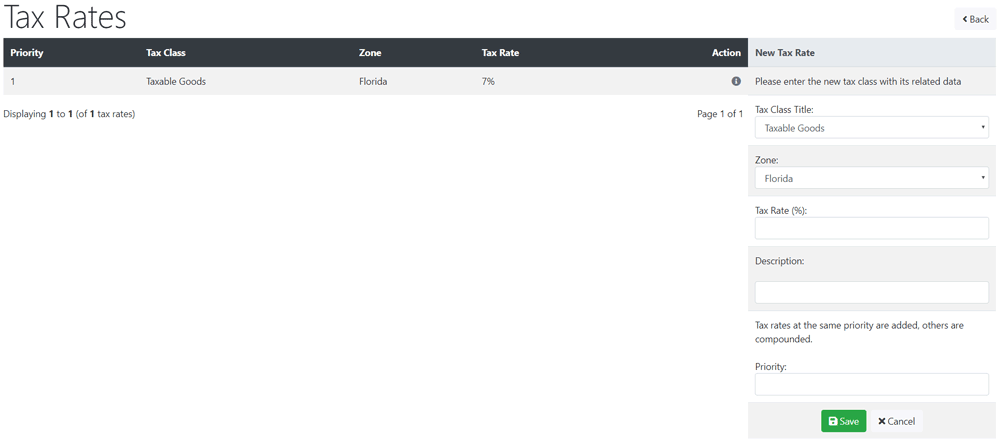
- Choose a Tax Class Title from the drop down menu - if you have not changed the Tax Class from default it can be left as it is.
- Choose a Zone from the drop down menu.
- Enter a Tax Rate(%)
- Enter a Description
- Enter a Priority - this can be left at 1
- Click Save
Note that products will be sold with or without tax applied so there is no need to set a zero Tax Rate.
Phoenix Cart User Guide, like CE Phoenix Cart, is free to use but is maintained by unpaid volunteers.
All other content is the reserved Intellectual Property and Copyright of phoenixcart.org
