Difference between revisions of "How to Make a New Page"
From Phoenix Cart User Guide
PeterRobert (talk | contribs) |
PeterRobert (talk | contribs) |
||
| Line 18: | Line 18: | ||
</div> | </div> | ||
*There are only 2 references to the file name '''privacy''' - shown in the example on lines 15 and 17. | *There are only 2 references to the file name '''privacy''' - shown in the example on lines 15 and 17. | ||
| − | *Change both instances of '''privacy''' to the new file name - ''' | + | *Change both instances of '''privacy''' to the new file name - '''about_us''' is used here just as an example - note: do not use upper case and use an underscore instead of spaces in file names. |
*In the file editor menu, go to and click '''File → Save as...''' | *In the file editor menu, go to and click '''File → Save as...''' | ||
| − | *Enter the new file name (''' | + | *Enter the new file name ('''about_us''') and click '''Save''' |
---- | ---- | ||
| Line 36: | Line 36: | ||
// seo | // seo | ||
| − | define('META_SEO_TITLE', ' | + | define('META_SEO_TITLE', 'About Us Page Title'); |
| − | define('META_SEO_DESCRIPTION', ' | + | define('META_SEO_DESCRIPTION', 'About Us page description of about 30 words'); |
| − | define('META_SEO_KEYWORDS', ' | + | define('META_SEO_KEYWORDS', 'About us page, search terms, comma separated'); |
| − | *Change the 2 instances of '''Privacy Notice''' to the new page name e.g. ''' | + | *Change the 2 instances of '''Privacy Notice''' to the new page name e.g. '''About Us''' |
*Change '''Put here your Privacy Notice information.''' to whatever is required to show in the new page contents. | *Change '''Put here your Privacy Notice information.''' to whatever is required to show in the new page contents. | ||
*In the file editor menu, go to and click '''File → Save as...''' | *In the file editor menu, go to and click '''File → Save as...''' | ||
*The popup navigation window should open in '''includes/languages/english''' but ensure the file is saved in that location. | *The popup navigation window should open in '''includes/languages/english''' but ensure the file is saved in that location. | ||
| − | *Enter the new file name (''' | + | *Enter the new file name ('''about_us''') and click '''Save''' |
---- | ---- | ||
Revision as of 16:26, 27 November 2019
<historylink type="back">🠈 Back</historylink> 🠉 FAQS TIPS & TRICKS
It is a common requirement for shop owners to want additional information pages specific to their shop e.g. pages relating to products or services.
This is easily achieved by making a clone of an existing information page.
Each page has a main file and a language file so a clone is made of both.
In this example a new information page is made by cloning the existing privacy.php information page.
- On your local computer, find and open the downloaded and unzipped (extracted) CE Phoenix folder or download and unzip a new one.
- Find the privacy file.
- Open the file in a file editor to see this:
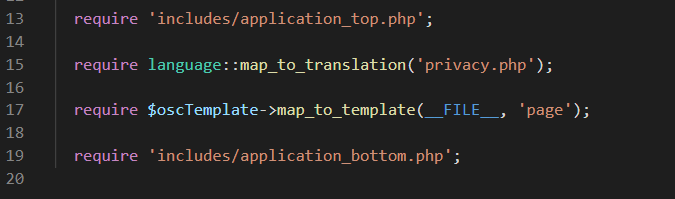
- There are only 2 references to the file name privacy - shown in the example on lines 15 and 17.
- Change both instances of privacy to the new file name - about_us is used here just as an example - note: do not use upper case and use an underscore instead of spaces in file names.
- In the file editor menu, go to and click File → Save as...
- Enter the new file name (about_us) and click Save
- Now back in the downloaded and unzipped (extracted) CE Phoenix folder, go to includes → languages → english
- Find the privacy file.
- Open the file in a file editor to see this:
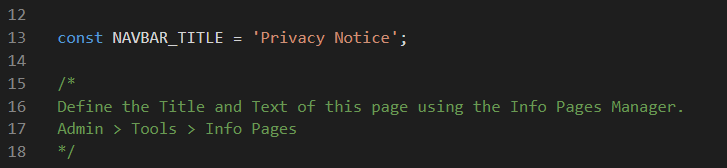
- Copy and paste the following code before the first language define - line 12 in the example.
- Change the text to your requirements.
- This will help the search engines to find the new page.
// seo
define('META_SEO_TITLE', 'About Us Page Title');
define('META_SEO_DESCRIPTION', 'About Us page description of about 30 words');
define('META_SEO_KEYWORDS', 'About us page, search terms, comma separated');
- Change the 2 instances of Privacy Notice to the new page name e.g. About Us
- Change Put here your Privacy Notice information. to whatever is required to show in the new page contents.
- In the file editor menu, go to and click File → Save as...
- The popup navigation window should open in includes/languages/english but ensure the file is saved in that location.
- Enter the new file name (about_us) and click Save
- Using FTP software, upload the new files to the host server - ensure they are uploaded to the correct locations.

Please visit again soon for additions and changes
Phoenix Cart User Guide, like CE Phoenix Cart, is free to use but is maintained by unpaid volunteers.
All other content is the reserved Intellectual Property and Copyright of phoenixcart.org
