Difference between revisions of "Testimonials"
From Phoenix Cart User Guide
PeterRobert (talk | contribs) |
PeterRobert (talk | contribs) |
||
| Line 44: | Line 44: | ||
*Click <span class="btn-blue">Edit</span> | *Click <span class="btn-blue">Edit</span> | ||
*Make any required changes. | *Make any required changes. | ||
| − | *Click <span class="btn- | + | *Click <span class="btn-green">Save</span> |
Revision as of 09:49, 17 January 2020
<historylink type="back">🠈 Back</historylink> 🠉 ADMINISTRATION
From admin go to Catalog → Testimonials to see this:

Testimonials from customers, received by email for example, can be entered and edited here.
Enter a new testimonial.
- Click Add a Testimonial to see this:
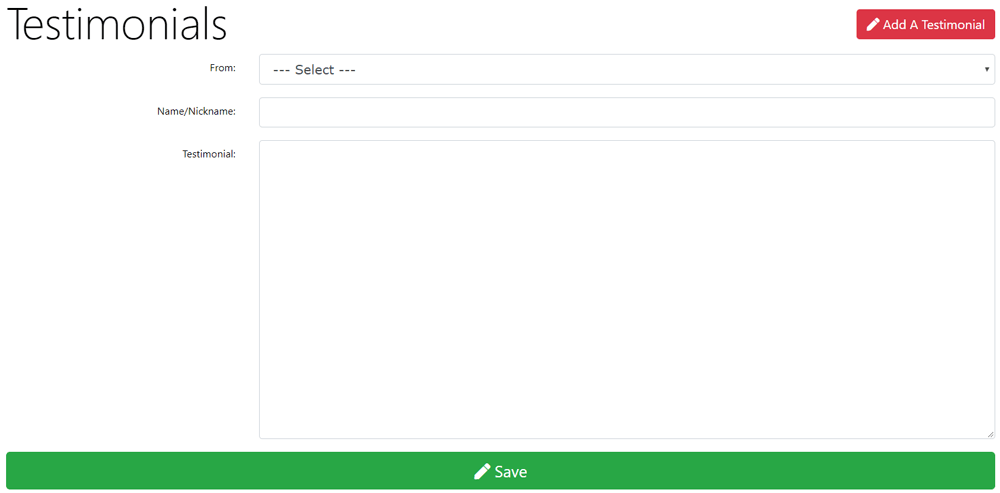
- Choose a customer in the From: drop down menu - this is optional.
- Enter a Name/Nickname:
- Enter the Testimonial:
- Click Save to see this:

Enable or disable display on the shop.
- Click the Status buttons - click the tick to enable (it will turn green) - click the cross to disable (it will turn red).
Edit a testimonial.
- Click Edit
- Make any required changes.
- Click Save
To enable Testimonials to be displayed on the Testimonials page in the shop:
- Go to Modules → Content
- Click Install Module
- Click Page Heading in the testimonials group in the list to select it.
- Click Install Module
- Click Edit
- Choose a Content Width option.
- Enter a value for Sort Order.
- Click Save
- Repeat to install the "List of Testimonials" module.
To enable customers to see the Testimonials page on the shop, the Testimonials Navbar Module must be installed which will display a link in the Navigation Bar in the header of the website.
- Go to Modules → Navbar Modules
- Click Install Module
- Click Testimonials in the list to select it.
- Click Install Module
- Click Edit
- Choose a Content Placement Group option to display on the left or right of the Navigation Bar.
- Enter a value for Sort Order to change its position on the Navigation Bar
- Click Save

Please visit again soon for additions and changes
Phoenix Cart User Guide, like CE Phoenix Cart, is free to use but is maintained by unpaid volunteers.
All other content is the reserved Intellectual Property and Copyright of phoenixcart.org
