Difference between revisions of "Order Total"
From Phoenix Cart User Guide
PeterRobert (talk | contribs) |
PeterRobert (talk | contribs) |
||
| Line 18: | Line 18: | ||
**Enter a value for '''Free Shipping For Orders Over''' | **Enter a value for '''Free Shipping For Orders Over''' | ||
**Change '''Provide Free Shipping For Orders Made''' to specify if free shipping applies to orders '''national''', '''international''' or '''both'''. | **Change '''Provide Free Shipping For Orders Made''' to specify if free shipping applies to orders '''national''', '''international''' or '''both'''. | ||
| − | **Click <span class="btn- | + | **Click <span class="btn-green">Save</span> |
---- | ---- | ||
| Line 24: | Line 24: | ||
**This module can be installed to add a Low Order Fee to the order on the checkout confirmation page. This can be used to prevent unprofitable orders on low value items. | **This module can be installed to add a Low Order Fee to the order on the checkout confirmation page. This can be used to prevent unprofitable orders on low value items. | ||
***First click '''Total''' to select it - click it again to open the edit panel. | ***First click '''Total''' to select it - click it again to open the edit panel. | ||
| − | ***Change the '''Sort Order''' to '''5''' - click <span class="btn- | + | ***Change the '''Sort Order''' to '''5''' - click <span class="btn-green">Save</span> |
***Then click '''Tax''' to select it - click it again to open the edit panel. | ***Then click '''Tax''' to select it - click it again to open the edit panel. | ||
| − | ***Change the '''Sort Order''' to '''4''' - click <span class="btn- | + | ***Change the '''Sort Order''' to '''4''' - click <span class="btn-green">Save</span> |
**Click <span class="btn-red">Install Module</span> | **Click <span class="btn-red">Install Module</span> | ||
**Click '''Low Order Fee''' in the list to select it. | **Click '''Low Order Fee''' in the list to select it. | ||
| − | **Click <span class="btn- | + | **Click <span class="btn-yellow">Install Module</span> |
| − | **Click <span class="btn- | + | **Click <span class="btn-yellow">Edit</span> |
**Change the '''Sort Order''' to '''3''' | **Change the '''Sort Order''' to '''3''' | ||
**Change '''Allow Low Order Fee''' to '''true''' | **Change '''Allow Low Order Fee''' to '''true''' | ||
| Line 38: | Line 38: | ||
**Set '''Attach Low Order Fee On Orders Made''' as required. | **Set '''Attach Low Order Fee On Orders Made''' as required. | ||
**Set '''Tax Class''' as required. | **Set '''Tax Class''' as required. | ||
| − | **Click <span class="btn- | + | **Click <span class="btn-green">Save</span> |
Revision as of 18:06, 31 May 2020
<historylink type="back">🠈 Back</historylink> 🠉 ADMINISTRATION
From admin go to Modules → Order Total - you will see this:
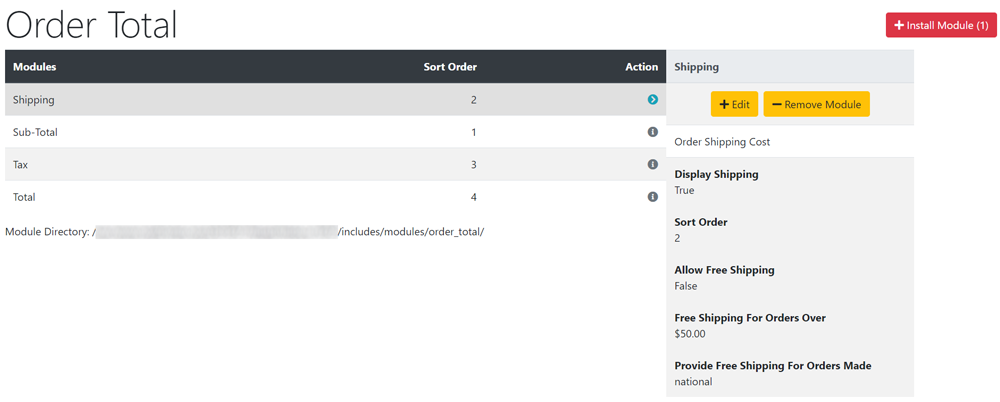
- This list shows the order total modules installed by default.
- They perform the calculations shown on the checkout confirmation page, the last page of the shop checkout procedure.
- Shipping can be edited to enable Free Shipping over a specified order amount.
- Click Shipping in the modules column list to select it.
- Click it again to open the edit panel.
- Change Allow Free Shipping to true
- Enter a value for Free Shipping For Orders Over
- Change Provide Free Shipping For Orders Made to specify if free shipping applies to orders national, international or both.
- Click Save
- Low Order Fee
- This module can be installed to add a Low Order Fee to the order on the checkout confirmation page. This can be used to prevent unprofitable orders on low value items.
- First click Total to select it - click it again to open the edit panel.
- Change the Sort Order to 5 - click Save
- Then click Tax to select it - click it again to open the edit panel.
- Change the Sort Order to 4 - click Save
- This module can be installed to add a Low Order Fee to the order on the checkout confirmation page. This can be used to prevent unprofitable orders on low value items.
- Click Install Module
- Click Low Order Fee in the list to select it.
- Click Install Module
- Click Edit
- Change the Sort Order to 3
- Change Allow Low Order Fee to true
- Enter a value for Order Fee For Orders Under as required.
- Enter a value for Order Fee as required.
- Set Attach Low Order Fee On Orders Made as required.
- Set Tax Class as required.
- Click Save

Please visit again soon for additions and changes
Phoenix Cart User Guide, like CE Phoenix Cart, is free to use but is maintained by unpaid volunteers.
All other content is the reserved Intellectual Property and Copyright of phoenixcart.org
