Difference between revisions of "How to Update"
PeterRobert (talk | contribs) |
PeterRobert (talk | contribs) |
||
| Line 36: | Line 36: | ||
The dropdown menu of Assets shows the '''update_1.0.9.1_1.0.9.2.zip''', click it to download. | The dropdown menu of Assets shows the '''update_1.0.9.1_1.0.9.2.zip''', click it to download. | ||
| − | |||
==='''Updating'''=== | ==='''Updating'''=== | ||
| + | Continuing to use '''update_1.0.9.1_1.0.9.2.zip''' as an example. | ||
| + | |||
| + | Unzip the '''update_1.0.9.1_1.0.9.2.zip''' file. | ||
| + | |||
| + | Open to see this: | ||
| + | |||
| + | [[File:update-1.jpg|link=|]] | ||
| + | |||
| + | Open that '''update_1.0.9.1_1.0.9.2''' folder/directory to see this: | ||
| + | |||
| + | [[File:update-2.jpg|link=|]] | ||
| + | |||
| + | This '''README''' file contains the release description. | ||
| + | |||
| + | Open the '''1.0.9.1''' folder/directory to see this: | ||
| + | |||
| + | [[File:update-3.jpg|link=|]] | ||
| + | |||
| + | This '''README''' file contains the step by step instructions for updating. Read carefully and follow the instructions step by step in sequence. | ||
| + | |||
| + | The '''update''' JSON file is a machine readable version of the update instructions and can be ignored. | ||
| + | |||
| + | There is a '''update''' SQL file in this update. This contains the SQL that needs to be run in your database as part of the update. | ||
| + | |||
| + | Open the '''update''' folder/directory to see this: | ||
| + | |||
| + | [[File:update-3.jpg|link=|]] | ||
| + | |||
| + | The '''README''' file and the '''install''' folder/directory are parts of an initial CE PHoenix Cart installation that are deleted after installing. They can be ignored for the purposes of an update. | ||
| + | |||
| + | All other files and folders/directories are those that should be uploaded to the server, overwriting those on the server if they already exist. | ||
| + | |||
| + | <big>'''Important: Updates might overwrite core files on the server. | ||
| + | |||
| + | CE Phoenix Cart's architecture is made to avoid the need for users to change core files. | ||
| + | |||
| + | However, you should be keeping a record of any changes to core files that you have made. Therefore, check those records before overwriting. | ||
| + | |||
| + | Always backup the database and site files before making any updates. | ||
| + | |||
| + | '''</big> | ||
| + | |||
Updates cannot be tested on every individual setup, for example, on every server host together with every possible Addon and individual configuration so it would not be surprising if some things do not work on some user's setups after updating. | Updates cannot be tested on every individual setup, for example, on every server host together with every possible Addon and individual configuration so it would not be surprising if some things do not work on some user's setups after updating. | ||
| − | Therefore, first ensure all Addons that have been installed, which are not part of | + | Therefore, first ensure all Addons that have been installed, which are not part of CE Phoenix Cart Core Code, have been updated to work on the newer version. |
It is then advisable to apply updates to a Test Site first. Find fixes for things that do not work before applying the update to a Live Site. | It is then advisable to apply updates to a Test Site first. Find fixes for things that do not work before applying the update to a Live Site. | ||
Fixes for add-ons should be found from the creator of the add-on, otherwise the Support Forum is very helpful. | Fixes for add-ons should be found from the creator of the add-on, otherwise the Support Forum is very helpful. | ||
| − | |||
| − | |||
| − | |||
| − | |||
Revision as of 17:11, 1 September 2024
Updating your CE Phoenix Cart is not usually a step when first installing but CE Phoenix Cart is regularly updated with improvements.
You can check the version of CE Phoenix Cart that you are using - from Admin go to  Tools → Version Checker
Check Version
If you are using the latest version you will see like this:
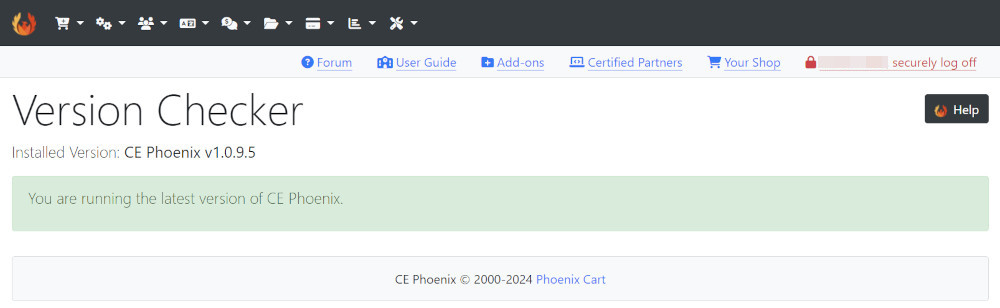
If there are newer versions available you will see like this:
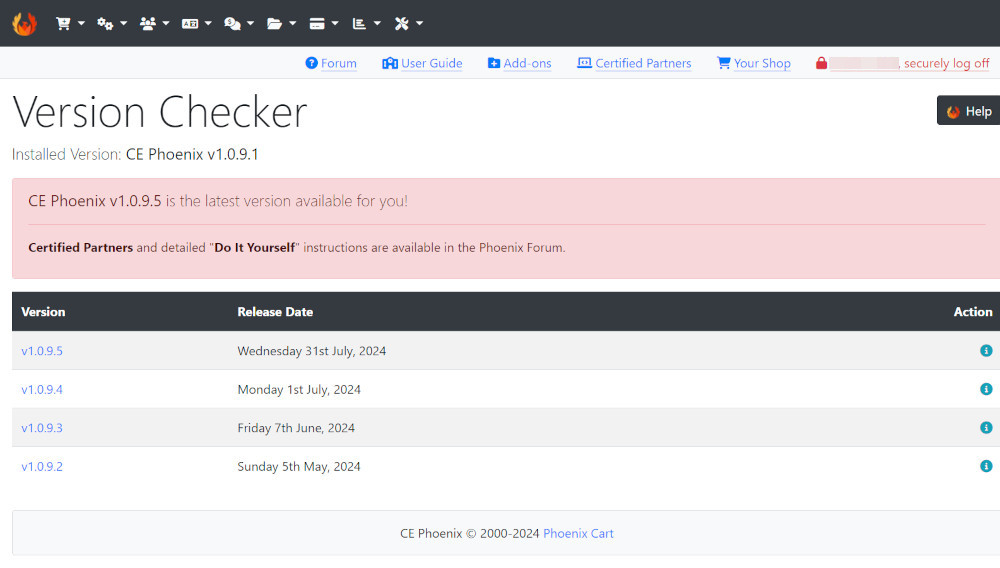
The table will list all versions newer than your installed version.
Download
Updating must be done sequentially, version by version, otherwise software will break!
In the example shown in the screenshot, the installed version shows as CE Phoenix v1.0.9.1.
So, this must first be updated to v1.0.9.2, then v1.0.9.3 and so on.
Click the Version number in the table. It is a link that will go to that release in the CE Phoenix Cart public GitHub repository. In this example, v1.0.9.2 goes to https://github.com/CE-PhoenixCart/PhoenixCart/releases/tag/v1.0.9.2.
Near the bottom of the screen, see like this:
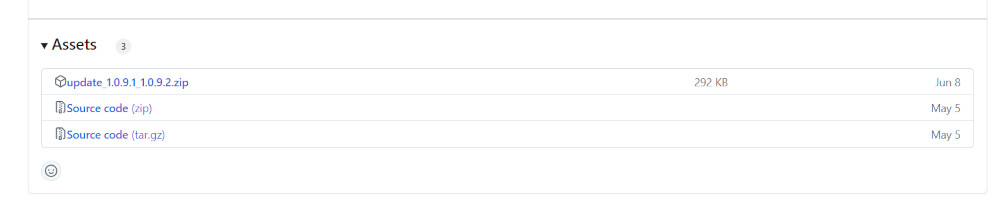
The dropdown menu of Assets shows the update_1.0.9.1_1.0.9.2.zip, click it to download.
Updating
Continuing to use update_1.0.9.1_1.0.9.2.zip as an example.
Unzip the update_1.0.9.1_1.0.9.2.zip file.
Open to see this:

Open that update_1.0.9.1_1.0.9.2 folder/directory to see this:

This README file contains the release description.
Open the 1.0.9.1 folder/directory to see this:

This README file contains the step by step instructions for updating. Read carefully and follow the instructions step by step in sequence.
The update JSON file is a machine readable version of the update instructions and can be ignored.
There is a update SQL file in this update. This contains the SQL that needs to be run in your database as part of the update.
Open the update folder/directory to see this:
The README file and the install folder/directory are parts of an initial CE PHoenix Cart installation that are deleted after installing. They can be ignored for the purposes of an update.
All other files and folders/directories are those that should be uploaded to the server, overwriting those on the server if they already exist.
Important: Updates might overwrite core files on the server.
CE Phoenix Cart's architecture is made to avoid the need for users to change core files.
However, you should be keeping a record of any changes to core files that you have made. Therefore, check those records before overwriting.
Always backup the database and site files before making any updates.
Updates cannot be tested on every individual setup, for example, on every server host together with every possible Addon and individual configuration so it would not be surprising if some things do not work on some user's setups after updating.
Therefore, first ensure all Addons that have been installed, which are not part of CE Phoenix Cart Core Code, have been updated to work on the newer version.
It is then advisable to apply updates to a Test Site first. Find fixes for things that do not work before applying the update to a Live Site.
Fixes for add-ons should be found from the creator of the add-on, otherwise the Support Forum is very helpful.
Many Addons and Extensions available in the CE Phoenix Cart Addons Library
If help is needed, support is available in the CE Phoenix Cart Support Forum
Phoenix Cart User Guide, like CE Phoenix Cart, is free to use but is maintained by unpaid volunteers.
All other content is the reserved Intellectual Property and Copyright of phoenixcart.org
