Bootstrap Setup
Phoenix looks great as it is but some Bootstrap settings can be changed to alter the display if desired.
From admin go to  Configuration → Bootstrap Setup to see this:
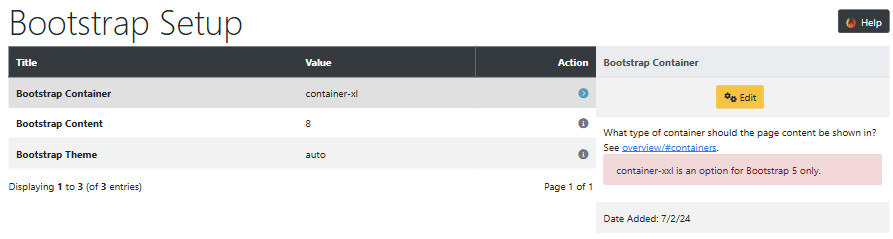
Bootstrap Container
- Click Bootstrap Container
- Click Edit to see this:
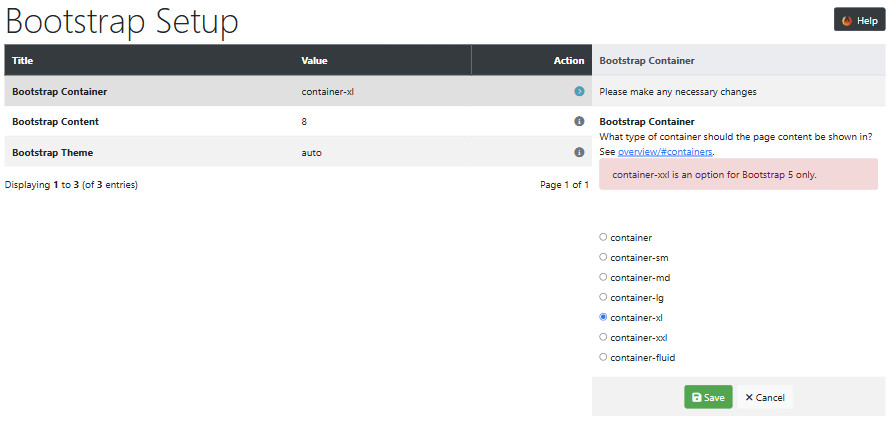
Bootstrap Breakpoints
CE Phoenix Cart is set with container-xl as default which displays the page width according to the device screen width.
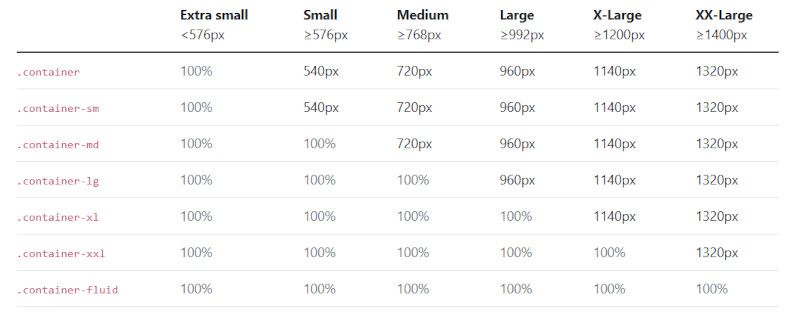
These settings change the behaviour according to the device screen width, described as breakpoints in the first row, as per this table.
Generally, not specifically, it can be useful to think of these breakpoints like:
Bootstrap Content
- Click Bootstrap Content
- Click Edit to see this:
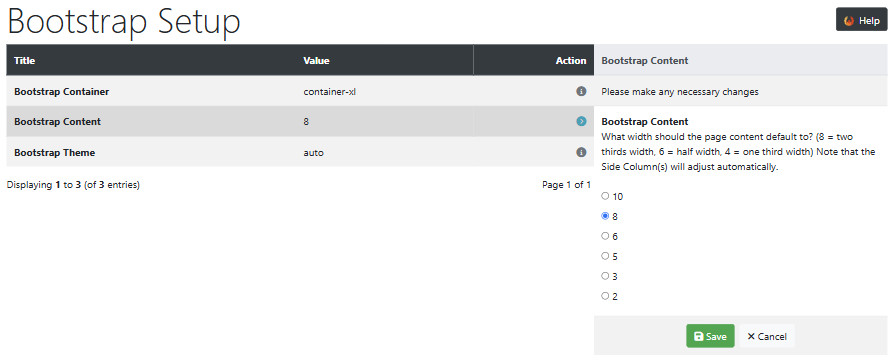
This setting is only used if side Box Modules are installed. They are not installed by default but can be installed, go to Modules → Boxes
As indicated in the edit options, changing the setting from 8 will reduce the width of the page content whilst increasing the width of the side Box Modules.
Bootstrap Theme
- Click Bootstrap Theme
- Click Edit to see this:
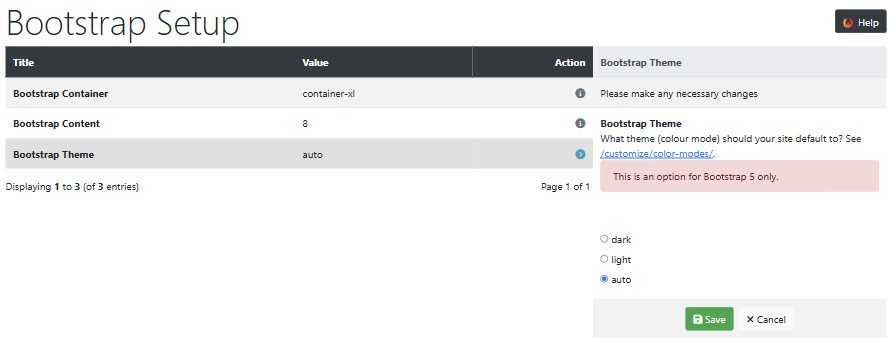
This setting is only used if bootstrap5 template is set in Configuration → My Store → Template Selection.
This is set to auto which allows the theme to automatically switch between modes based on the user's system preferences.
Set to dark or light will fix and the keep the mode unchanged.
light is the default appearance of the store.
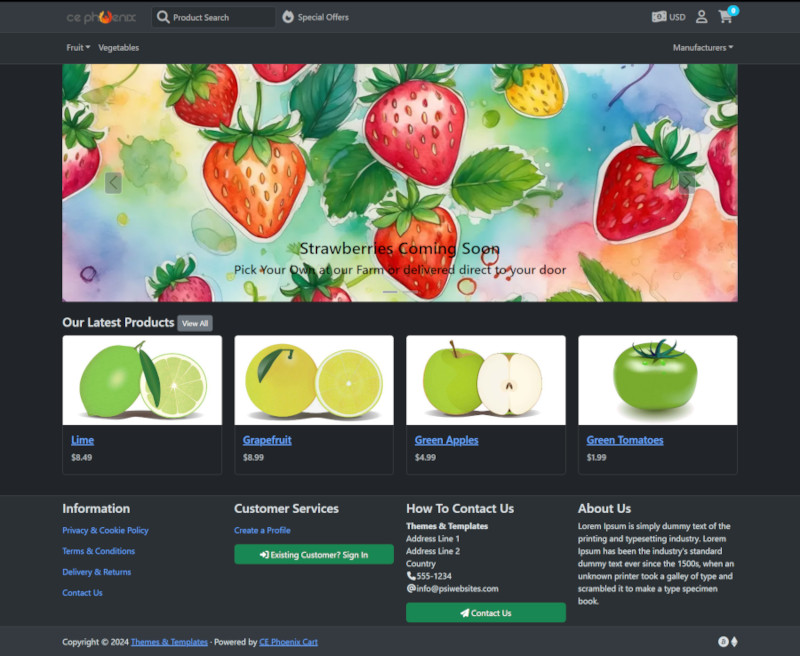
dark would make the store appear like this:
Many Addons and Extensions available in the CE Phoenix Cart Addons Library
If help is needed, support is available in the CE Phoenix Cart Support Forum
Phoenix Cart User Guide, like CE Phoenix Cart, is free to use but is maintained by unpaid volunteers.
All other content is the reserved Intellectual Property and Copyright of phoenixcart.org
