Orders Status
From Phoenix Cart User Guide
Revision as of 07:38, 12 November 2024 by PeterRobert (talk | contribs)
Back
Administration
From admin go to  Localization → Order Status to see this:
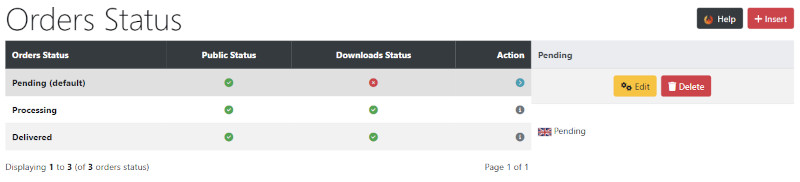
The default settings can be left unless otherwise required.
If you are selling digital download products see - Download
Edit Orders Status
To change any setting:
- Click the item in the Title column list to select it.
- Click Edit to see this:

- Change the settings in the edit panel.
- Click Save
Insert Orders Status
Additional Orders Status entries can be inserted, for example, to set other stages of order fulfillment or for admin only purposes.
- Click Insert to see this:
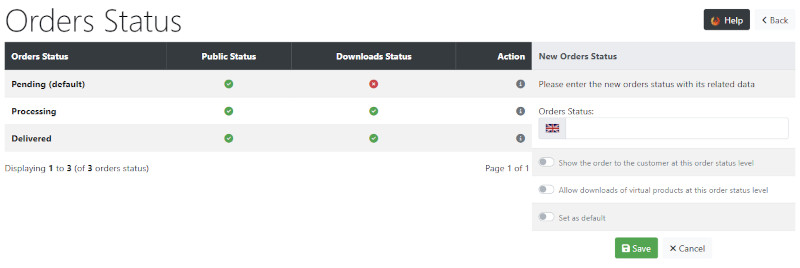
- Enter a name for the Orders Status.
- Switch the configurations on as required.
- Leave Show the order to the customer at this order status level switched off to hide this status change from the customer.
Many Addons and Extensions available in the CE Phoenix Cart Addons Library
If help is needed, support is available in the CE Phoenix Cart Support Forum
Phoenix Cart User Guide, like CE Phoenix Cart, is free to use but is maintained by unpaid volunteers.
All other content is the reserved Intellectual Property and Copyright of phoenixcart.org
