Newsletter Manager
From Phoenix Cart User Guide
Revision as of 11:51, 25 October 2019 by PeterRobert (talk | contribs)
<historylink type="back">🠈 Back</historylink> 🠉 ADMINISTRATION
From admin go to Tools → Newsletter Manager
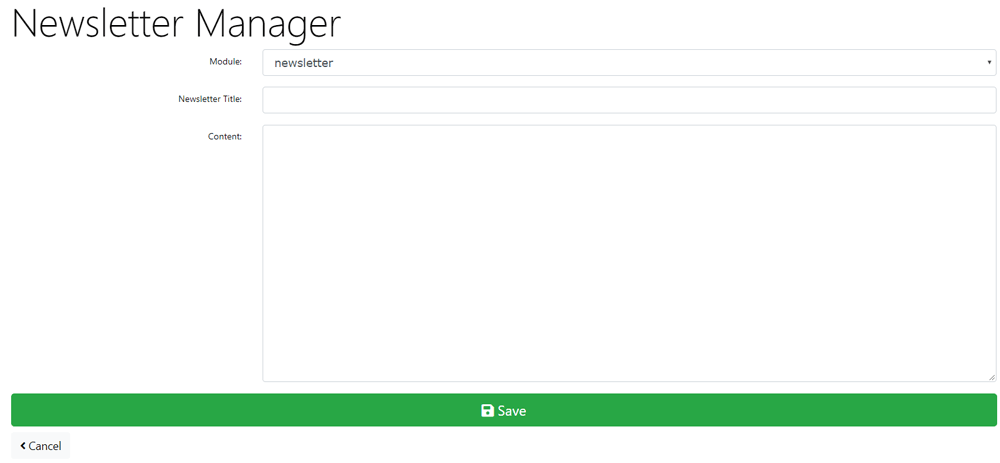
- Click New Newsletter to see this:
- The Newsletter Manager can be used to send emails to customers that have subscribed to newsletters on the create account page when they created an account and to customers who have opted to receive product notifications via the Product Notifications box module - Modules → Boxes - or checkout_success content module - Modules → Content if these modules are installed and enabled..
- Choose to create a newsletter or a product_notification from the Module: drop down menu.
- In this first example a newsletter has been chosen.
- Enter a Newsletter Title:
- Enter Content:
- Click Save to see this:
- Choose to create a newsletter or a product_notification from the Module: drop down menu.

- This shows a red cross in the Sent column indicating that it has not yet been sent.
- This also shows Unlocked in the Status column indicating that it is not yet ready to be sent - this helps prevent sending newsletters by mistake.

Please visit again soon for additions and changes
Phoenix Cart User Guide, like CE Phoenix Cart, is free to use but is maintained by unpaid volunteers.
All other content is the reserved Intellectual Property and Copyright of phoenixcart.org
