How to Use a Template
<historylink type="back">🠈 Back</historylink> 🠉 FAQS TIPS & TRICKS
In a new installation the override template is selected.
The override template is stored in the templates folder/directory of your shop in the override folder/directory.
Additional templates can be installed or created in the templates folder/directory.
These can then be selected in Configuration → My Store → Template Selection
The files in the override template (or other template installed or created and then selected) will override the files in the shop and files in the default template.
Files in the override template will never be overwritten by updates so any changes will persist.
Example
Presuming v1.0.7.14
Make some changes to product_listing.php which displays products in the shop.
This file is located in the default template in /templates/default/includes/components/
The changed file needs to be saved using the same folder structure in the override template so will be saved in /templates/override/includes/components/
So, create the folder components in /templates/override/includes/ - this can be done in your website backup folder on your local computer.
Now, open /templates/default/includes/components/product_listing.php and save a copy in the new /templates/override/includes/components/
On a clean 1.0.7.14 install, on the shop side, go to Categories → Fruit → Apples & Pears to see this:

Now, edit the new /templates/override/includes/components/product_listing.php
To centre the contents:
On Line 99, change
"card h-100 is-product"
to
"card h-100 is-product text-center"
To delete the meta description:
Delete lines 122-126
if (tep_not_null($listing['products_seo_description'])) {
            $prod_list_contents .= '<div class="pt-2 font-weight-lighter">';
              $prod_list_contents .= $listing['products_seo_description'];
            $prod_list_contents .= '</div>' . PHP_EOL;
          }
To delete the card footer and the View and Cart button:
Delete lines 125-131
  $prod_list_contents .= '<div class="card-footer bg-white pt-0 border-0">' . PHP_EOL;
          $prod_list_contents .= '<div class="btn-group" role="group">';
            $prod_list_contents .= tep_draw_button(IS_PRODUCT_BUTTON_VIEW, '', tep_href_link('product_info.php', tep_get_all_get_params(array('action')) . 'products_id=' . (int)$listing['products_id']), NULL, NULL, 'btn-info btn-product-listing btn-view') . PHP_EOL;
            $has_attributes = (tep_has_product_attributes((int)$listing['products_id']) === true) ? '1' : '0';
            if ($has_attributes == 0) $prod_list_contents .= tep_draw_button(IS_PRODUCT_BUTTON_BUY, '', tep_href_link(basename($PHP_SELF), tep_get_all_get_params(array('action')) . 'action=buy_now&products_id=' . (int)$listing['products_id']), NULL, array('params' => 'data-has-attributes="' . $has_attributes . '" data-in-stock="' . (int)$listing['in_stock'] . '" data-product-id="' . (int)$listing['products_id'] . '"'), 'btn-light btn-product-listing btn-buy') . PHP_EOL;
          $prod_list_contents .= '</div>' . PHP_EOL;
        $prod_list_contents .= '</div>' . PHP_EOL;
Upload the new /templates/override/includes/components/ to your server.
Reload the shop page to see the change:
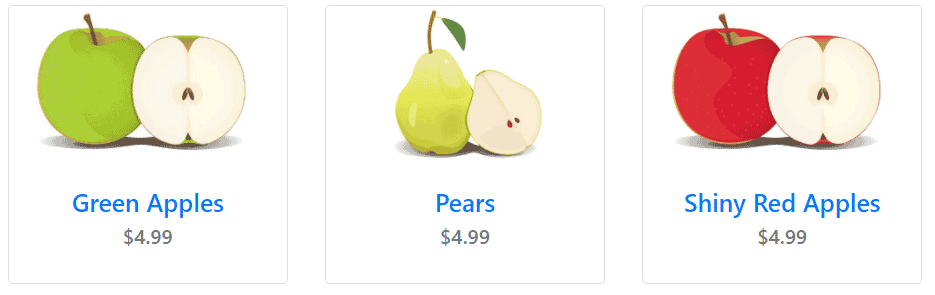
Any files in the default template can be overridden in the same way by copying, editing and saving the new file to the same location (using the same folder/file path structure) in the override template. A new folder may need to be created to do this as in the example.
Other files which are not in the default template can also be copied to the override template.
For example, a file in /includes/modules/xxx/xxx/ can be copied, edited and saved to /templates/override/includes/modules/xxx/xxx/
Note, in this particular case, for example, a file in /includes/modules/xxx/xxx/templates would be copied, edited and saved to /templates/override/includes/modules/xxx/xxx/ - do not add a templates folder.
Similarly, a file in /includes/languages/xxx/xxx/ can be copied, edited and saved to templates/override/includes/languages/xxx/xxx/
Note, here, the folder/file path structure remains the same.

Please visit again soon for additions and changes
Phoenix Cart User Guide, like CE Phoenix Cart, is free to use but is maintained by unpaid volunteers.
All other content is the reserved Intellectual Property and Copyright of phoenixcart.org
