Bootstrap Setup
Phoenix looks great as it is but the page width can be changed if desired.
From admin go to  Configuration → Bootstrap Setup to see this:
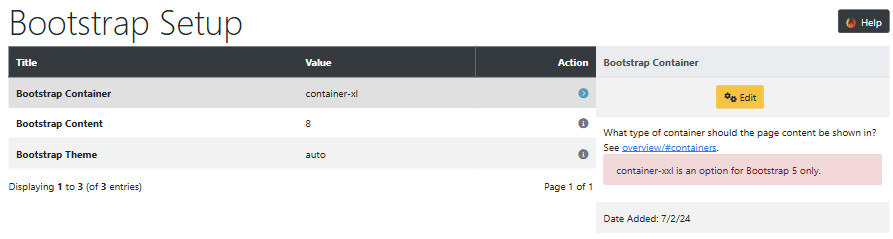
- Click Bootstrap Content
- Click Edit to see this:

As indicated in the edit options, changing the setting from 8 will reduce the width of the page content whilst increasing the width of the side Box Modules.
- Click Bootstrap Container
- Click Edit to see this:

CE Phoenix is set with container-fluid as default which displays the shop 100% of the device screen width like this:

Change the setting from container-fluid to container will reduce the webpage width according to the device used to view it as per this table.

For example, changing the setting to container and removing the side boxes gives this result.
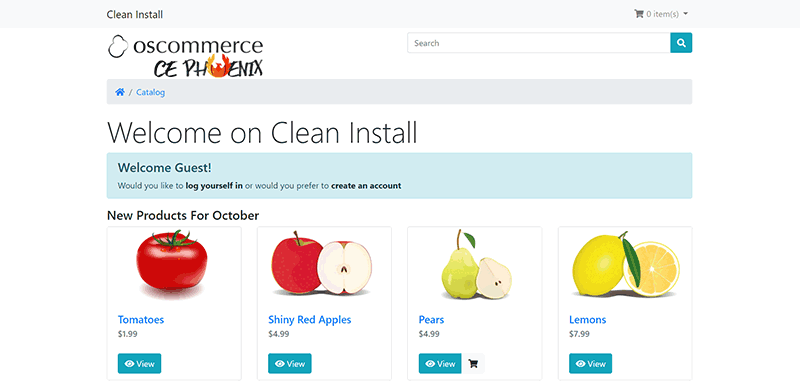
The difference in display is your own preference - whichever look you prefer - there are fans of both.
Note that if all Module Boxes have been removed, there are alternatives to the box modules that can be displayed elsewhere e.g. in the navigation bar or the footer but an alternative module for displaying Categories is not included with Phoenix.
Many Addons and Extensions available in the CE Phoenix Cart Addons Library
If help is needed, support is available in the CE Phoenix Cart Support Forum
Phoenix Cart User Guide, like CE Phoenix Cart, is free to use but is maintained by unpaid volunteers.
All other content is the reserved Intellectual Property and Copyright of phoenixcart.org
