E-Mail Options
From Phoenix Cart User Guide
Revision as of 15:51, 3 November 2024 by PeterRobert (talk | contribs)
Back
Administration
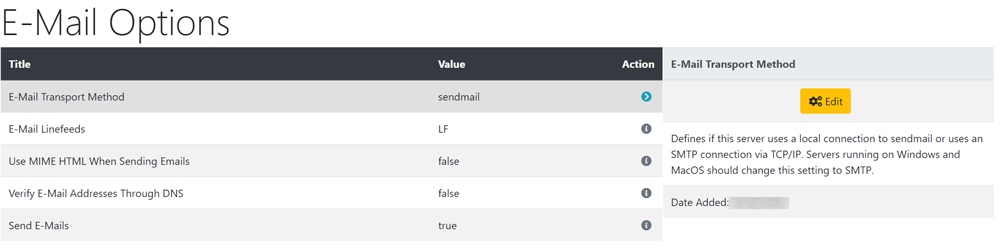
From admin go to  Configuration → E-Mail Options to see this:
- From admin go to Tools → Server Info to see what operating system (OS) your host server is running e.g. Unix, Linux, Windows or MacOS
- See Server Info
- E-Mail Transport Method
- If your host server is running on Unix Linux, leave this setting as sendmail.
- If your host server is running on Windows or MacOS, change this setting to SMTP.
- E-Mail Line Feeds
- If your host server is running on Unix Linux, leave this setting as LF.
- If your host server is running on Windows or MacOS, change this setting to CRLF.
- Use MIME HTML When Sending Emails
- Setting this to true enables HTML formatting in emails.
- Setting this to false only allows plain text emails.
- Verify E-Mail Addresses Through DNS
- Setting to true will check if the domain name of email addresses is valid before sending, reducing bounced emails.
- Set this to false if your host server is running on Windows as it does not work in that case.
- Send E-Mails
- Enables or Disables the entire email system - disabling is useful whilst testing a shop.
To change any setting:
- Click the item in the Title column list to select it.
- Click it again to open the edit panel.
- Change the settings.
- Click Save
Many Addons and Extensions available in the CE Phoenix Cart Addons Library
If help is needed, support is available in the CE Phoenix Cart Support Forum
Phoenix Cart User Guide, like CE Phoenix Cart, is free to use but is maintained by unpaid volunteers.
All other content is the reserved Intellectual Property and Copyright of phoenixcart.org
