Product Listing
From Phoenix Cart User Guide
Revision as of 07:48, 6 November 2024 by PeterRobert (talk | contribs)
Back
Administration
From admin go to  Configuration → Product Listing to see this:
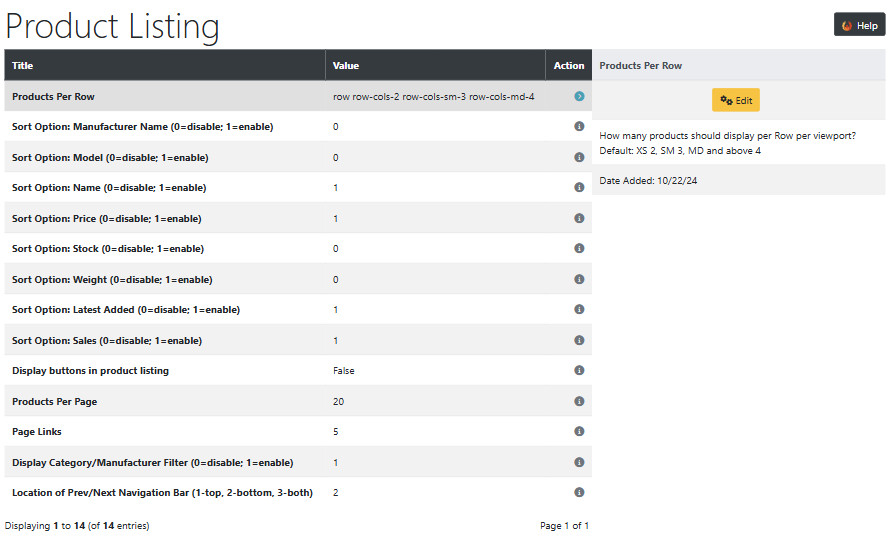
CE Phoenix Cart looks great as it is but there are options to change the layout if required. To change any setting:
- Click the item in the Title column list to select it.
- Click it again to edit.
- Change the settings in the edit panel.
- Click Save
- Products Per Row
- The product listing display can be changed the default code is explained in the Edit panel on the right - Default: XS 2, SM 3, MD and above 4.
- It's best to have a play with this to achieve your preferred display on different sized devices.
- These settings enable/disable the menu items that show in the Sort By drop down menu shown on the product listing.
- Sort Option: Manufacturer Name (0=disable; 1=enable)
- Sort Option: Model (0=disable; 1=enable)
- Sort Option: Name (0=disable; 1=enable)
- Sort Option: Price (0=disable; 1=enable)
- Sort Option: Stock (0=disable; 1=enable)
- Sort Option: Weight (0=disable; 1=enable)
- Sort Option: Latest Added (0=disable; 1=enable)
- Sort Option: Sales (0=disable; 1=enable)
- Display buttons in product listing
- This enables/disables the display of View and Add To Cart buttons in the product cards in product listings.
- Products Per Page
- This sets the number of products to list per page in product listings.
- Page Links
- This sets the number of pages to show in the Prev/Next Navigation Bar.
- Display Category/Manufacturer Filter (0=disable; 1=enable)
- Note that Manufacturers could also be used as a secondary method of categorising products.
- Location of Prev/Next Navigation Bar (1-top, 2-bottom, 3-both) - note 0 to disable.
- Enable/disable and/or set the position of the Prev/Next Navigation Bar as desired.
Tip: This whole Sort By/Filter section can be disabled by entering the following in user.css
div.alert-filters { display: none !important; }
Many Addons and Extensions available in the CE Phoenix Cart Addons Library
If help is needed, support is available in the CE Phoenix Cart Support Forum
Phoenix Cart User Guide, like CE Phoenix Cart, is free to use but is maintained by unpaid volunteers.
All other content is the reserved Intellectual Property and Copyright of phoenixcart.org
