Difference between revisions of "Define Languages"
PeterRobert (talk | contribs) |
PeterRobert (talk | contribs) |
||
| Line 8: | Line 8: | ||
| − | + | <big>'''ABOUT LANGUAGE FILES'''</big> | |
| − | Other Language Packs are available to download | + | Other Language Packs are available to download - the links to find them are shown in the '''README''' file in the CE Phoenix download - download and install now if required. |
Changes to language files can be made to localise and personalise the shop to suit you. | Changes to language files can be made to localise and personalise the shop to suit you. | ||
| Line 24: | Line 24: | ||
This file contains all the code to make the page work and you should not normally change anything in it - these type of files are generally referred to as '''core code''' - it is the mechanics so don't touch it unless you know what you're doing or you will break things! | This file contains all the code to make the page work and you should not normally change anything in it - these type of files are generally referred to as '''core code''' - it is the mechanics so don't touch it unless you know what you're doing or you will break things! | ||
| − | Open '''privacy''' with your file editor | + | Open '''privacy''' with your file editor. |
In the code there will be a reference to the text you see on the page - just a code for each different piece of text. | In the code there will be a reference to the text you see on the page - just a code for each different piece of text. | ||
| Line 39: | Line 39: | ||
*<code>IMAGE_BUTTON_CONTINUE</code> for the text that shows in the "Continue" button. | *<code>IMAGE_BUTTON_CONTINUE</code> for the text that shows in the "Continue" button. | ||
| − | They are easy to find - these language codes are always written in upper case | + | They are easy to find - these language codes are always written in upper case. |
The codes for each piece of text are '''defined''' in a statement in a corresponding '''language file'''. | The codes for each piece of text are '''defined''' in a statement in a corresponding '''language file'''. | ||
| Line 47: | Line 47: | ||
Note that the language file has the same name as the corresponding main page file. | Note that the language file has the same name as the corresponding main page file. | ||
| − | You can find and open this language file from admin go to '''Tools → Define Languages''' | + | You can find and open this language file from admin - go to '''Tools → Define Languages''' to see this: |
| + | <div class="mainpage_box"> | ||
| + | [[File:toolsdefinelanguages.png|link=|1500px]] | ||
| + | </div> | ||
| + | |||
*Look for '''privacy.php''' in the list. | *Look for '''privacy.php''' in the list. | ||
*Click to open it to see this. | *Click to open it to see this. | ||
| Line 60: | Line 64: | ||
These '''defines''' are for text that shows specifically on the '''privacy''' page - the '''define''' for the text that shows in the "Continue" button is not in this file because that will show on other pages too - it is found in the main '''english.php''' language file. | These '''defines''' are for text that shows specifically on the '''privacy''' page - the '''define''' for the text that shows in the "Continue" button is not in this file because that will show on other pages too - it is found in the main '''english.php''' language file. | ||
| + | |||
| + | Note: In some language files these '''defines''' are written in a different format using a '''constant''' although they work in exactly the same way e.g. | ||
| + | <pre>const TEXT_INFORMATION = 'Put here your Privacy Notice information.';</pre> | ||
The text will show between two single quote marks e.g. <pre>'Put here your Privacy Notice information.'</pre> | The text will show between two single quote marks e.g. <pre>'Put here your Privacy Notice information.'</pre> | ||
| Line 77: | Line 84: | ||
IMPORTANT: If you enter any more quotes in your text, you must use a backslash before the quote e.g. '''don\'t''' or you will confuse the system and break things! | IMPORTANT: If you enter any more quotes in your text, you must use a backslash before the quote e.g. '''don\'t''' or you will confuse the system and break things! | ||
| + | |||
<hr> | <hr> | ||
| Line 84: | Line 92: | ||
*'''Catalog''' in the breadcrumb - '''Tools → Define Languages''' and look for '''english.php''' | *'''Catalog''' in the breadcrumb - '''Tools → Define Languages''' and look for '''english.php''' | ||
| − | *Text on the front main page - '''Tools → Define Languages''' and look for '''modules/content/index/cm_i_title.php''' | + | *Text on the front main page - '''Tools → Define Languages''' and look for '''modules/content/index/cm_i_title.php''', '''modules/content/index/cm_i_customer_greeting.php''' |
*Text on shop information pages - '''Tools → Define Languages''' and look for '''privacy.php''', '''conditions.php''' and '''shipping.php'''. | *Text on shop information pages - '''Tools → Define Languages''' and look for '''privacy.php''', '''conditions.php''' and '''shipping.php'''. | ||
| − | Phoenix is modular meaning some pages are comprised of different modules. In this case the language define will be found in the language file for the module and not for the page | + | CE Phoenix is modular meaning some pages are comprised of different modules. In this case the language define will be found in the language file for the module and not for the page. This can make it difficult to find them but to find the language files to change text see - <big>'''[[How to Change Text]]'''</big> |
| − | |||
Revision as of 05:38, 2 June 2020
<historylink type="back">🠈 Back</historylink> 🠉 ADMINISTRATION
From admin go to Tools → Define Languages to see this:

ABOUT LANGUAGE FILES
Other Language Packs are available to download - the links to find them are shown in the README file in the CE Phoenix download - download and install now if required.
Changes to language files can be made to localise and personalise the shop to suit you.
Let's first explain a little about the basic working mechanics of Phoenix.
In your browser go to your website, look in the page footer and click the Privacy & Cookie Policy link.
This will open the page - you will see that this page is generated by the file privacy.php - this is shown in your browser address bar - the file name is privacy and the file type extension is .php.
Find this privacy file in your backup folder/directory on your computer (How to Back Up) - you will find it in the top Phoenix folder/directory - all the main pages that show in your shop will be found here.
This file contains all the code to make the page work and you should not normally change anything in it - these type of files are generally referred to as core code - it is the mechanics so don't touch it unless you know what you're doing or you will break things!
Open privacy with your file editor.
In the code there will be a reference to the text you see on the page - just a code for each different piece of text.
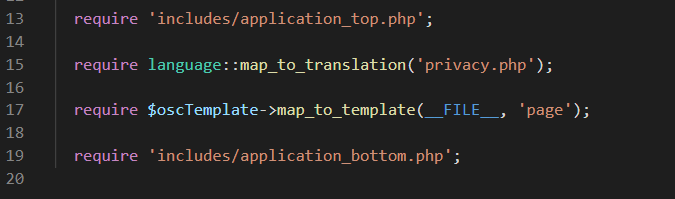
In this case there are 4 pieces of text so there are 4 codes:
NAVBAR_TITLEfor the text that shows in the breadcrumb.HEADING_TITLEfor the text that shows in the page title.TEXT_INFORMATIONfor the main text.IMAGE_BUTTON_CONTINUEfor the text that shows in the "Continue" button.
They are easy to find - these language codes are always written in upper case.
The codes for each piece of text are defined in a statement in a corresponding language file.
For example, the defines for the text you see will be found in the language file found in includes/languages/english/privacy.php.
Note that the language file has the same name as the corresponding main page file.
You can find and open this language file from admin - go to Tools → Define Languages to see this:
- Look for privacy.php in the list.
- Click to open it to see this.
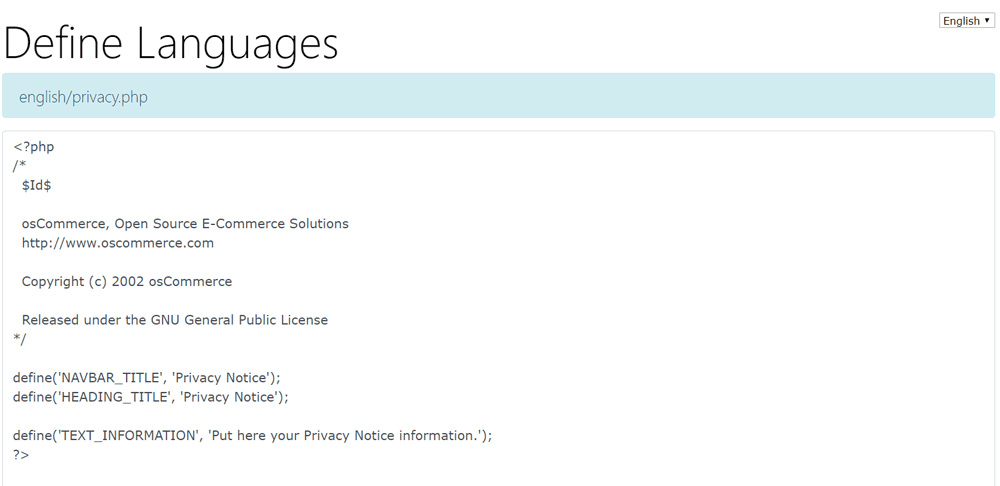
- Look for the defines - in this case there will be 3 defines showing as
define('NAVBAR_TITLE', 'Privacy Notice');
define('HEADING_TITLE', 'Privacy Notice');
define('TEXT_INFORMATION', 'Put here your Privacy Notice information.');
These defines are for text that shows specifically on the privacy page - the define for the text that shows in the "Continue" button is not in this file because that will show on other pages too - it is found in the main english.php language file.
Note: In some language files these defines are written in a different format using a constant although they work in exactly the same way e.g.
const TEXT_INFORMATION = 'Put here your Privacy Notice information.';
The text will show between two single quote marks e.g.
'Put here your Privacy Notice information.'
Now you have the language file open, change the text between the single quotes and click save.
Open the website page again to see your changes or if you still have the page open, refresh or reload the page to see the changes.
Only ever change the text between the quotes - be sure not to delete one of the quotes by mistake or you will break things!.
Just about every page and module in Phoenix will work this way and have it's own corresponding language file.
The exceptions are the main language files named english.php, there is one for the admin and one for the shop, which control text for many different pages.
All of the text can be changed in those define statements to personalise the text or messages displayed.
So remember - you can change anything in a language file define statement between those two quotes.
IMPORTANT: If you enter any more quotes in your text, you must use a backslash before the quote e.g. don\'t or you will confuse the system and break things!
Users most commonly want to change the following:
- Catalog in the breadcrumb - Tools → Define Languages and look for english.php
- Text on the front main page - Tools → Define Languages and look for modules/content/index/cm_i_title.php, modules/content/index/cm_i_customer_greeting.php
- Text on shop information pages - Tools → Define Languages and look for privacy.php, conditions.php and shipping.php.
CE Phoenix is modular meaning some pages are comprised of different modules. In this case the language define will be found in the language file for the module and not for the page. This can make it difficult to find them but to find the language files to change text see - How to Change Text
Phoenix Cart User Guide, like CE Phoenix Cart, is free to use but is maintained by unpaid volunteers.
All other content is the reserved Intellectual Property and Copyright of phoenixcart.org
