Difference between revisions of "Database Tables"
PeterRobert (talk | contribs) |
PeterRobert (talk | contribs) |
||
| (2 intermediate revisions by the same user not shown) | |||
| Line 5: | Line 5: | ||
[[File:databasetables.png|link=]] | [[File:databasetables.png|link=]] | ||
</div> | </div> | ||
| − | *This | + | *This shows a list of the tables in your database. |
*Do not make any changes here unless you know better! | *Do not make any changes here unless you know better! | ||
*See <big>'''[[phpMyAdmin]]'''</big> | *See <big>'''[[phpMyAdmin]]'''</big> | ||
| + | At the very bottom of the page, you will find a dropdown-menu with some maintenance actions you can perform on any tables selected with the checkboxes. | ||
| + | |||
| + | <div class="mainpage_box"> | ||
| + | [[File:database_tables_1_find_maintenance.png|link=]] | ||
| + | </div> | ||
| + | |||
| + | |||
| + | Hint! Don’t check more than a few, especially if your database is loaded with a lot of data, as the actions might take a while! | ||
| + | |||
| + | Check Tables works with InnoDB, MyISAM, ARCHIVE and CS. It checks the selected tables for errors, and will output information of errors and warnings. It does not change or fix anything. The desired result is “Status OK”, meaning that there are nothing else to do. | ||
| + | If you are on InnoDB, you should read the following notes: | ||
| + | |||
| + | https://dev.mysql.com/doc/refman/8.0/en/check-table.html#check-table-innodbcheck-table.html#check-table-innodb | ||
| + | |||
| + | Example of a performed action. | ||
| + | |||
| + | <div class="mainpage_box"> | ||
| + | [[File:database_tables_2_check_tables.png|link=]] | ||
| + | </div> | ||
| + | |||
| + | |||
| + | Analyze Tables works with InnoDB, NDB and MyIsam. It analyzes the selected tables and stores the analysis in order to optimize the execution of queries with join-statements. Note, that while the analyze is on-going, the tables are locked for any other operation. The analyze is quick, so it will often not be a problem, but it is important to keep in mind with huge amounts of data. The desired result is “Status OK”, as any other messages means that something is wrong and the action was not performed. | ||
| + | |||
| + | Optimize Tables works with InnoDB, My-ISAM and ARCHIVE, but is less needed for InnoDB than for the other two, due to the way InnoDB stores data. It re-organizes the physical storage of data, which reduces the storage space needed and the speed of gathering data – much like defragmentation on a Windows PC. It is advised to optimize tables after large changes to them; a large change is either a lot of affected rows, or a lot of affected text. The desired result is “Status OK”, as any other messages means that something is wrong and the action was not performed. | ||
| + | |||
| + | Example of an action not performed. | ||
| + | |||
| + | <div class="mainpage_box"> | ||
| + | [[File:database_tables_3_optimize_tables.png|link=]] | ||
| + | </div> | ||
| + | |||
| + | Repair Tables works with MyISAM, ARCHIVE and CSV. It is the big red emergency-button, and you must make sure to have a backup of your data before pressing it. You should also try out everything else you can think of, before going here, as it may result in a complete loss of data. However, it is very likely to get back all data, especially from a MyISAM table, should it have become corrupted. The desired result is “Status OK”, as any other messages means that something is wrong and the action was not performed. | ||
| + | |||
| + | Convert To UTF-8 does what it says: It converts the encoding of the data into UTF-8, which is recommended, as it supports encoding of special characters. | ||
| + | Note, that MySQL might change the size of the input-types, in order to prevent data being truncated. As always remember to back up your data before making changes! | ||
Latest revision as of 18:55, 20 May 2021
From admin go to  Tools → Database Tables to see this:

- This shows a list of the tables in your database.
- Do not make any changes here unless you know better!
- See phpMyAdmin
At the very bottom of the page, you will find a dropdown-menu with some maintenance actions you can perform on any tables selected with the checkboxes.
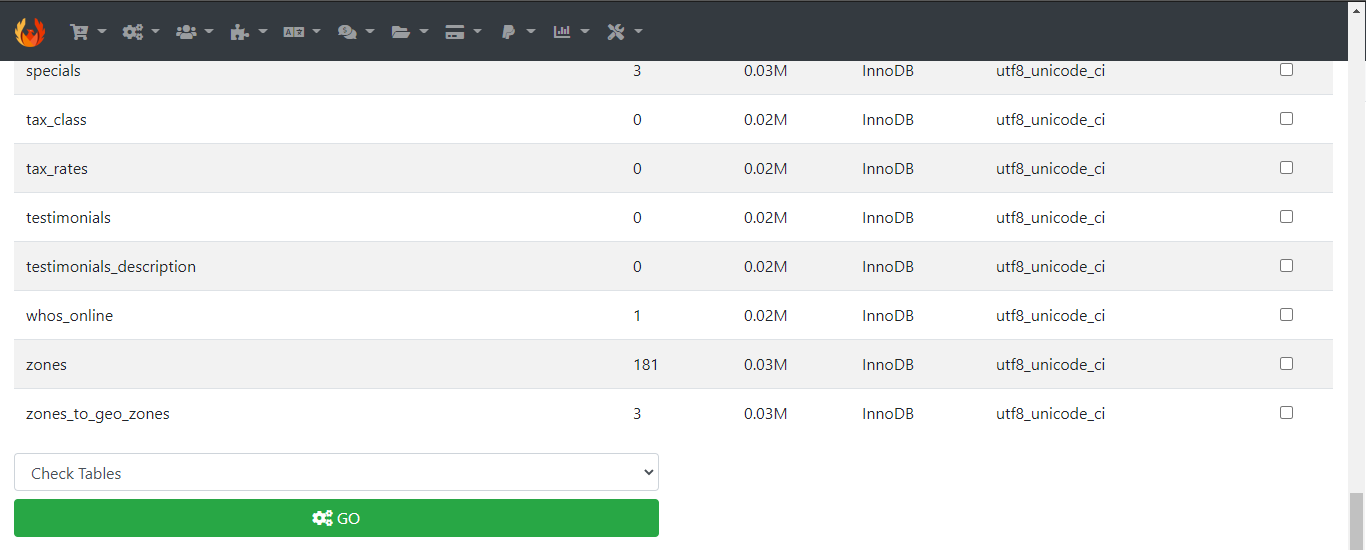
Hint! Don’t check more than a few, especially if your database is loaded with a lot of data, as the actions might take a while!
Check Tables works with InnoDB, MyISAM, ARCHIVE and CS. It checks the selected tables for errors, and will output information of errors and warnings. It does not change or fix anything. The desired result is “Status OK”, meaning that there are nothing else to do. If you are on InnoDB, you should read the following notes:
Example of a performed action.

Analyze Tables works with InnoDB, NDB and MyIsam. It analyzes the selected tables and stores the analysis in order to optimize the execution of queries with join-statements. Note, that while the analyze is on-going, the tables are locked for any other operation. The analyze is quick, so it will often not be a problem, but it is important to keep in mind with huge amounts of data. The desired result is “Status OK”, as any other messages means that something is wrong and the action was not performed.
Optimize Tables works with InnoDB, My-ISAM and ARCHIVE, but is less needed for InnoDB than for the other two, due to the way InnoDB stores data. It re-organizes the physical storage of data, which reduces the storage space needed and the speed of gathering data – much like defragmentation on a Windows PC. It is advised to optimize tables after large changes to them; a large change is either a lot of affected rows, or a lot of affected text. The desired result is “Status OK”, as any other messages means that something is wrong and the action was not performed.
Example of an action not performed.

Repair Tables works with MyISAM, ARCHIVE and CSV. It is the big red emergency-button, and you must make sure to have a backup of your data before pressing it. You should also try out everything else you can think of, before going here, as it may result in a complete loss of data. However, it is very likely to get back all data, especially from a MyISAM table, should it have become corrupted. The desired result is “Status OK”, as any other messages means that something is wrong and the action was not performed.
Convert To UTF-8 does what it says: It converts the encoding of the data into UTF-8, which is recommended, as it supports encoding of special characters. Note, that MySQL might change the size of the input-types, in order to prevent data being truncated. As always remember to back up your data before making changes!

Please visit again soon for additions and changes
Phoenix Cart User Guide, like CE Phoenix Cart, is free to use but is maintained by unpaid volunteers.
All other content is the reserved Intellectual Property and Copyright of phoenixcart.org
