Difference between revisions of "Manufacturers"
From Phoenix Cart User Guide
PeterRobert (talk | contribs) (Created page with "<span class="btn-grey"><historylink type="back">🠈 Back</historylink></span> <span class="btn-grey" style="color:#0088dd;">'''[[ADMINISTRATION|🠉 ADMINISTRATION]...") |
PeterRobert (talk | contribs) |
||
| (26 intermediate revisions by the same user not shown) | |||
| Line 1: | Line 1: | ||
| − | < | + | <div class="btn btn-grey btn-back">{{#fas:arrow-left}} Back</div> <div class="btn btn-grey btn-admin">{{#fas:cog}} Administration</div> |
| − | < | ||
<hr> | <hr> | ||
| + | __TOC__ | ||
| + | __FORCETOC__ | ||
| + | Go to [[File:adminnavbarcatalog.png|link=]] '''Catalog → Manufacturers''' - you will see this: | ||
| + | <div class="mainpage_box"> | ||
| + | [[File:Manufacturers.jpg|link=|1500px]] | ||
| + | </div> | ||
| + | |||
| + | |||
| + | ---- | ||
| + | ==='''Delete Manufacturers'''=== | ||
| + | |||
| + | *Click on a manufacturer to select it in the list. | ||
| + | *Click <span class="btn-red">Delete</span> | ||
| + | |||
| + | |||
| + | <hr> | ||
| + | ==='''New Manufacturers'''=== | ||
| + | |||
| + | *Click <span class="btn-red">New Manufacturer</span> - you will see this: | ||
| + | <div class="mainpage_box"> | ||
| + | [[File:Manufacturers2.jpg|link=|1500px]] | ||
| + | </div> | ||
| + | |||
| + | *'''Manufacturers Name:''' | ||
| + | **Enter the name. | ||
| + | *'''Manufacturers Image:''' | ||
| + | **Click <span class="btn-grey">Browse</span> to choose and upload an image from your computer. | ||
| + | *'''Manufacturers URL:''' | ||
| + | **Enter the website address if required | ||
| + | *'''Manufacturers Title for SEO:''' | ||
| + | **Enter a title for search engines if required. | ||
| + | *'''Manufacturers Description:''' | ||
| + | **Enter a full description. | ||
| + | *'''Manufacturers Meta Description for SEO:''' | ||
| + | **Enter a short description for search engines. | ||
| + | |||
| + | *Click <span class="btn-green">Save</span> | ||
| + | |||
| + | |||
| + | ---- | ||
| + | |||
| + | <div class="mainpage_box"> | ||
| + | '''Tip:''' | ||
| + | |||
| + | With some sideways thinking, Manufacturers can be alternatively be used as a secondary method of categorising products. | ||
| + | |||
| + | For example, using the sample products, Yellow, Green, Orange, Red could be entered to enable a secondary categorisation by colour. | ||
| + | |||
| + | Note in this case that language defines would need to be changed so '''Colour''' showed instead of '''Manufacturer''' on the shop. | ||
| + | </div> | ||
| + | |||
<hr> | <hr> | ||
| − | {{ | + | {{Forum}} |
| + | {{Pro}} | ||
{{Contribute}} | {{Contribute}} | ||
Latest revision as of 08:34, 1 November 2024
Back
Administration
Go to  Catalog → Manufacturers - you will see this:
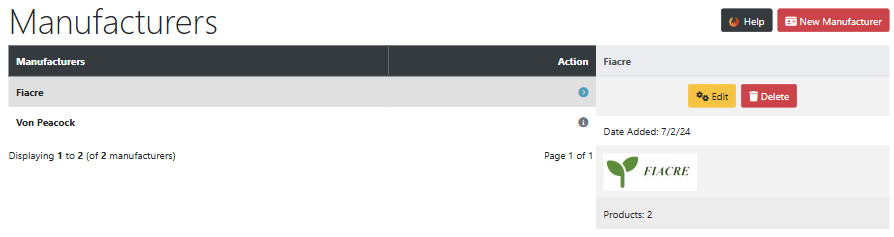
Delete Manufacturers
- Click on a manufacturer to select it in the list.
- Click Delete
New Manufacturers
- Click New Manufacturer - you will see this:
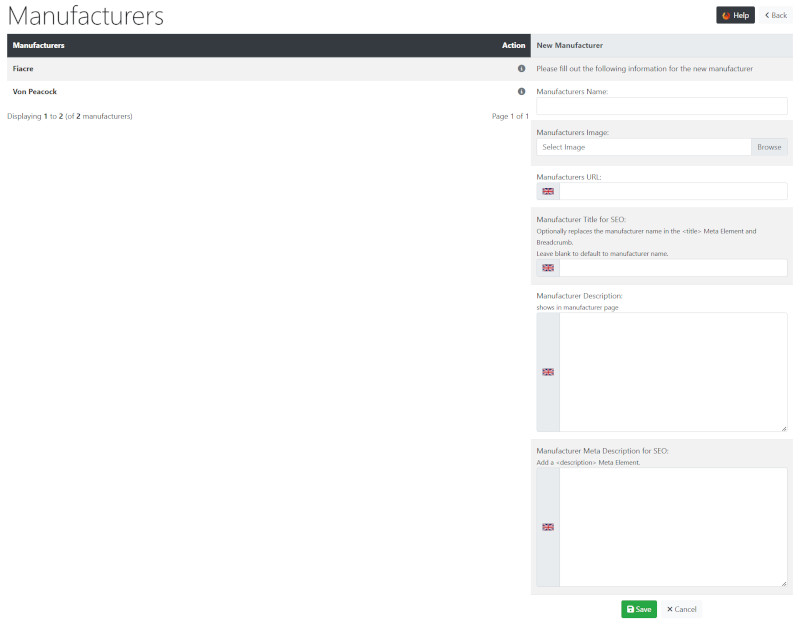
- Manufacturers Name:
- Enter the name.
- Manufacturers Image:
- Click Browse to choose and upload an image from your computer.
- Manufacturers URL:
- Enter the website address if required
- Manufacturers Title for SEO:
- Enter a title for search engines if required.
- Manufacturers Description:
- Enter a full description.
- Manufacturers Meta Description for SEO:
- Enter a short description for search engines.
- Click Save
Tip:
With some sideways thinking, Manufacturers can be alternatively be used as a secondary method of categorising products.
For example, using the sample products, Yellow, Green, Orange, Red could be entered to enable a secondary categorisation by colour.
Note in this case that language defines would need to be changed so Colour showed instead of Manufacturer on the shop.
Many Addons and Extensions available in the CE Phoenix Cart Addons Library
If help is needed, support is available in the CE Phoenix Cart Support Forum
Phoenix Cart User Guide, like CE Phoenix Cart, is free to use but is maintained by unpaid volunteers.
All other content is the reserved Intellectual Property and Copyright of phoenixcart.org
