Difference between revisions of "Change Language Files"
PeterRobert (talk | contribs) |
PeterRobert (talk | contribs) |
||
| (120 intermediate revisions by the same user not shown) | |||
| Line 1: | Line 1: | ||
| − | ''' | + | <div class="btn btn-grey btn-back">{{#fas:arrow-left}} Back</div> <div class="btn btn-grey btn-setup-shop">{{#fas:play-square}} [[Set_Up_Store|Set Up Store]]</div> |
| + | <hr> | ||
| + | __TOC__ | ||
| + | __FORCETOC__ | ||
| + | ==='''Language Files'''=== | ||
| + | Phoenix Cart is English by default but other Language Packs are available to download. | ||
| − | + | Changes to the text shown can easily be made to localise and personalise as desired. | |
| − | + | Let's first explain a little about the basic working mechanics of Phoenix Cart. | |
| − | + | Using a new installation and the main page (home page) as an example, in your browser go to your website to see similar to this: | |
| − | + | <div class="mainpage_box"> | |
| + | [[File:shop.jpg|link=|1500px]] | ||
| + | </div> | ||
| − | |||
| − | + | Look in your browser address bar and you will see the page as '''yoursite.com/index.php''' (if it only shows '''yoursite.com''', click the store logo to refresh the page) so this page is named '''index.php'''. | |
| − | + | Note that most everything in CE Phoenix Cart is modularised so a lot of the text showing on the page will be in language files associated with those modules. | |
| − | + | As seen in the example, the page could be described in groups of modules. | |
| − | + | So, on this page, from the top, there are: | |
| + | *'''navbar''' modules shown in the navigation bar at the top of the page. | ||
| + | *'''content/header''' modules shown just below the navigation bar. | ||
| + | *'''content/index''' modules shown in the body of the page. | ||
| + | *'''layout/index''' modules (also known as '''pi''' modules) shown in the body of the page. These are child modules of a parent content '''modular''' module. | ||
| + | *'''content/footer''' modules shown at the base of the page. | ||
| + | *'''content/footer-suffix''' modules shown below the footer at the bottom of the page. | ||
| − | + | There are more modules in other groups on other pages. | |
| − | |||
| − | + | ---- | |
| + | ==='''Example'''=== | ||
| + | There are 4 modules shown in the footer with titles: '''Information''', '''Customer Services''', '''How To Contact Us''' and '''About Us'''. | ||
| − | + | As an example, change the text associated with '''About Us'''. | |
| − | |||
| − | |||
| − | |||
| − | The text | + | To identify the module, first go to [[File:adminnavbarmod.png|link=]] '''Modules''' and click '''Content''' in the list. |
| − | + | ||
| + | <div class="mainpage_box"> | ||
| + | [[File:modules-content-footer.jpg|link=|]] | ||
| + | </div> | ||
| + | |||
| + | It is in the '''footer''' so look in the '''Group''' column list for modules in the '''footer''' group. | ||
| + | |||
| + | It can be seen on the web page that the '''About Us''' section shows last in the '''footer'''. | ||
| + | |||
| + | '''Text Block''' can be seen as sorted last in the list of modules in the '''footer''' Group so this is the module. | ||
| + | |||
| + | <!-- So, on the server navigate to the '''/includes/languages/english/modules/content/footer/''' folder/directory. | ||
| + | |||
| + | The file, '''cm_footer_text.php''', can be seen there. | ||
| + | |||
| + | In a multi language store, the same file will also be in other language directories, for example, at: | ||
| + | |||
| + | '''/includes/languages/yourLanguage/modules/content/footer/cm_footer_text.php''' | ||
| + | |||
| + | Open the language file to see the constants and their values: | ||
| + | |||
| + | <div class="mainpage_box"> | ||
| + | [[File:modules-content-footer-file.jpg|link=|1500px]] | ||
| + | </div> | ||
| + | |||
| + | The value will be output wherever the constant is used in a file. | ||
| + | |||
| + | Note: Some language files might have the constants and values written slightly differently like: | ||
| + | <div class="mainpage_box"> | ||
| + | [[File:constant-define.jpg|link=|]] | ||
| + | </div> | ||
| + | --> | ||
| + | Problems finding which file to change? Have a look at <big>'''[[How to Change Text]]'''</big> | ||
| + | |||
| + | |||
| + | ---- | ||
| + | ==='''Edit Example'''=== | ||
| + | Changes to any language file for the Store side are made to a copy which is saved in a new location in the template directory set in '''Configuration → My Store → Template Selection'''. In a new installation this is '''override'''. | ||
| + | |||
| + | This prevents them being overwritten in updates. | ||
| + | |||
| + | Changes to any language file for the Admin side are saved in the original location, they cannot be overridden. | ||
| + | |||
| + | If making a change to an Admin side language file, backup that file before and after making changes to the file on the server. | ||
| + | |||
| + | In every case, backup files before and after editing. | ||
| + | |||
| + | Making a change to a Store side language file (presuming using English): | ||
| + | *From the admin dashboard go to '''Tools > Language Explorer'''. | ||
| + | *Look in the list for '''english > modules > content > footer''', click the drop down arrow and see the language files associated with the modules. | ||
| + | *See '''cm_footer_text.php''' which is the language file associated with the '''Text Block''' module. | ||
| + | *Click it. This will copy the file to your template (which is override in a new install). | ||
| + | *Now a copy of that file will be at /templates/override/includes/languages/english/modules/content/footer/cm_footer_text.php | ||
| + | *Open the new file '''/templates/override/includes/languages/english/modules/content/footer/cm_footer_text.php''' | ||
| + | *See the constant '''MODULE_CONTENT_FOOTER_TEXT_TEXT''' has a value set as <pre><p>Lorem Ipsum is simply dummy text of the printing and typesetting industry. Lorem Ipsum has been the industry\'s standard dummy text ever since the 1500s, when an unknown printer took a galley of type and scrambled it to make a type specimen book.</p></pre> | ||
| + | *In this case, the text is formatted as a paragraph by being wrapped in HTML tags - <pre><p></pre> to start and <pre></p></pre> to end. | ||
| + | *The value is also wrapped in single quotes. | ||
| + | *Change the text as required. | ||
| + | *If you enter any more single quotes in your text, you must use a backslash before the single quote, for example, '''don\'t'''. | ||
| + | *Check and test the changes in the store. Remember to refresh/reload the page to see changes. Back up the file. | ||
| + | |||
| + | |||
| + | ---- | ||
| + | ==='''Policy Pages'''=== | ||
| + | |||
| + | It is important to enter your own text for the pages that customers will use before and after buying. | ||
| + | |||
| + | These are the Policy pages, such as the '''Privacy & Cookie Policy''', '''Terms & Conditions''' and '''Shipping & Returns''' pages. | ||
| + | |||
| + | Links to these pages can be seen in the footer of the shop. | ||
| + | |||
| + | The text for the content of these pages are handled in an alternative way. | ||
| + | |||
| + | The content text is not changed in Language files but is changed from admin - go to [[File:adminnavbartools.png|link=]] '''Tools → Info Pages''' | ||
| + | |||
| + | For example, go to '''Tools → Info Pages''' and double click '''Privacy & Cookie Policy''' in the list to edit. | ||
| + | |||
| + | Change the text '''Put here your Privacy/Cookie Policies Text.''' to your required text and click <span class="btn-green">Save</span>. | ||
| + | |||
| + | The text for the module title, '''Information''' and the text for links to these pages are shown in a module in the footer and are changed in Language files. | ||
| + | |||
| + | For example, to change the text that shows '''Information''', find the file '''/includes/languages/yourLanguage/modules/content/footer/cm_footer_information_links.php''' | ||
| + | |||
| + | Follow steps similarly to the Example above to copy into your template folder. | ||
| + | |||
| + | Open the new file to see: <pre>const MODULE_CONTENT_FOOTER_INFORMATION_HEADING_TITLE = 'Information';</pre> | ||
| + | |||
| + | Change '''Information''' to your required text and save. | ||
Open the website page again to see your changes or if you still have the page open, refresh or reload the page to see the changes. | Open the website page again to see your changes or if you still have the page open, refresh or reload the page to see the changes. | ||
| − | + | Back up the file. | |
| + | |||
| + | The text for the links is in the same file. | ||
| + | |||
| + | For example, see the lines: | ||
| + | <pre> const MODULE_CONTENT_FOOTER_INFORMATION_DATA = [ | ||
| + | 'privacy.php' => 'Privacy & Cookie Policy', | ||
| + | 'conditions.php' => 'Terms & Conditions', | ||
| + | 'shipping.php' => 'Delivery & Returns', | ||
| + | 'contact_us.php' => 'Contact Us', | ||
| + | ];</pre> | ||
| − | + | Change '''Privacy &amp; Cookie Policy''' as required. | |
| − | |||
| − | + | ---- | |
| + | ==='''Addons'''=== | ||
| − | + | Other Language Packs are published in the '''Addons Library''' where the '''.zip''' files can be downloaded. | |
| + | *'''[https://phoenixcart.org/forum/app.php/addons/free/language-23 Language Packs]''' | ||
| − | + | Language Packs are created by and maintained by volunteers so support for them is only available from the author. | |
| − | < | + | <hr> |
| + | <span class="btn-grey btn-prev">{{#fas:arrow-left}} [[Change_Logo|Previous Step]]</span> | ||
| + | <span class="btn-grey btn-next">[[Change_Style_and_Color|Next Step]] {{#fas:arrow-right}}</span> | ||
| + | <hr> | ||
| + | {{Forum}} | ||
| + | {{Pro}} | ||
| + | {{Contribute}} | ||
Latest revision as of 10:12, 3 June 2025
Language Files
Phoenix Cart is English by default but other Language Packs are available to download.
Changes to the text shown can easily be made to localise and personalise as desired.
Let's first explain a little about the basic working mechanics of Phoenix Cart.
Using a new installation and the main page (home page) as an example, in your browser go to your website to see similar to this:

Look in your browser address bar and you will see the page as yoursite.com/index.php (if it only shows yoursite.com, click the store logo to refresh the page) so this page is named index.php.
Note that most everything in CE Phoenix Cart is modularised so a lot of the text showing on the page will be in language files associated with those modules.
As seen in the example, the page could be described in groups of modules.
So, on this page, from the top, there are:
- navbar modules shown in the navigation bar at the top of the page.
- content/header modules shown just below the navigation bar.
- content/index modules shown in the body of the page.
- layout/index modules (also known as pi modules) shown in the body of the page. These are child modules of a parent content modular module.
- content/footer modules shown at the base of the page.
- content/footer-suffix modules shown below the footer at the bottom of the page.
There are more modules in other groups on other pages.
Example
There are 4 modules shown in the footer with titles: Information, Customer Services, How To Contact Us and About Us.
As an example, change the text associated with About Us.
To identify the module, first go to  Modules and click Content in the list.
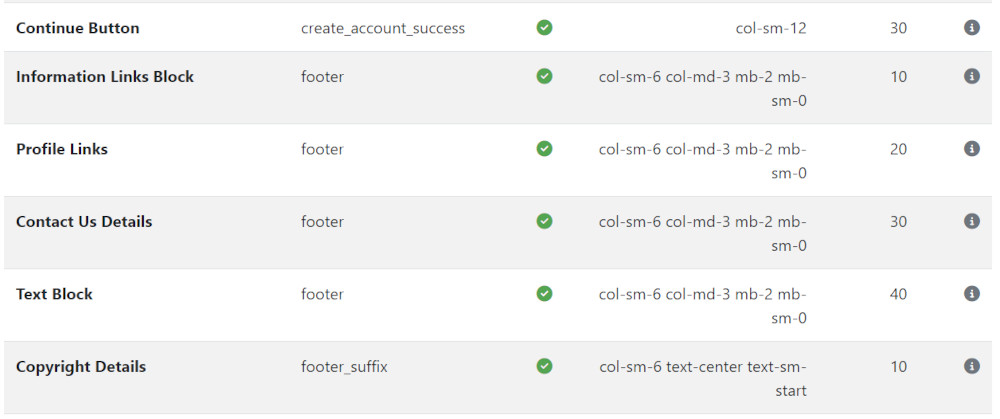
It is in the footer so look in the Group column list for modules in the footer group.
It can be seen on the web page that the About Us section shows last in the footer.
Text Block can be seen as sorted last in the list of modules in the footer Group so this is the module.
Problems finding which file to change? Have a look at How to Change Text
Edit Example
Changes to any language file for the Store side are made to a copy which is saved in a new location in the template directory set in Configuration → My Store → Template Selection. In a new installation this is override.
This prevents them being overwritten in updates.
Changes to any language file for the Admin side are saved in the original location, they cannot be overridden.
If making a change to an Admin side language file, backup that file before and after making changes to the file on the server.
In every case, backup files before and after editing.
Making a change to a Store side language file (presuming using English):
- From the admin dashboard go to Tools > Language Explorer.
- Look in the list for english > modules > content > footer, click the drop down arrow and see the language files associated with the modules.
- See cm_footer_text.php which is the language file associated with the Text Block module.
- Click it. This will copy the file to your template (which is override in a new install).
- Now a copy of that file will be at /templates/override/includes/languages/english/modules/content/footer/cm_footer_text.php
- Open the new file /templates/override/includes/languages/english/modules/content/footer/cm_footer_text.php
- See the constant MODULE_CONTENT_FOOTER_TEXT_TEXT has a value set as
<p>Lorem Ipsum is simply dummy text of the printing and typesetting industry. Lorem Ipsum has been the industry\'s standard dummy text ever since the 1500s, when an unknown printer took a galley of type and scrambled it to make a type specimen book.</p>
- In this case, the text is formatted as a paragraph by being wrapped in HTML tags -
<p>
to start and</p>
to end. - The value is also wrapped in single quotes.
- Change the text as required.
- If you enter any more single quotes in your text, you must use a backslash before the single quote, for example, don\'t.
- Check and test the changes in the store. Remember to refresh/reload the page to see changes. Back up the file.
Policy Pages
It is important to enter your own text for the pages that customers will use before and after buying.
These are the Policy pages, such as the Privacy & Cookie Policy, Terms & Conditions and Shipping & Returns pages.
Links to these pages can be seen in the footer of the shop.
The text for the content of these pages are handled in an alternative way.
The content text is not changed in Language files but is changed from admin - go to  Tools → Info Pages
For example, go to Tools → Info Pages and double click Privacy & Cookie Policy in the list to edit.
Change the text Put here your Privacy/Cookie Policies Text. to your required text and click Save.
The text for the module title, Information and the text for links to these pages are shown in a module in the footer and are changed in Language files.
For example, to change the text that shows Information, find the file /includes/languages/yourLanguage/modules/content/footer/cm_footer_information_links.php
Follow steps similarly to the Example above to copy into your template folder.
Open the new file to see:
const MODULE_CONTENT_FOOTER_INFORMATION_HEADING_TITLE = 'Information';
Change Information to your required text and save.
Open the website page again to see your changes or if you still have the page open, refresh or reload the page to see the changes.
Back up the file.
The text for the links is in the same file.
For example, see the lines:
  const MODULE_CONTENT_FOOTER_INFORMATION_DATA = [
    'privacy.php' => 'Privacy & Cookie Policy',
    'conditions.php' => 'Terms & Conditions',
    'shipping.php' => 'Delivery & Returns',
    'contact_us.php' => 'Contact Us',
  ];
Change Privacy & Cookie Policy as required.
Addons
Other Language Packs are published in the Addons Library where the .zip files can be downloaded.
Language Packs are created by and maintained by volunteers so support for them is only available from the author.
Many Addons and Extensions available in the CE Phoenix Cart Addons Library
If help is needed, support is available in the CE Phoenix Cart Support Forum
Phoenix Cart User Guide, like CE Phoenix Cart, is free to use but is maintained by unpaid volunteers.
All other content is the reserved Intellectual Property and Copyright of phoenixcart.org
