Difference between revisions of "Set up Currencies"
PeterRobert (talk | contribs) |
PeterRobert (talk | contribs) |
||
| (3 intermediate revisions by the same user not shown) | |||
| Line 1: | Line 1: | ||
| − | <div class="btn btn-grey btn-back">{{#fas:arrow-left}} Back</div> <div class="btn btn-grey btn-setup-shop">{{#fas:play-square}} | + | <div class="btn btn-grey btn-back">{{#fas:arrow-left}} Back</div> <div class="btn btn-grey btn-setup-shop">{{#fas:play-square}} [[Set_Up_Store|Set Up Store]]</div> |
<hr> | <hr> | ||
__TOC__ | __TOC__ | ||
| Line 56: | Line 56: | ||
</div> | </div> | ||
| − | <big>'''IMPORTANT: '''<span class="btn-green">Update Exchange Rate</span> '''must be clicked daily to keep updated.'''</big> | + | <big>'''IMPORTANT:'''</big> <span class="btn-green">Update Exchange Rate</span> <big>'''must be clicked daily to keep updated.'''</big> |
If you have more than one language installed: | If you have more than one language installed: | ||
| Line 79: | Line 79: | ||
From admin go to '''Modules → Navbar''', select '''Currencies''', click <span class="btn-yellow">Remove Module</span> | From admin go to '''Modules → Navbar''', select '''Currencies''', click <span class="btn-yellow">Remove Module</span> | ||
| − | + | <!-- | |
---- | ---- | ||
<BIG>'''[https://www.youtube.com/watch?v=rCuu6gP99IQ Watch on YouTube]'''</BIG> | <BIG>'''[https://www.youtube.com/watch?v=rCuu6gP99IQ Watch on YouTube]'''</BIG> | ||
| − | + | --> | |
<hr> | <hr> | ||
Latest revision as of 08:23, 6 September 2024
From admin dashboard go to  Localization → Currencies - you will see this:
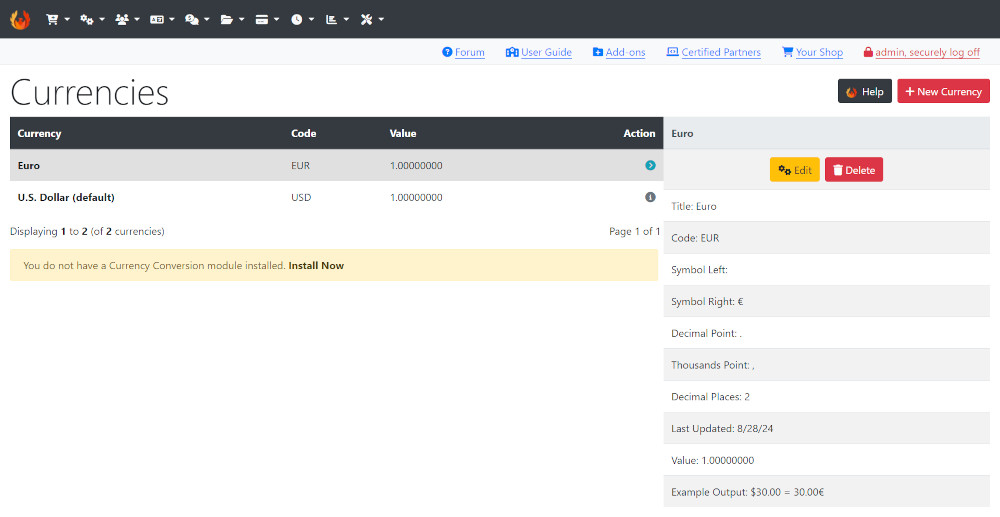
CE Phoenix Cart has Euro and U.S. Dollar currencies installed.
See U.S Dollar (default) indicating that it is set as the default currency to use in the store.
Add Currency
If you wish to add another currency, click New Currency
Click --Common Currencies---, select from the drop down, click Save
Change Default Currency
To change the default currency to match that set here https://phoenixcart.org/phoenixcartwiki/index.php?title=Set_up_Locality,_Date_Format_and_Currency#Set_the_Currency
Select the Currency, click Edit
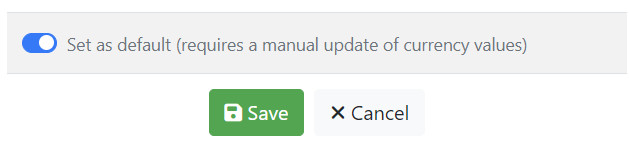
Click the toggle button, click Save
Multiple Currencies
If you wish to use more than one currency install a currency updater module.
- Click the Install Now link which will take you to admin
 Modules → Update Currency
 - Click Install Module shown top right of screen - the number shown next to it indicates the number of modules available.
- Click a module to use from the list.
- Click Install Module
- Click Edit
- Enter a Sort Order value. Do not leave 0 as the Sort Order on modules as it can cause problems. You can give it any number, in this case enter 10 so if you decide to install another module it leaves the option of entering a lesser value for the next if required.
- Click Save
Come back to this page and click Update Exchange Rate
The default currency value remains at 1.00000000 with all other currencies adjusted according to the exchange rate.
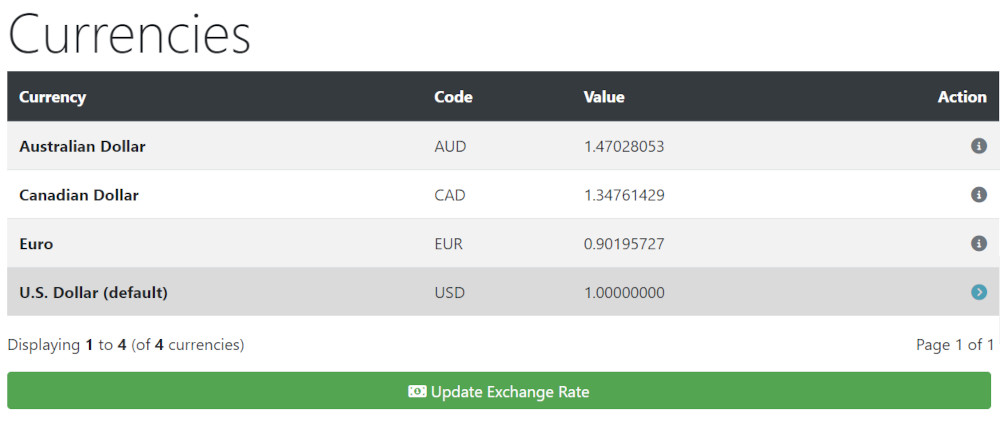
IMPORTANT: Update Exchange Rate must be clicked daily to keep updated.
If you have more than one language installed:
- From admin go to Configuration → My Store → Switch To Default Language Currency
- Set to true - the currency will change to match the language selected by the customer.
Single Currency
If you wish to use only one currency, remove unwanted currencies.
Select a currency, click Delete
The Currencies module in Navbar - Modules → Navbar is installed by default.

It now serves no purpose, remove it.
From admin go to Modules → Navbar, select Currencies, click Remove Module
Many Addons and Extensions available in the CE Phoenix Cart Addons Library
If help is needed, support is available in the CE Phoenix Cart Support Forum
Phoenix Cart User Guide, like CE Phoenix Cart, is free to use but is maintained by unpaid volunteers.
All other content is the reserved Intellectual Property and Copyright of phoenixcart.org
