Difference between revisions of "Change Logo"
From Phoenix Cart User Guide
PeterRobert (talk | contribs) |
PeterRobert (talk | contribs) |
||
| Line 8: | Line 8: | ||
[[File:changelogo.png|link=]] | [[File:changelogo.png|link=]] | ||
</div> | </div> | ||
| − | *Click <span class="btn-input"> | + | *Click <span class="btn-input">Browse</span> to choose your logo on your local computer. |
| − | *Click <span class="btn- | + | *Click <span class="btn-red">Upload</span> - that's it! |
Revision as of 07:31, 25 May 2020
<historylink type="back">🠈 Back</historylink> 🠉 SET UP SHOP
- From admin go to Configuration → Store Logo - you will see this:
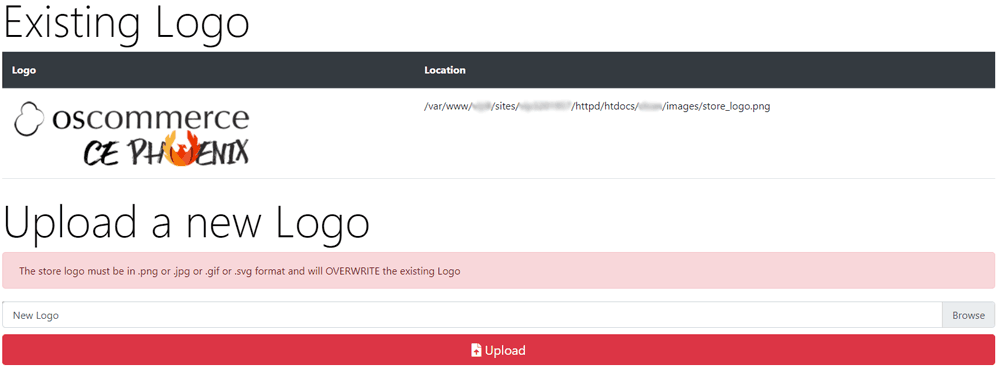
- Click Browse to choose your logo on your local computer.
- Click Upload - that's it!
Phoenix Cart User Guide, like CE Phoenix Cart, is free to use but is maintained by unpaid volunteers.
All other content is the reserved Intellectual Property and Copyright of phoenixcart.org
