Difference between revisions of "How to Change Text"
PeterRobert (talk | contribs) |
PeterRobert (talk | contribs) |
||
| Line 36: | Line 36: | ||
*A quick look at the results shows an obvious file: | *A quick look at the results shows an obvious file: | ||
** '''includes/languages/english/modules/notifications/n_create_account.php''' | ** '''includes/languages/english/modules/notifications/n_create_account.php''' | ||
| − | *In a multi language store, the same file will also be in other language directories, for example, at '''includes/languages/otherLanguage/modules/notifications/n_create_account.php''' | + | *In a multi language store, the same file will also be in other language directories, for example, at: **'''includes/languages/otherLanguage/modules/notifications/n_create_account.php''' |
| − | + | ||
| − | + | ||
| − | * | + | <div class="mainpage_box"> |
| − | * | + | [[File:change-text-1.jpg|link=1500px]] |
| − | * | + | </div> |
| − | *Check and test the | + | |
| + | |||
| + | Changes to any language file for the Store side are made to a copy which is saved in a new location in the override template. | ||
| + | |||
| + | This prevents them being overwritten in updates. | ||
| + | |||
| + | Changes to any language file for the Admin side are saved in the original location. | ||
| + | |||
| + | If making a change to an Admin side language file, backup that file before and after making changes to the file on the server. | ||
| + | |||
| + | |||
| + | *Making a change to a Store side language file: | ||
| + | **In your backup folder/directory go to the file '''includes/languages/english/modules/notifications/n_create_account.php''' | ||
| + | **Using your host server control panel or FTP software, upload a copy to '''templates/override/includes/languages/english/modules/notifications/''' | ||
| + | **New folders might need to be created in the template folder/directory to create this folder structure. | ||
| + | **Note that '''override''' is the default template. Ensure to upload to the template set in '''Configuration → My Store → Template Selection''' | ||
| + | **Check and test the changes in the store. Remember to refresh/reload the page to see changes. | ||
| − | |||
| − | |||
| − | |||
| − | |||
*Open, edit and save the new file '''templates/override/includes/languages/english/modules/notifications/n_create_account.php''' | *Open, edit and save the new file '''templates/override/includes/languages/english/modules/notifications/n_create_account.php''' | ||
Revision as of 11:39, 16 September 2024
Text can be changed in a language file.
As an example here, the text shown in the e-mail notification that is sent to the customer automatically after registering on the website.
Often, the language file is associated with the module that uses it.
In this case, it is a notification module, so the language file will be found in /includes/languages/english/modules/notifications/, specifically, n_create_account.php
Sometimes it can be difficult to find which language file contains the text.
To find text in a language file, use the search facility in file editing software to search your backup folder/directory - see:- How to Back Up and Must Have Tools - or at Github, where the repository for the code for CE Phoenix Cart is stored - https://github.com/CE-PhoenixCart/PhoenixCart
So, using the CE Phoenix Cart Github Repository to search, the search box can be seen at the top of the page.

A test purchase will have been made and it will be seen that the e-mail starts with Welcome to
So, search for Welcome to and click on the results for Search in this repository.

Which gives a few results:
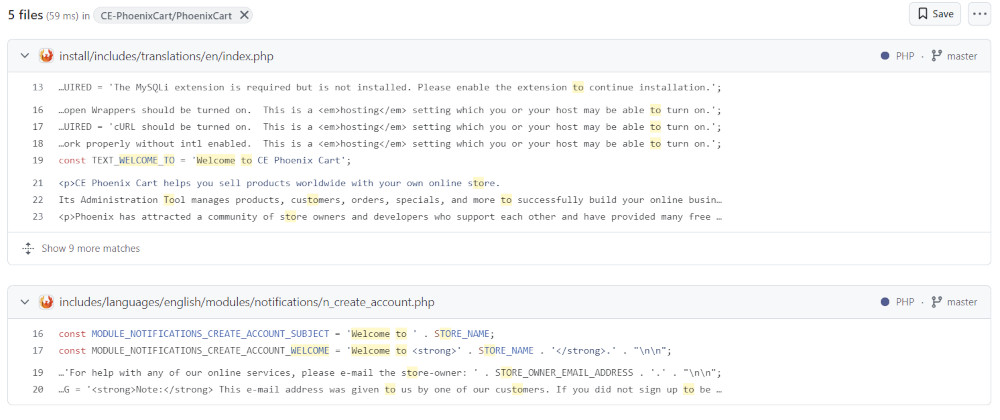
- A quick look at the results shows an obvious file:
- includes/languages/english/modules/notifications/n_create_account.php
- In a multi language store, the same file will also be in other language directories, for example, at: **includes/languages/otherLanguage/modules/notifications/n_create_account.php

Changes to any language file for the Store side are made to a copy which is saved in a new location in the override template.
This prevents them being overwritten in updates.
Changes to any language file for the Admin side are saved in the original location.
If making a change to an Admin side language file, backup that file before and after making changes to the file on the server.
- Making a change to a Store side language file:
- In your backup folder/directory go to the file includes/languages/english/modules/notifications/n_create_account.php
- Using your host server control panel or FTP software, upload a copy to templates/override/includes/languages/english/modules/notifications/
- New folders might need to be created in the template folder/directory to create this folder structure.
- Note that override is the default template. Ensure to upload to the template set in Configuration → My Store → Template Selection
- Check and test the changes in the store. Remember to refresh/reload the page to see changes.
- Open, edit and save the new file templates/override/includes/languages/english/modules/notifications/n_create_account.php
See:- How to Use a Template
Phoenix Cart User Guide, like CE Phoenix Cart, is free to use but is maintained by unpaid volunteers.
All other content is the reserved Intellectual Property and Copyright of phoenixcart.org
