Difference between revisions of "Change Logo"
From Phoenix Cart User Guide
PeterRobert (talk | contribs) |
PeterRobert (talk | contribs) |
||
| Line 1: | Line 1: | ||
| − | < | + | <div class="btn btn-grey btn-back">{{#fas:arrow-left}} Back</div> <div class="btn btn-grey btn-setup-shop">{{#fas:play-square}} Setup Shop</div> |
| − | < | ||
<hr> | <hr> | ||
Revision as of 05:56, 25 March 2021
Back
Setup Shop
- From admin go to
 Configuration → Store Logo - you will see this:
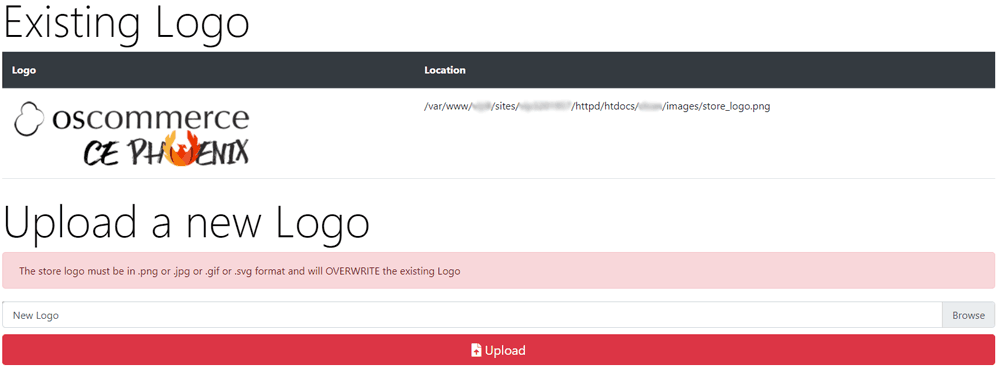
- Click Browse to choose your logo on your local computer.
- Click Upload - that's it!
It is also a good idea to add a Favicon to the shop - see Create a Favicon
Phoenix Cart User Guide, like CE Phoenix Cart, is free to use but is maintained by unpaid volunteers.
All other content is the reserved Intellectual Property and Copyright of phoenixcart.org
