Difference between revisions of "Set up Tax Zones"
From Phoenix Cart User Guide
PeterRobert (talk | contribs) |
PeterRobert (talk | contribs) |
||
| Line 1: | Line 1: | ||
| − | <div class="btn btn-grey btn-back">{{#fas:arrow-left}} Back</div> <div class="btn btn-grey btn-setup-shop">{{#fas:play-square}} | + | <div class="btn btn-grey btn-back">{{#fas:arrow-left}} Back</div> <div class="btn btn-grey btn-setup-shop">{{#fas:play-square}} [[Set_Up_Store|Set Up Store]]</div> |
<hr> | <hr> | ||
__TOC__ | __TOC__ | ||
Revision as of 08:28, 6 September 2024
Back
From admin go to  Localization/Taxes → Tax Zones - you will see this:
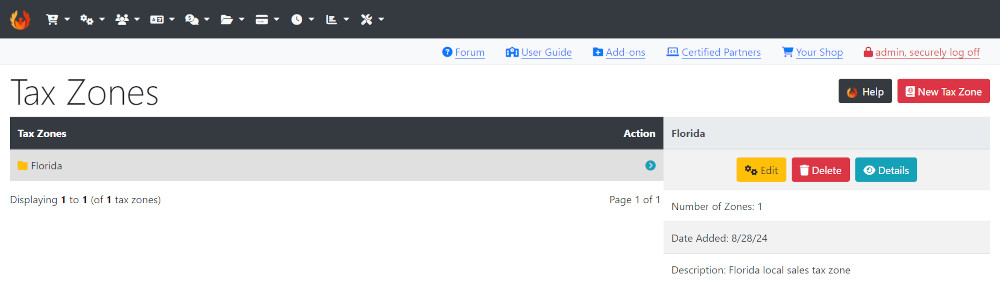
Tax Zones
Tax Zones are sometimes known as Geo Zones and are defined here so you can set up different tax rates, payment options and shipping options for each Tax Zone.
To explain using the default CE Phoenix Cart install as an example - the default store is located in Florida so only charges tax in Florida.
- A Tax Zone has been created and named Florida (it could be named anything)
- Open the Tax Zone (click the Folder icon) to see the Zones included in this Tax Zone.
- You will see Country = United States and Zone = Florida.
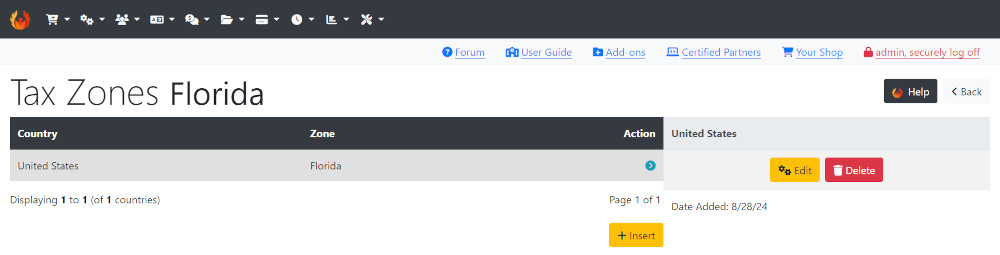
New Tax Zone
To explain, as an example, where the store only charges tax in its own country.
- Create a Tax Zone
- Click Insert
- Enter a Name (anything you want).
- Enter a Description (anything you want).
- Click Save
- Click the folder icon to open the new Tax Zone folder.
- Click Insert
- Select your country from the Country: drop down menu.
- Select All Zones from the Zones: drop down menu.
- Click Save
- This has now created a new Tax Zone where tax will be charged to all Zones (States or Provinces) within your country.
Many Addons and Extensions available in the CE Phoenix Cart Addons Library
If help is needed, support is available in the CE Phoenix Cart Support Forum
Phoenix Cart User Guide, like CE Phoenix Cart, is free to use but is maintained by unpaid volunteers.
All other content is the reserved Intellectual Property and Copyright of phoenixcart.org
