PhpMyAdmin
From Phoenix Cart User Guide
Revision as of 19:06, 27 October 2019 by PeterRobert (talk | contribs)
<historylink type="back">🠈 Back</historylink> 🠉 FAQS TIPS & TRICKS
- Different database software is run on different host servers but they will all operate in essentially the same way - one of the most common is phpMyAdmin.
- SQL (Structured Query Language) code or statements are used to communicate with the database.
- There is usually no requirement to access or edit the database but it may be necessary to restore a previously backed up database or run some SQL to set up new database entries and update some existing database entries as part of a Phoenix update or additional module installation.
- Ensure that you have made a database backup prior to running any SQL.
- Log in to the database through your host server account - they will provide instructions on how to do this.
- You will see this:
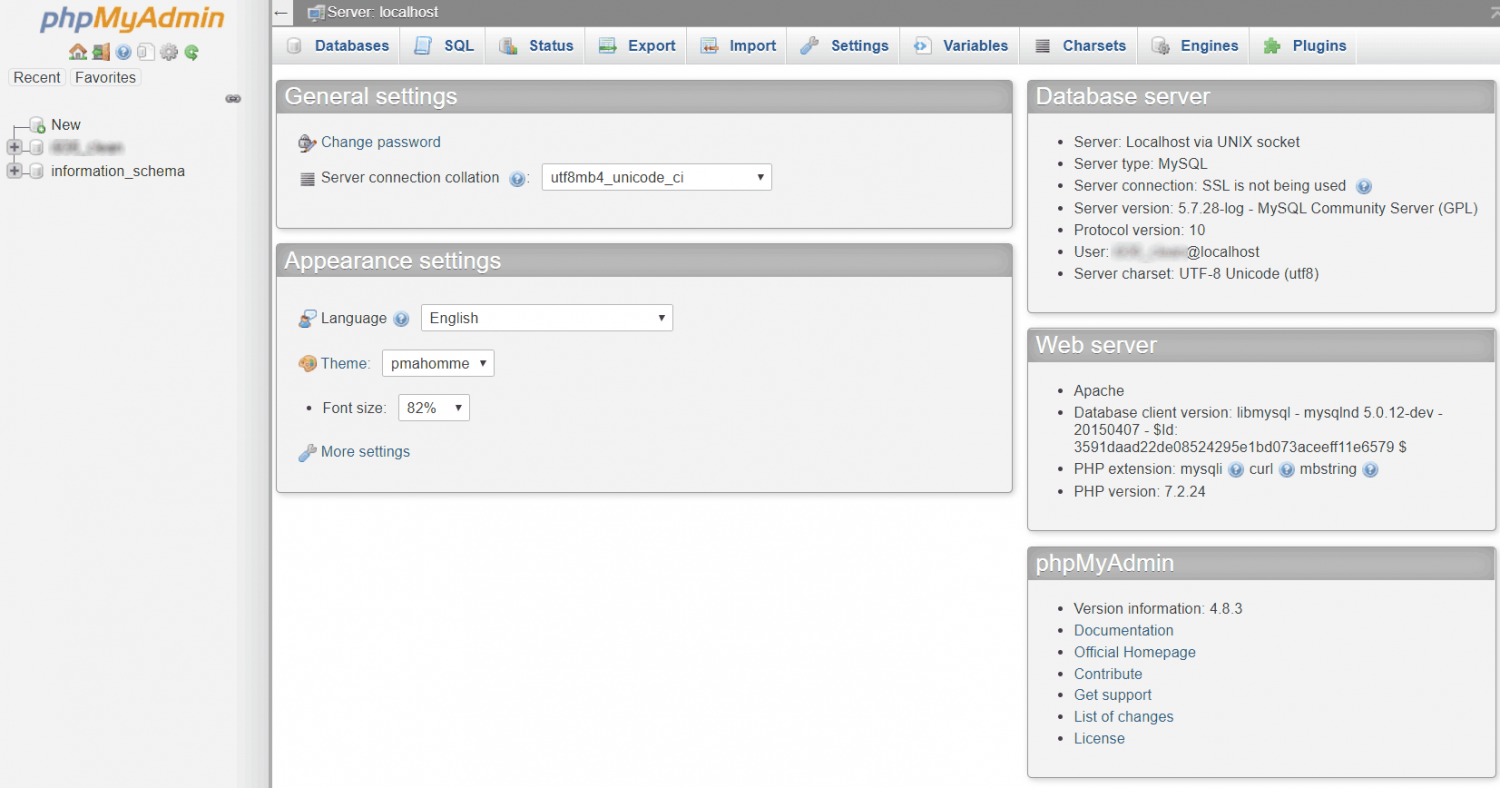
- To restore a complete database or install a SQL file:
- Click on the database name shown in the top left menu to see this:

- Click the Import tab in phpMyAdmin.
- Click Choose File
- Navigate to the SQL file
- Click Open to upload the file.
- Click Go in phpMyAdmin to run the SQL file.
- SQL can also be run as a single statement not contained in a file.
- It might look something like this:
UPDATE configuration SET sort_order = '310' WHERE configuration_key = 'VALUE';
- Click the SQL tab in phpMyAdmin.
- Paste (Ctrl+V on keyboard) the previously copied SQL statement into the input box.
- Click Go in phpMyAdmin to run the SQL statement.

Please visit again soon for additions and changes
Phoenix Cart User Guide, like CE Phoenix Cart, is free to use but is maintained by unpaid volunteers.
All other content is the reserved Intellectual Property and Copyright of phoenixcart.org
