How to Change Text
Text can be changed in a language file.
As an example here, the text shown in the e-mail notification that is sent to the customer automatically after registering on the website.
Often, the language file is associated with the module that uses it.
In this case, it is a notification module, so the language file will be found in /includes/languages/english/modules/notifications/, specifically, n_create_account.php
Sometimes it can be difficult to find which language file contains the text.
To find text in a language file, use the search facility in file editing software to search your backup folder/directory - see:- How to Back Up and Must Have Tools - or at Github, where the repository for the code for CE Phoenix Cart is stored - https://github.com/CE-PhoenixCart/PhoenixCart
So, using the CE Phoenix Cart Github Repository to search, the search box can be seen at the top of the page.

A test purchase should have been made and it will be seen that the e-mail to the customer starts with Welcome to
So, search for Welcome to and click on the results for Search in this repository.

Which gives a few results:
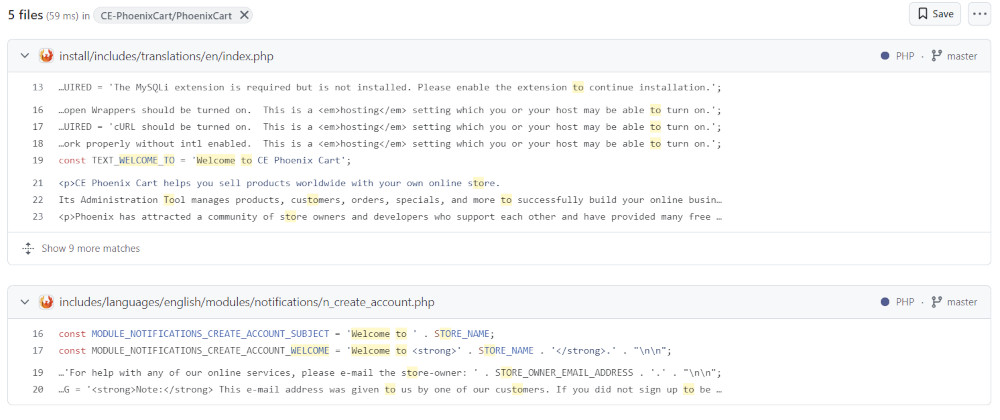
- A quick look at the results shows an obvious file:
- includes/languages/english/modules/notifications/n_create_account.php
- In a multi language store, the same file will also be in other language directories, for example, at:
- includes/languages/otherLanguage/modules/notifications/n_create_account.php
Open the language file to see the constants and their values:

The value will be output wherever the constant is used.
Note: Some language files might have the constants and values written slightly differently like:

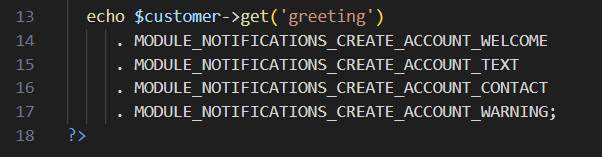
Open the module's template file, includes/modules/notifications/templates/tpl_n_create_account.php
This shows how the constants are used and how they will be output in the e-mail:
Changes to any language file for the Store side are made to a copy which is saved in a new location in the override template.
This prevents them being overwritten in updates.
Changes to any language file for the Admin side are saved in the original location.
If making a change to an Admin side language file, backup that file before and after making changes to the file on the server.
Making a change to a Store side language file (presuming using English):
- From the admin dashboard go to Tools > Language Explorer.
- Look in the list for english > modules > notifications, click the drop down arrow and see the language files associated with the modules.
- See n_create_account.php which is the language file associated with the module.
- Click it. This will copy the file to your template (which is override in a new install).
- Now a copy of that file will be at /templates/override/includes/languages/english/modules/notifications/n_create_account.php
- Open the new file /templates/override/includes/languages/english/modules/notifications/n_create_account.php
- Change the text as required.
- If you enter any more single quotes in your text, you must use a backslash before the single quote, for example, don\'t.
- Save, check and test the changes in the store. Remember to refresh/reload the page to see changes. Back up the file.
See:- How to Use a Template
Phoenix Cart User Guide, like CE Phoenix Cart, is free to use but is maintained by unpaid volunteers.
All other content is the reserved Intellectual Property and Copyright of phoenixcart.org
