Header Tags
From Phoenix Cart User Guide
Back
Administration
From admin go to  Modules → Header tags - you will see this:
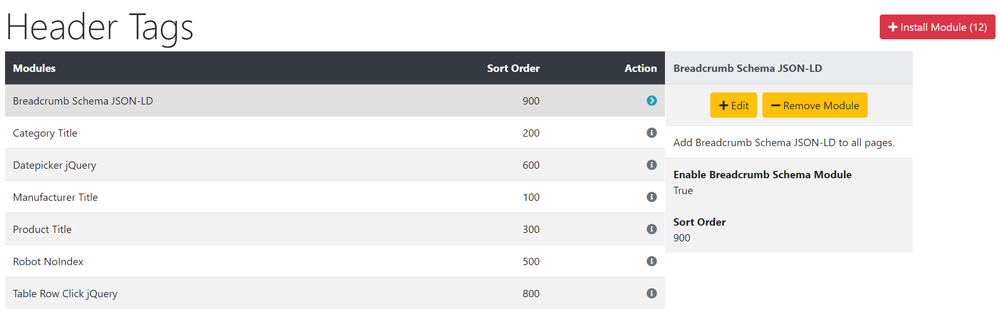
- Header Tag Modules are used to insert code into pages needed for specific functions and to enable easy communication of data to other platforms e.g. search engines, social media etc.
- This lists the Header Tag modules that are already installed by default.
- Category Title
- Adds the title of the current category to the page title that appears in the browser page tab at the top of the screen. This can be in addition to or override the entry in the category page.
- Datepicker jQuery
- This is the drop down calendar that appears to enable easy date input on shop pages - the specific pages can be set.
- Manufacturer Title
- Adds the title of the current manufacturer to the page title that appears in the browser page tab at the top of the screen. This can be in addition to or override the entry in the manufacturer page.
- Product Title
- Adds the title of the current product to the page title that appears in the browser page tab at the top of the screen. This can be in addition to or override the entry in the product page.
- Robot NoIndex
- This enables specific pages to be ignored by search engines - the specific pages can be set.
- Table Row Click jQuery
- This enables rows to be selected by clicking e.g. on the payment and delivery options in checkout - the specific pages can be set.
- Additional modules can be installed if desired - the Search Engine Optimisation modules are advisable.
- Breadcrumb Schema JSON-LD
- Helps search engines see exactly what is in the breadcrumb on a specific webpage to display these breadcrumbs in search results.
- Canonical Links
- Search engines can sometimes find duplicate webpage content - this helps prevent them listing it more than once.
- Category SEO
- This will enable the elements for SEO entered on the category pages to be seen by search engines.
- Manufacturer SEO
- This will enable the elements for SEO entered on the manufacturer pages to be seen by search engines.
- SEO - Pages
- This will enable the elements for SEO entered on all other pages than category, product and manufacturer to be seen by search engines.
- Product SEO
- This will enable the elements for SEO entered on the product pages to be seen by search engines.
- Product Open Graph Meta Tags
- Open Graph Meta Tags are snippets of text that communicate a page content with social media.
- Product Schema JSON-LD
- Helps search engines see data in the product e.g. the name, image and price to display in search results.
- To install any module:
- Click Install Module
- Click the module in the list to select it.
- Click Install Module
- Click Edit
- Enter a Sort Order value to order the display of the module in relation to the other modules.
- Do not leave 0 as the Sort Order on modules as it can cause problems.
- Click Save
Tip:
If you don't want to show a module, you can either disable (hide) it or remove (uninstall) it.
When playing with the design, it's a good option to disable it, as it saves the settings it has been given, meaning it will be exactly the same as it was if you choose to enable it again later.
However, this also means that it is loaded completely with every page, which in extreme circumstances might slow down your website
If you are sure you don't want to use a module, it is better to remove it than to hide it.

Please visit again soon for additions and changes
Phoenix Cart User Guide, like CE Phoenix Cart, is free to use but is maintained by unpaid volunteers.
All other content is the reserved Intellectual Property and Copyright of phoenixcart.org
