Difference between revisions of "Set up Shipping/Packaging"
PeterRobert (talk | contribs) |
PeterRobert (talk | contribs) |
||
| (35 intermediate revisions by the same user not shown) | |||
| Line 1: | Line 1: | ||
| − | < | + | <div class="btn btn-grey btn-back">{{#fas:arrow-left}} Back</div> <div class="btn btn-grey btn-setup-shop">{{#fas:play-square}} [[Set_Up_Store|Set Up Store]]</div> |
<hr> | <hr> | ||
| − | [[File:shippack. | + | __TOC__ |
| + | __FORCETOC__ | ||
| + | From admin go to [[File:adminnavbarconfig.png|link=]] '''Configuration → Shipping/Packaging''' - you will see this: | ||
| + | <div class="mainpage_box"> | ||
| + | [[File:shippack.jpg|link=|1500px]] | ||
| + | </div> | ||
| + | ==='''Shipping/Packaging'''=== | ||
| + | The options here will affect the shipping charges applied in checkout (set in the previous step, '''[[Set_up_Shipping_Options|Set up Shipping Options]]''') depending on your own business model and the charges set by your shipping provider, presuming your shipping charges are based on weight. | ||
| + | |||
| + | *To edit any item. | ||
| + | *Click the item in the list to select it. | ||
| + | *Click it again to open the edit panel. | ||
| + | *Change any values. | ||
| + | *Click <span class="btn-green">Save</span> | ||
| + | |||
| + | *'''Enter the Maximum Package Weight you will ship''' - the number is a ''weight unit'', whatever you choose to use throughout the shop e.g. pounds or kilograms. This option is set as required or set a high value if not required e.g. '''100000'''. Note, when using a Table Rate shipping method, if the order weight is greater than the maximum package weight, it breaks the order into multiple packages and charges shipping for each package. | ||
| + | *'''Package Tare Weight''' - this weight unit will be added to the weight of the products when calculating the shipping charge - set as required or set to 0 if not required. | ||
| + | *'''Larger packages - percentage increase''' - this will increase the shipping charge for order weights over Maximum Package Weight - set as required or set as 0 if not required. | ||
| + | *'''Allow Orders Not Matching Defined Shipping Zones''' - change to '''True''' if required for shipping modules to work (make a test purchase) but otherwise best left as default '''False''' to prevent orders to countries to which you do not ship (but better to remove those countries from the countries installed - see <big>'''[[Countries]]'''</big>). | ||
| + | |||
| + | Whichever of the values is larger of Package Tare Weight or Larger Packages will be added to the weight of products in the order. | ||
| + | |||
| + | Using the default values to give an example of how this works: Maximum Package Weight = 50, Package Tare Weight = 3, Larger packages - percentage increase = 10. | ||
| + | |||
| + | If the weight of products in order = 10, then shipping weight will be product weight(10) + tare weight(3) = 13 | ||
| + | |||
| + | If the weight of products in order = 100, then shipping weight will be product weight(100) + percentage increase(10%) = 110 | ||
| + | |||
| + | |||
| + | <hr> | ||
| + | <span class="btn-grey btn-prev">{{#fas:arrow-left}} [[Set_up_Shipping_Options|Previous Step]]</span> | ||
| + | <span class="btn-grey btn-next">[[Set_up_Payment_Options|Next Step]] {{#fas:arrow-right}}</span> | ||
<hr> | <hr> | ||
| − | + | {{Pro}} | |
| − | + | {{Forum}} | |
| + | {{Contribute}} | ||
Latest revision as of 08:29, 6 September 2024
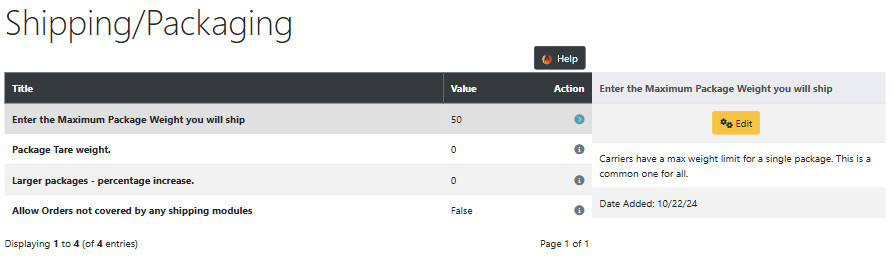
From admin go to  Configuration → Shipping/Packaging - you will see this:
Shipping/Packaging
The options here will affect the shipping charges applied in checkout (set in the previous step, Set up Shipping Options) depending on your own business model and the charges set by your shipping provider, presuming your shipping charges are based on weight.
- To edit any item.
- Click the item in the list to select it.
- Click it again to open the edit panel.
- Change any values.
- Click Save
- Enter the Maximum Package Weight you will ship - the number is a weight unit, whatever you choose to use throughout the shop e.g. pounds or kilograms. This option is set as required or set a high value if not required e.g. 100000. Note, when using a Table Rate shipping method, if the order weight is greater than the maximum package weight, it breaks the order into multiple packages and charges shipping for each package.
- Package Tare Weight - this weight unit will be added to the weight of the products when calculating the shipping charge - set as required or set to 0 if not required.
- Larger packages - percentage increase - this will increase the shipping charge for order weights over Maximum Package Weight - set as required or set as 0 if not required.
- Allow Orders Not Matching Defined Shipping Zones - change to True if required for shipping modules to work (make a test purchase) but otherwise best left as default False to prevent orders to countries to which you do not ship (but better to remove those countries from the countries installed - see Countries).
Whichever of the values is larger of Package Tare Weight or Larger Packages will be added to the weight of products in the order.
Using the default values to give an example of how this works: Maximum Package Weight = 50, Package Tare Weight = 3, Larger packages - percentage increase = 10.
If the weight of products in order = 10, then shipping weight will be product weight(10) + tare weight(3) = 13
If the weight of products in order = 100, then shipping weight will be product weight(100) + percentage increase(10%) = 110
Many Addons and Extensions available in the CE Phoenix Cart Addons Library
If help is needed, support is available in the CE Phoenix Cart Support Forum
Phoenix Cart User Guide, like CE Phoenix Cart, is free to use but is maintained by unpaid volunteers.
All other content is the reserved Intellectual Property and Copyright of phoenixcart.org
