Difference between revisions of "Set up Shipping Options"
From Phoenix Cart User Guide
PeterRobert (talk | contribs) |
PeterRobert (talk | contribs) |
||
| Line 5: | Line 5: | ||
From admin go to [[File:adminnavbarmod.png|link=]] '''Modules → Shipping''' - you will see this: | From admin go to [[File:adminnavbarmod.png|link=]] '''Modules → Shipping''' - you will see this: | ||
<div class="mainpage_box"> | <div class="mainpage_box"> | ||
| − | [[File:shipping. | + | [[File:shipping.jpg|link=|1500px]] |
</div> | </div> | ||
==='''Flat Rate'''=== | ==='''Flat Rate'''=== | ||
| Line 21: | Line 21: | ||
---- | ---- | ||
| − | + | ==='''Per Item'''=== | |
| − | + | There are 3 alternative Shipping modules. | |
| − | + | '''Per Item''' module simply charges a set charge for every item in the customers cart. | |
| − | |||
**Click <span class="btn-red">Install Module</span> | **Click <span class="btn-red">Install Module</span> | ||
**Click '''Per Item''' to select the module. | **Click '''Per Item''' to select the module. | ||
| Line 30: | Line 29: | ||
**Click <span class="btn-yellow">Edit</span> to see this: | **Click <span class="btn-yellow">Edit</span> to see this: | ||
<div class="mainpage_box"> | <div class="mainpage_box"> | ||
| − | [[File:shippingitem. | + | [[File:shippingitem.jpg|link=|1500px]] |
</div> | </div> | ||
**Follow the instructions in the module. | **Follow the instructions in the module. | ||
| Line 37: | Line 36: | ||
---- | ---- | ||
| − | + | ==='''Table Rate'''=== | |
| − | |||
*If a scale of shipping charges is required, install '''Table Rate''' module. | *If a scale of shipping charges is required, install '''Table Rate''' module. | ||
**This allows a scale of charges according to the either the total weight or total value of the order. | **This allows a scale of charges according to the either the total weight or total value of the order. | ||
| Line 46: | Line 44: | ||
**Click <span class="btn-yellow">Edit</span> to see this: | **Click <span class="btn-yellow">Edit</span> to see this: | ||
<div class="mainpage_box"> | <div class="mainpage_box"> | ||
| − | [[File:shippingtable. | + | [[File:shippingtable.jpg|link=|1500px]] |
</div> | </div> | ||
**Follow the instructions in the module. | **Follow the instructions in the module. | ||
| Line 53: | Line 51: | ||
---- | ---- | ||
| − | + | ==='''Zone Rates'''=== | |
| − | |||
*If different shipping charges for other countries is required, install '''Zone Rates''' module. | *If different shipping charges for other countries is required, install '''Zone Rates''' module. | ||
**This allows a scale of charges according to the total weight of the order to the countries specified. | **This allows a scale of charges according to the total weight of the order to the countries specified. | ||
| Line 63: | Line 60: | ||
**Click <span class="btn-yellow">Edit</span> to see this: | **Click <span class="btn-yellow">Edit</span> to see this: | ||
<div class="mainpage_box"> | <div class="mainpage_box"> | ||
| − | [[File:shippingzone. | + | [[File:shippingzone.jpg|link=|1500px]] |
</div> | </div> | ||
**Follow the instructions in the module. | **Follow the instructions in the module. | ||
| Line 72: | Line 69: | ||
| − | There are more Shipping Addons in the Addons Library here; | + | There are more Shipping Addons available in the Addons Library here; |
'''https://phoenixcart.org/forum/app.php/addons/free/shipping-18''' | '''https://phoenixcart.org/forum/app.php/addons/free/shipping-18''' | ||
Revision as of 08:00, 3 September 2024
Back
Setup Shop
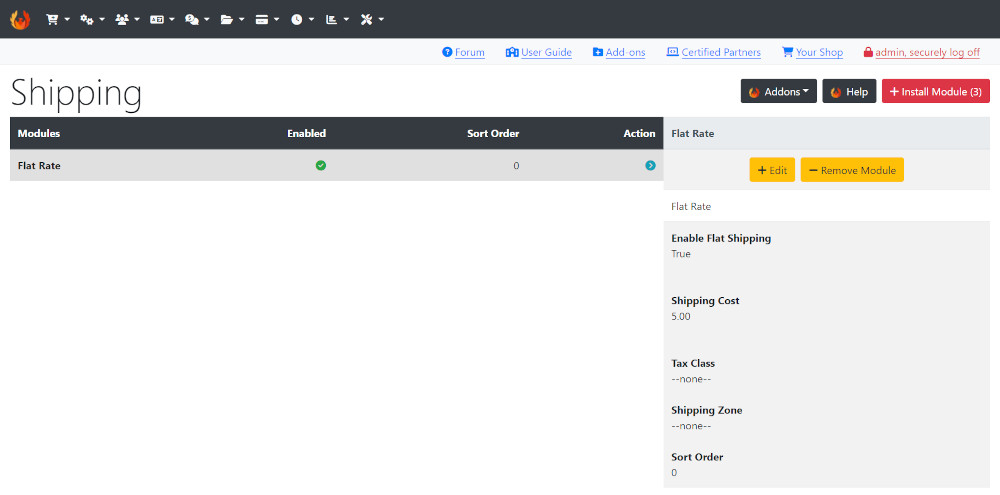
From admin go to  Modules → Shipping - you will see this:
Flat Rate
Flat Rate module is installed by default.
- To edit the module, click on the module in the list to select it.
- Click it again to open the edit panel.
- Leave Enable Flat Shipping set to True if you wish to keep it.
- Disable by setting to False if required or click on the item in the list and click Remove Module to remove/uninstall it if required.
- Change the value for Shipping Cost as required.
- Choose your Tax Class from the drop down list below Tax Class to charge your Tax Rate on the shipping cost otherwise leave as --none--
- Apply this shipping module to a specific Tax Zone by choosing it in the drop down menu below Shipping Zone or leave as --none-- to apply the shipping cost to all Tax Zones.
- Enter a Sort Order value. Do not leave 0 as the Sort Order on modules as it can cause problems. You can give it any number, in this case enter 10 so if you decide to install another module it leaves the option of entering a lesser value for the next if required.
Per Item
There are 3 alternative Shipping modules. Per Item module simply charges a set charge for every item in the customers cart.
- Click Install Module
- Click Per Item to select the module.
- Click Install Module
- Click Edit to see this:
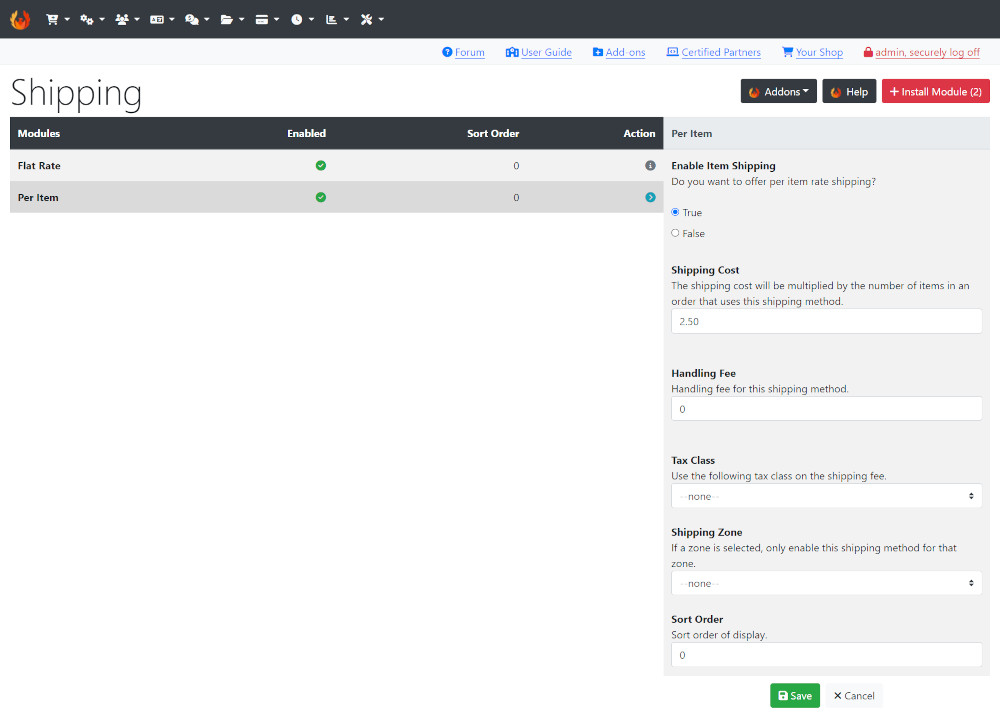
- Follow the instructions in the module.
- Click Save
Table Rate
- If a scale of shipping charges is required, install Table Rate module.
- This allows a scale of charges according to the either the total weight or total value of the order.
- Click Install Module
- Click Table Rate to select the module.
- Click Install Module
- Click Edit to see this:
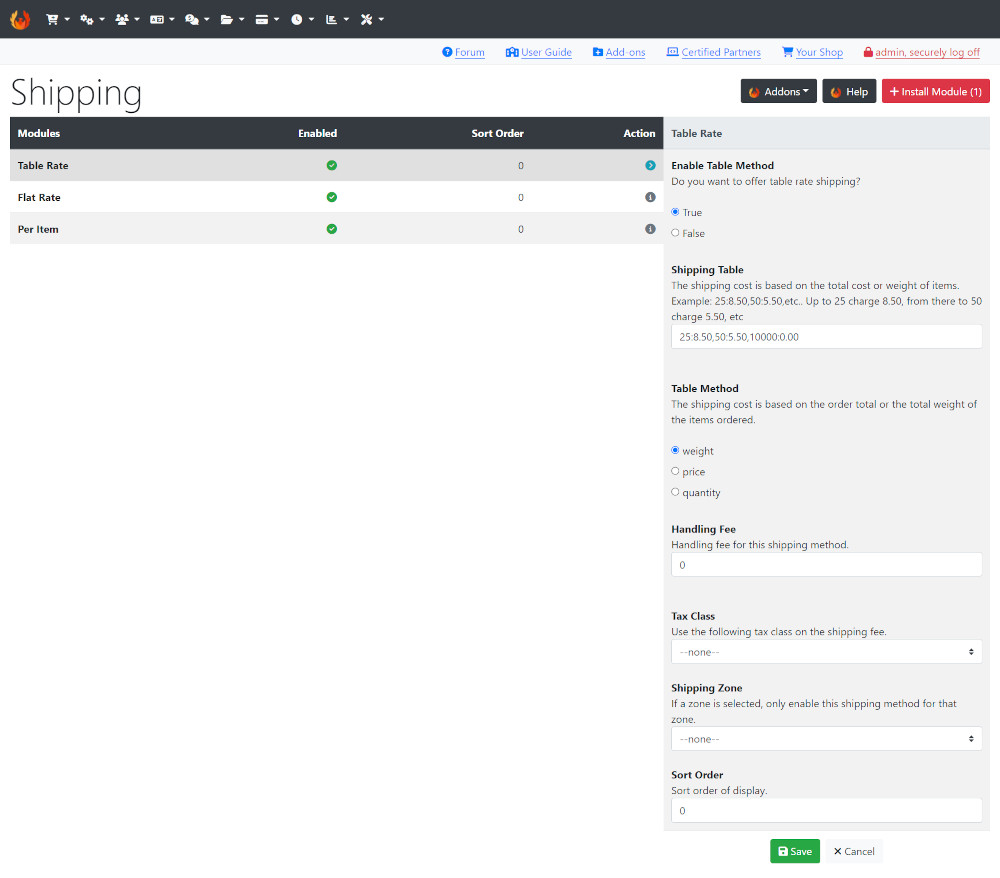
- Follow the instructions in the module.
- Click Save
Zone Rates
- If different shipping charges for other countries is required, install Zone Rates module.
- This allows a scale of charges according to the total weight of the order to the countries specified.
- Note: there are additional instructions for the configuration of this module in the file itself - open includes/modules/shipping/zones.php to read them before installing.
- Click Install Module
- Click Zone Rates to select the module.
- Click Install Module
- Click Edit to see this:
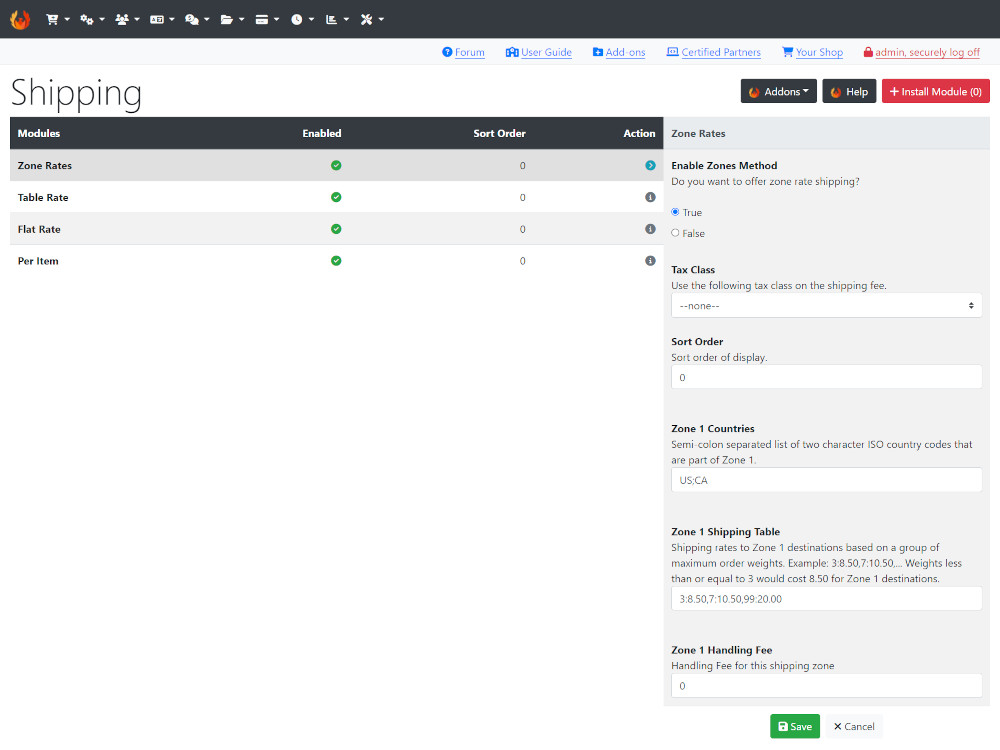
- Follow the instructions in the module.
- Click Save
There are more Shipping Addons available in the Addons Library here;
https://phoenixcart.org/forum/app.php/addons/free/shipping-18
https://phoenixcart.org/forum/app.php/addons/commercial/shipping-24
Many Addons and Extensions available in the CE Phoenix Cart Addons Library
If help is needed, support is available in the CE Phoenix Cart Support Forum
Phoenix Cart User Guide, like CE Phoenix Cart, is free to use but is maintained by unpaid volunteers.
All other content is the reserved Intellectual Property and Copyright of phoenixcart.org
