Set up Product Options and Attributes
From Phoenix Cart User Guide
Back
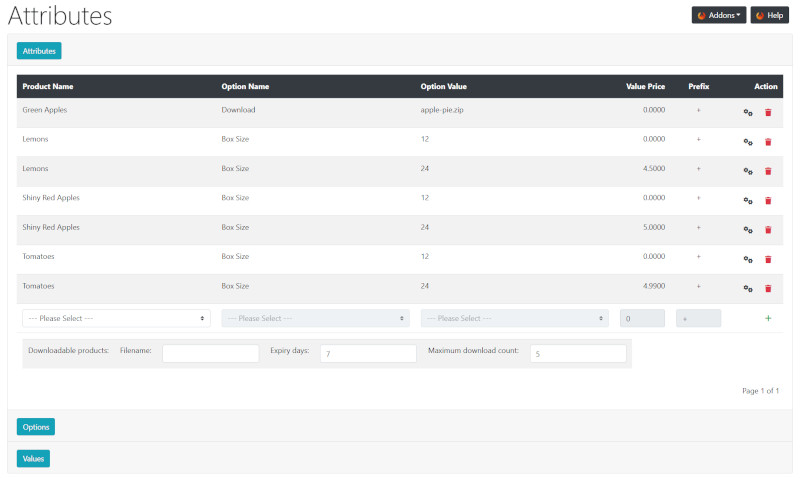
From admin go to  Catalog → Products Attributes - you will see this:
Attributes
This assigns existing Options to Products:
- Click Attributes to open the panel.
- Choose a Product Name from the pull down menu.
- Choose an Option Name from the pull down menu.
- Choose an Option Value from the pull down menu.
- Enter a net price adjustment in the Value Price input box if required.
- Enter a + or - prefix in the Prefix input box to add or subtract the price adjustment from the product price.
- Click + to insert.
- Repeat for additional Options as required for each product.
Downloads
There is a download sample set as an example. Also see Download
After the digital file has been uploaded to the server:
- Assign an existing download Option to Product:
- Choose a Product Name from the pull down menu.
- Choose an Option Name from the pull down menu. This might be, for example, Download or as set in Options as required.
- Choose an Option Value from the pull down menu. This might be, for example, PDF File, ZIP File or as set in Values as required.
- Enter a net price adjustment in the Value Price input box if required.
- Enter a + or - prefix in the Prefix input box to add or subtract the price adjustment from the product price.
- Enter the EXACT file name of the zipped folder, including the file extension e.g. .zip or .pdf in the Filename: input box.
- Change Expiry days: and Maximum download count: from the default if required.
- Click + to insert.
Options
This creates new Options
- Click Options to open the panel.
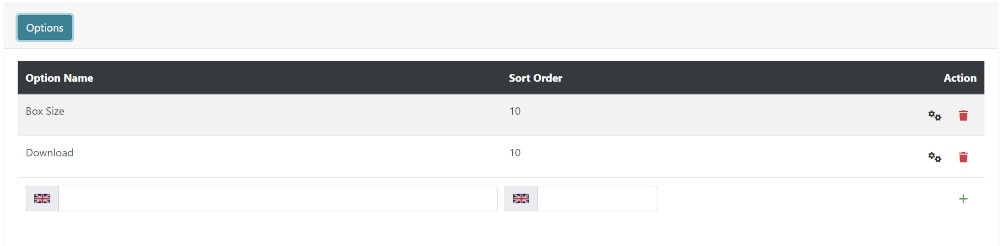
- Enter a new Option Name in the input box next to the language flag.
- Enter a Sort Order. The Options will be listed in that order in the module on the product page.
- Click + to insert.
Values
This creates new Values for each Option
- Click Values to open the panel.
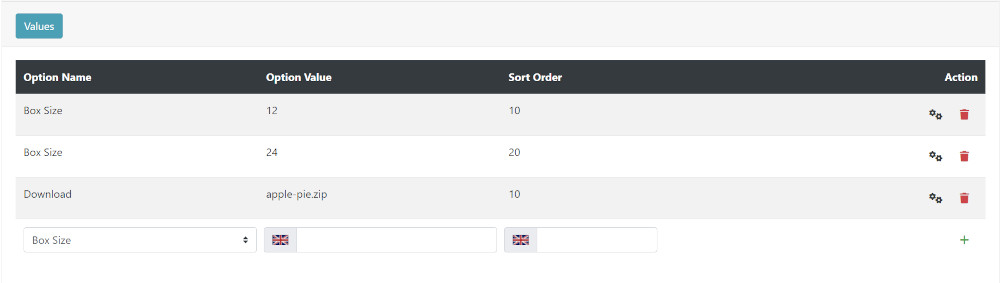
- Choose an Option Name from the pull down menu.
- Enter an Option Value in the input box next to the language flag.
- Enter a Sort Order. The Values will be listed in that order in the module on the product page.
- Click + to insert.
- Repeat to assign additional Option Values to Option Names.
Many Addons and Extensions available in the CE Phoenix Cart Addons Library
If help is needed, support is available in the CE Phoenix Cart Support Forum
Phoenix Cart User Guide, like CE Phoenix Cart, is free to use but is maintained by unpaid volunteers.
All other content is the reserved Intellectual Property and Copyright of phoenixcart.org
