Difference between revisions of "Set up Products"
From Phoenix Cart User Guide
PeterRobert (talk | contribs) |
PeterRobert (talk | contribs) |
||
| Line 66: | Line 66: | ||
*'''Main Image:''' | *'''Main Image:''' | ||
**Click <span class="btn-grey>Browse</span> to choose and upload an image from your computer. | **Click <span class="btn-grey>Browse</span> to choose and upload an image from your computer. | ||
| + | *'''Gallery Images''' | ||
**Click <span class="btn-info">Add New Gallery Image</span> to enter more images if you require more than one. | **Click <span class="btn-info">Add New Gallery Image</span> to enter more images if you require more than one. | ||
**Click <span class="btn-grey>Browse</span> to choose and upload an additional image from your computer. | **Click <span class="btn-grey>Browse</span> to choose and upload an additional image from your computer. | ||
| − | **It is advisable to use a system for naming image files e.g. so the names relate to the product, names are not duplicated and | + | **It is advisable to use a system for naming image files e.g. so the names relate to the product, names are not duplicated and you can identify them. |
**Input text or HTML to the '''HTML Content''' box to add a caption to the additional images. | **Input text or HTML to the '''HTML Content''' box to add a caption to the additional images. | ||
**If more than one additional image is added, click on the vertical double arrow icon to drag and drop images to change their order of display if required. | **If more than one additional image is added, click on the vertical double arrow icon to drag and drop images to change their order of display if required. | ||
| Line 88: | Line 89: | ||
---- | ---- | ||
| + | |||
==='''Digital Products'''=== | ==='''Digital Products'''=== | ||
Revision as of 16:56, 4 September 2024
Back
Setup Shop
- From admin go to
 Catalog → Categories/Products
Add Product
- Click on a category in the list to select it.
- Click on it again to open it.
- Click New Product and you will see this (it is split into 3 tabbed sections):
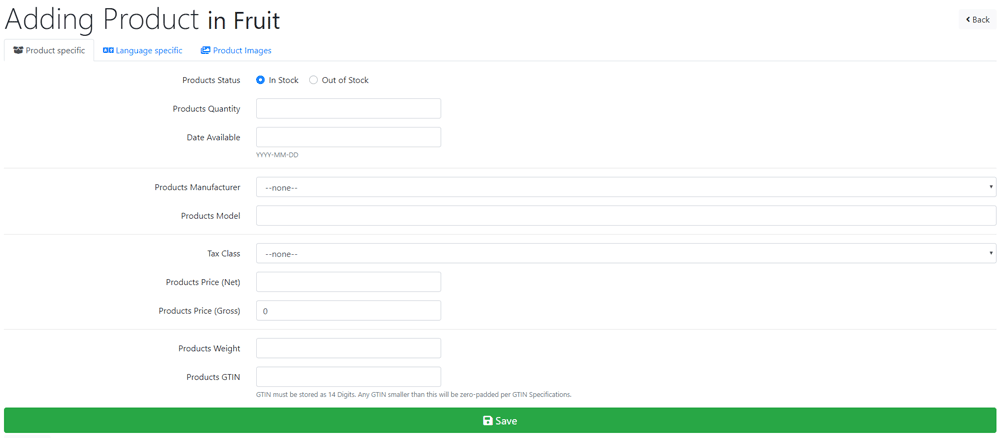
Product specific
- Product Status:
- This can be changed to hide the product in the shop - note that if customers cannot see it neither will the internet search engines.
- Date Available:
- If you are out of stock, enter a date here using the drop down date picker.
- Products Manufacturer:
- If you require products to be assigned a manufacturer go to Catalog → Manufacturers first to enter manufacturers names.
- Tax Class:
- Choose a tax class from the drop down menu.
- Products Price (Net):
- Enter a tax exclusive (net) price here and the tax inclusive (gross) price will automatically show.
- Products Price (Gross):
- Enter a tax inclusive (gross) price here and the tax exclusive (net) price will automatically show.
- Products Quantity:
- Enter a stock quantity on hand.
- Products Model:
- Enter a model number if you require, it can be used for any identifier you want - the Model Number module Modules → Content needs to be installed for this to show on product page.
- Products Weight:
- Enter a weight value for calculating the shipping cost.
- Products GTIN:
- Enter a GTIN if required.
- The GTIN module Modules → Content needs to be installed for this to show on product page.
Language specific
- Click Language specific tab and you will see this

- Products Name:
- Enter your product name.
- Products Description:
- Enter your product description - be as detailed as you require. Text can be styled how you wish by using HTML markup. At its simplest, to create a paragraph with a line break, enclose your text with <p> </p> e.g. <p>your text.</p> or to create a line break type <br> e.g. your text.<br>
- Read more about HTML here - Simple HTML to Format Text
- Products URL:
- Enter a web site address if required e.g. for the manufacturer.
- A 3rd Party Addon needs to be installed for this to show on product page.
- Products Title for SEO:
- Phoenix will show the Products Model in the breadcrumb by default - enter the Products Name here if you wish that to show there instead.
- Product Meta Description for SEO:
- Think of this as a short description of less than 30 words. This will show on product listings in your shop and search engine results pages (SERPs).
- Product Keywords
- The keywords can be thought of as what a person would type into the website search box to find your product.
Product images
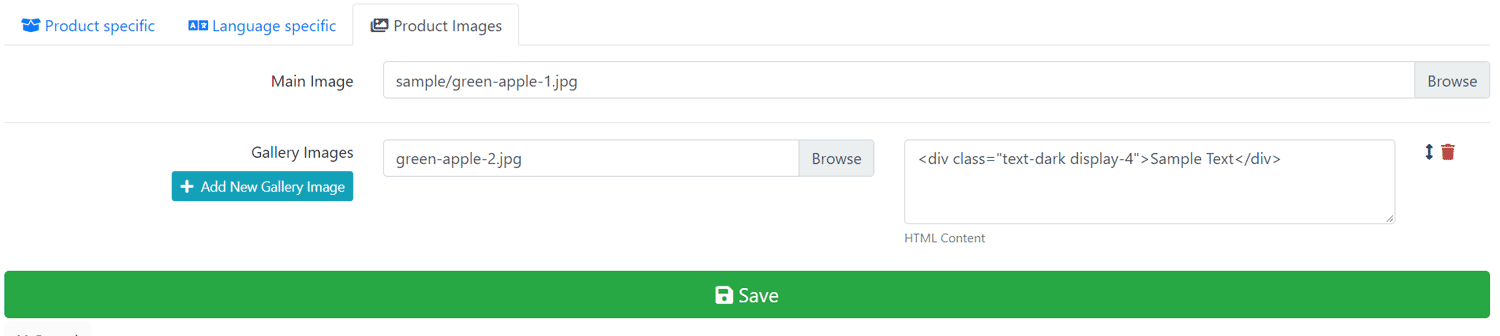
- Click Product images tab and you will see this

- Main Image:
- Click Browse to choose and upload an image from your computer.
- Gallery Images
- Click Add New Gallery Image to enter more images if you require more than one.
- Click Browse to choose and upload an additional image from your computer.
- It is advisable to use a system for naming image files e.g. so the names relate to the product, names are not duplicated and you can identify them.
- Input text or HTML to the HTML Content box to add a caption to the additional images.
- If more than one additional image is added, click on the vertical double arrow icon to drag and drop images to change their order of display if required.
- Click the Red Trash Icon to delete any additional image.
- Click Save
With the example inputs shown above, when the product image is clicked on the product page in the shop, a sliding carousel that will cycle through all the images will pop up like this:

Digital Products
If digital downloads are being sold - see Download
Read more about Search Engine Optimisation here - Search Engine Optimisation
Many Addons and Extensions available in the CE Phoenix Cart Addons Library
If help is needed, support is available in the CE Phoenix Cart Support Forum
Phoenix Cart User Guide, like CE Phoenix Cart, is free to use but is maintained by unpaid volunteers.
All other content is the reserved Intellectual Property and Copyright of phoenixcart.org
